14. Effects 269
Using Effect Tables
Listed below are examples of combinations of effects tables in use:
Circular Motion: A Sine table is applied to pan and tilt, with tilt given an Offset of 90
degrees.
Square Motion: A Sawtooth table is applied to pan and tilt, with tilt given an Offset of
90 degrees.
Can-Can Motion: A Step table is applied to pan, a Sine table is applied to tilt.
Fly In Motion: A Step table is applied to pan, a Ramp table is applied to tilt.
Blue Step Colour Effect: A Mark On table is applied to cyan and magenta.
Iris Chase: A Sawtooth table is applied to the iris.
Tip: You can create many of these useful combinations of tables using the predefined
effects palettes; see Predefined Effect Palettes.
14.1.2 Table Effect Attributes
The appearance of the effect table through a combination of adjustments to its attributes:
rate, beats, size, offset, begin, end, start, length, direction, bounce, and N-shot.
Rate
The effect rate controls the speed of the effect in cycles per minute assuming the master rate
is set to 100% rate.
Adjusting an effect's rate will increase or decrease the number of cycles it completes per
minute. When combining effects, you can use the rate attribute to build a specific look. For
example, if you create an effect where a fixture performs a circular motion fading in on the
first circuit, out on the second, then the effect on the intensity parameter would need to be
half of the rate on the position parameters.
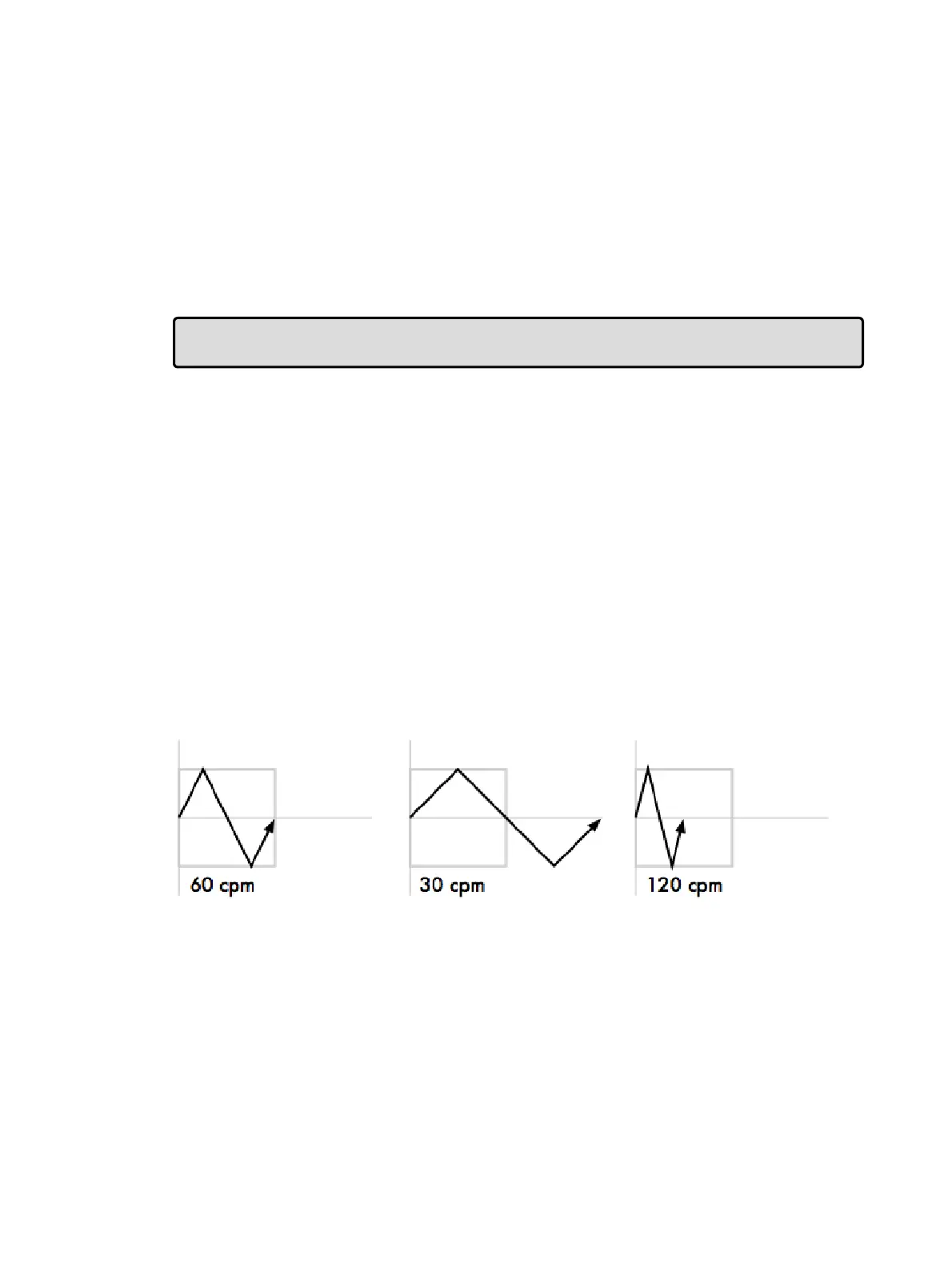
.The following diagram shows how the value of a parameter assigned to the sawtooth table
changes over time, with different rate values:
Beats
The beats parameter of an effect represents how many beats it takes to complete the effect
cycle. The beats parameter is only meaningful when programming effects into masters where
effect tempo is used. A larger beat value results in fewer effect cycles at a given tempo
whereas a smaller beat value results in more effect cycles at the same given tempo. An
effect programmed with a beat value of 1 will playback at the exact same rate as established
by the master's effect tempo. For more information on using effect tempo and effect tap
tempo please refer to Adjusting Effect Tempo of a Master with Tap Tempo











 To Next Page