272 Hog 4 Operations Manual
Bounce
When bounce is enabled for an effect the fixture function will run one direction through the
effect cycle and then reverse direction to run through the cycle in the opposite direction and
will continue to alternate the direction in which it runs through the cycle.
Direction
The direction of an effect determines whether the selected wave table will be applied to the
function in a forward or reverse direction.
Sync
Allows users to synchronize the timing of effects across fixtures and/or across parameters
within and throughout different playbacks. For example, using the global sync option for all
effects in a show will ensure that the effects in the show will always look the same no matter
how or when its cues / scenes are played back.
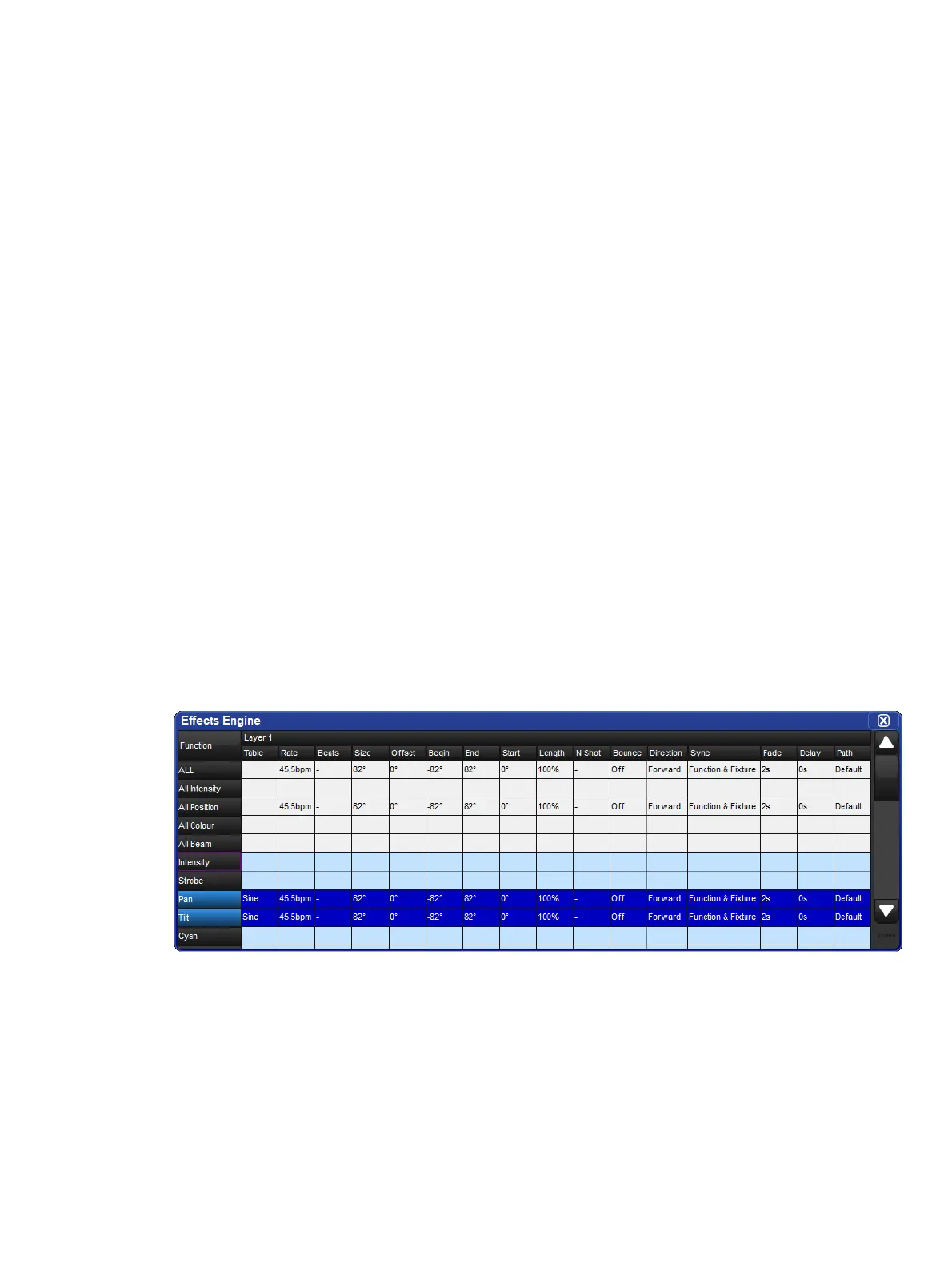
14.1.3 Building Table Effects in the Effects Engine
To apply an effect:
In the Programmer or editor, select the required fixtures and assign their base parameter
values. These settings will be the ‘underlying’ state for the effect: for example, the center
position of a fixture doing a circular movement effect. Equally, an intensity ripple between 0-
100% will need a base value of 50% in order to use the full length of the effect.
Open + Effect : the Effects En gine and Effect Directory will open.
In the Effects Engine, select the Table cells for the fixture parameters that you want to apply
the effect to.
Press Set, choose the effect table from the menu and press Enter.











 To Next Page