274 Hog 4 Operations Manual
14.1.4 Building Table Effects in Editors
Effects can be assigned directly to specific fixtures and their attributes in any editor including
the Programmer. This is helpful when you wish to make small changes without opening the
Effects Engine. Effect types are assigned and edited in the Table view, whilst effect
attributes can be adjusted in the Size, Rate , Offset, L en gth, Ta ble and N Shot views.
The views are selected by buttons at the top of the Programmer or editor window.
For example, to create an offset circle effect using fixtures in positions from the current
onstage look:
1. Main Toolbar → Programmer : open the Programmer.
2. 1 Thru 5 Po sitio n Suck : sucks position information from fixtures 1 through 5 that
are currently live on stage.
3. Table : select the Table view in the Programmer; the pan and tilt column will read
[Off].
4. Select all pan and tilt cells of the selected fixtures by clicking and dragging.
5. Set → Sin e, En ter : choose the Sine table from the drop-down menu and confirm by
pressing Enter.
6. Select O ffset : select the Offset view in the Programmer; the pan and tilt column will
read [0-Deg].
7. Select all pan and tilt cells of the selected fixtures by clicking and dragging.
8. Set 1 Thru 2 8 8 Enter : offset pan and tilt equally across the fixtures.
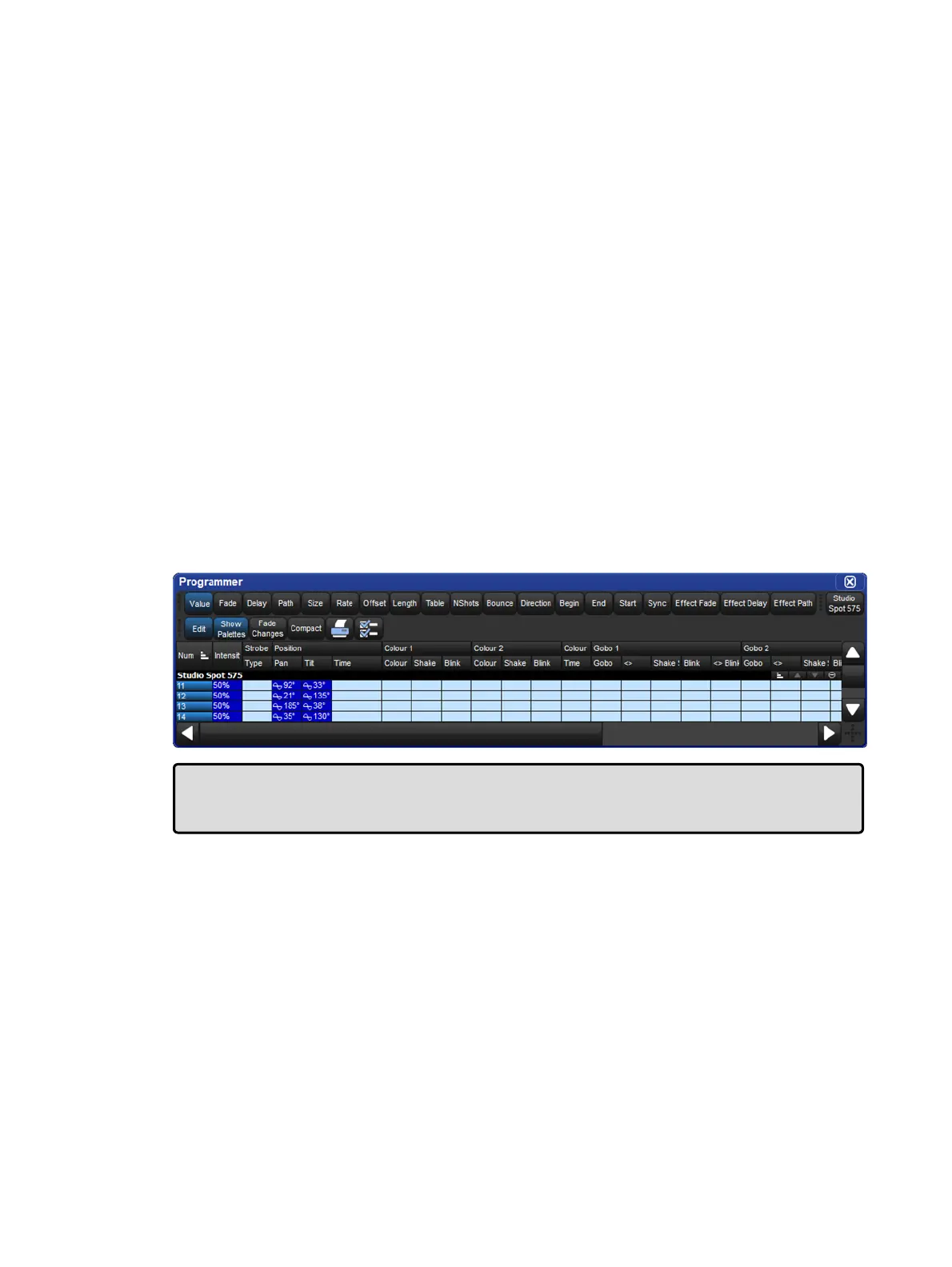
Once you have applied an effect to a parameter, it will appear in the Value view of the
Programmer or editor with the effects symbol next to the value:
Tip: When assigning effect parameters such as Offset, remember that values 0 and 360
Degrees are the same. Fanning a range of fixtures from 0 through to 360 degrees of offset
will mean that the first and last fixtures will share the same offset value.











 To Next Page