20. Plots 367
20.3.4 Show Items
Show items such as lists, scenes, and views can be added plots and are displayed similar to
how they are shown in their native directory window. Once a show item is added to a plot it
can be executed in the plot by pressing on it. If the pig key is held when a show item is
pressed in the plot window then the show item will not execute but rather token its name onto
the command line allowing for even more complex operations (similar to guard in the directory
window).
To add a show item to a plot:
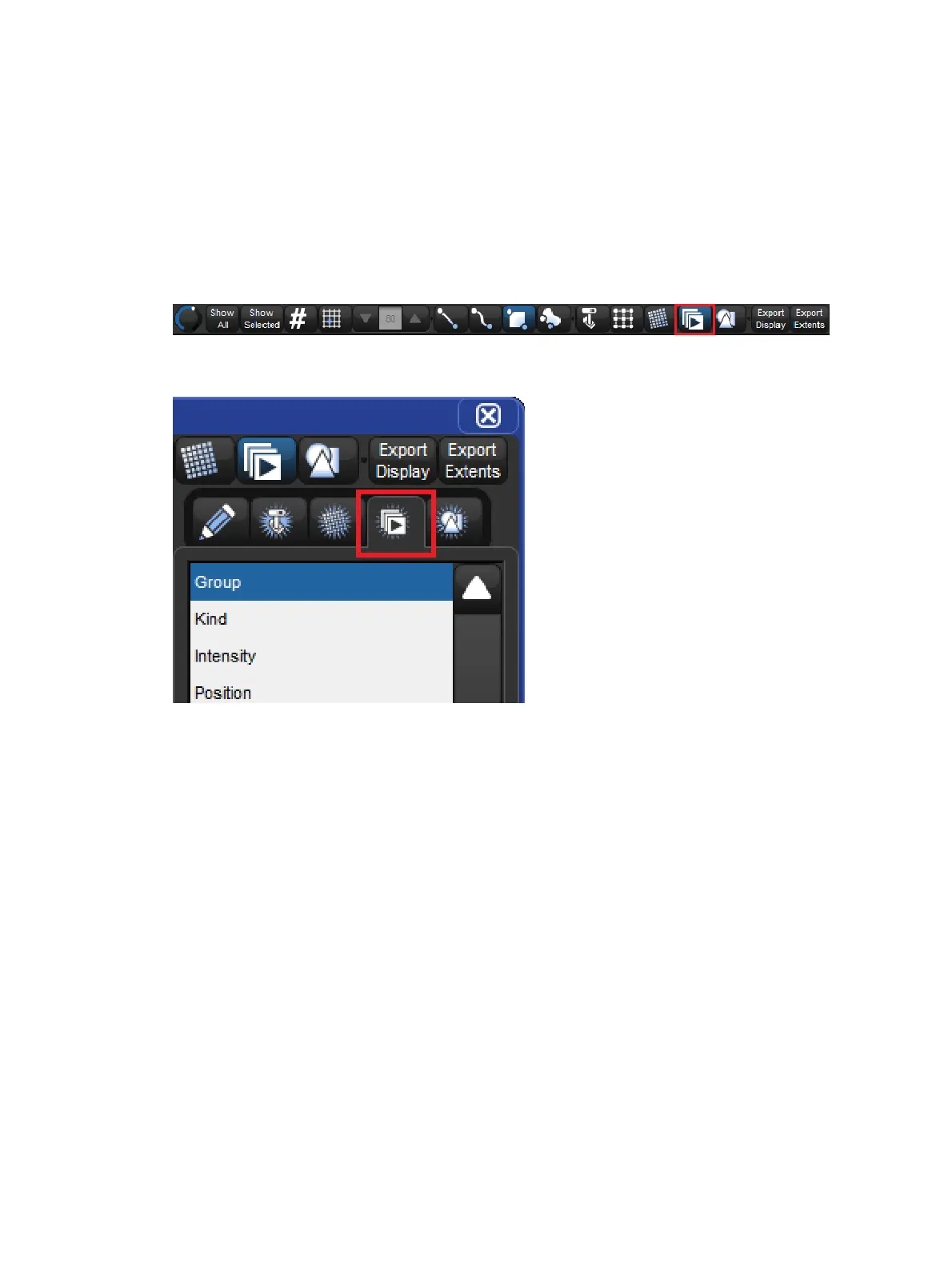
1. Enable the show item edit button at the top of the plot window.
2. Click on the add show item tab of the properties pane located on the right side of the
plot window.
3. Use the dropdown menus to pick the show item you wish to add to the plot.
4. Touch (or left click) and drag across the plot window to draw the show item into the
plot.
To remove a show item from the plot window:
1. Enable the show item edit button at the top of the plot window.
2. Select the show item you wish to delete.
3. Press the De lete button in the properties pane located on the right side of the plot
window.
To edit a show item (change its properties):
1. Enable the show item edit button at the top of the plot window.
2. Select the show item you wish to edit.
3. Use the properties pane located on the right side of the plot window to adjust the show
item's position, size, rotation, and the actual show item it is linked to.











 To Next Page