v 2.0 — March 2023 Altanium Delta5
126 Remote Service Assistance
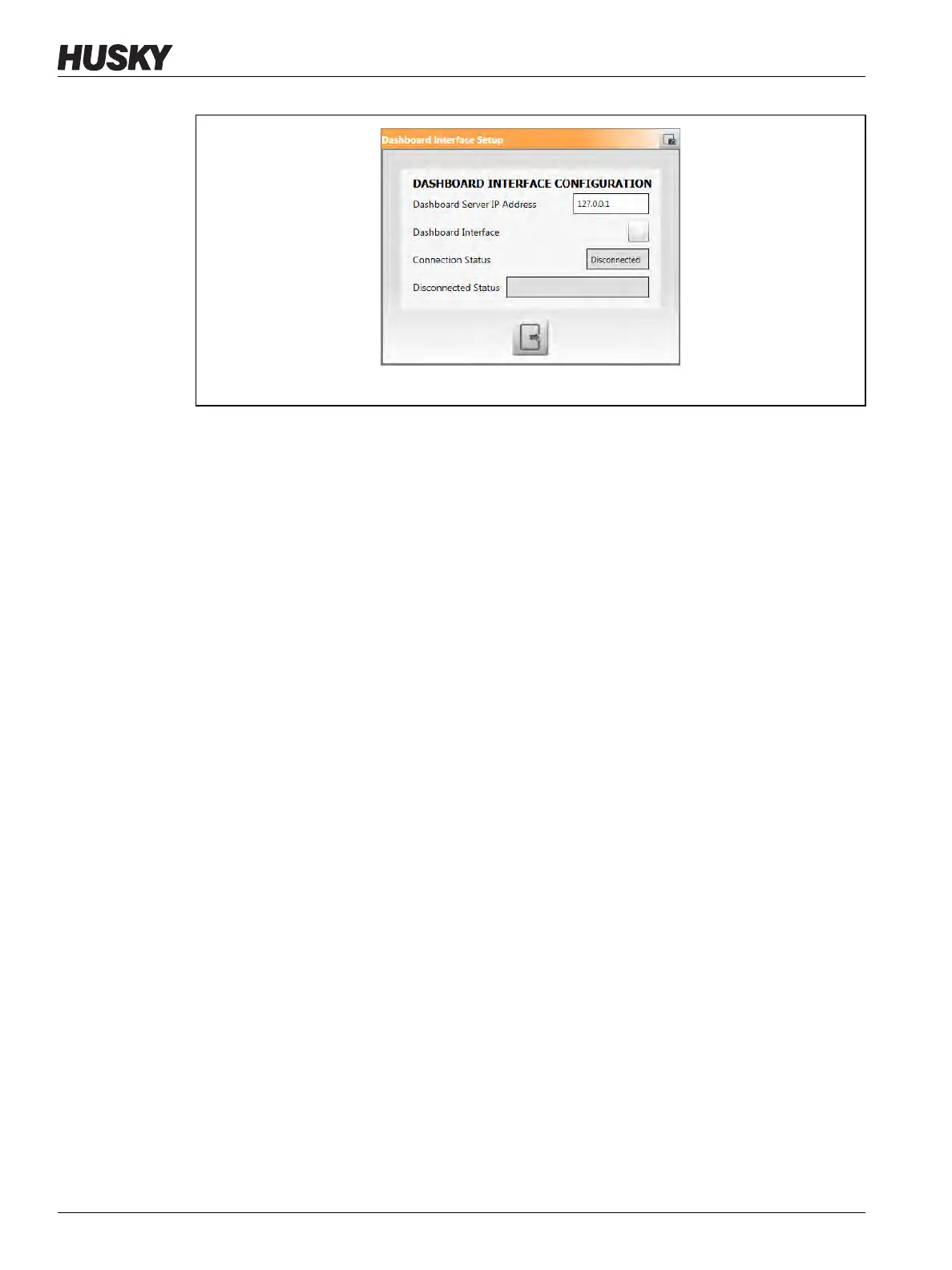
With a numbered address entered in the Dashboard Server IP Address field, the connection
is started when the Dashboard Interface checkbox is enabled.
10.2.5 Remote Service Assistance
If you find a problem that you cannot correct, contact the nearest Husky Regional Service and
Sales office. Working with a Husky service technician, you can start a TeamViewer session
that lets the technician see and operate your Delta5 controller system remotely.
The sections that follow describe how to enter proxy server information, if used, and how to
start a TeamViewer session.
10.2.5.1 Proxy Settings
The Proxy Settings window is used to enter proxy server information and save the
information in the database. This information can be used by Remote Service Assistance.
To enter the proxy settings, do the steps that follow:
1. From the Remote Service Panel, touch the Proxy Settings button to open the Proxy
Settings window.
2. Touch the checkbox to use a proxy server.
A check mark will show in the checkbox if a proxy server will be used.
3. Enter the proxy server information in the fields that follow:
• Address
• Port
• User Name
• Password
• Domain Name
4. Select the green check mark to accept the information you entered.
Figure 10-9 Dashboard Interface Configuration Dialog


 To Next Page