Time Synchronization 135
User Guide v 2.0 — March 2023 System Setup
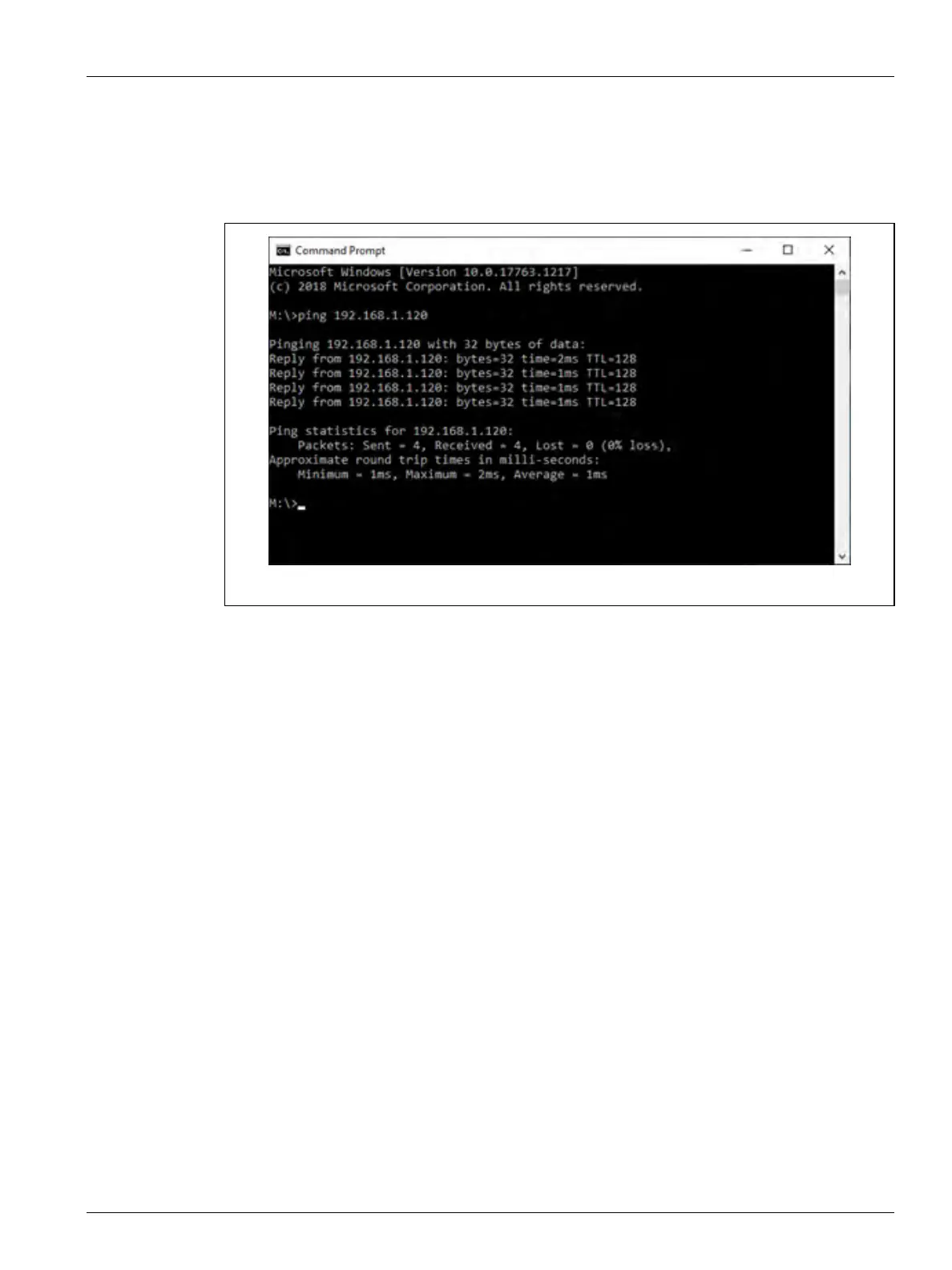
6. Type in "ping <the IP address recorded in step 3>" and press Enter.
7. Make sure that four replies from the controller are shown on the command prompt
widow (refer to Figure 10-14).
NOTE: If "Request timed out" is shown for the replies, then there is a network problem.
10.2.10 Time Synchronization
NOTE: The time synchronization feature is not available on controllers with motion controls:
Altanium Servo Control, UltraSync-E, Individual Servo Valve Gate, Valve Gate
Sequencer, or UltraShot.
The Time Synchronization feature lets you connect the Delta5 controller to a time sever on a
network. A connection to a time server is critical to minimize time errors during data
collection and to make sure the date and time stamps for each sample are as close to true
time as possible.
A time server is a type of network server, which transmits precise time information to its
network clients by using a definite protocol, most commonly the Network Time Protocol
(NTP). The time server needs a reference clock that defines the true time. For a reference, the
server uses the Coordinated Universal Time (UTC) without offset. The UTC is the primary time
standard by which the world regulates clocks and time. Client servers receive the UTC time
without offset from the NTP.
The Delta5 controller receives the time from a time server that you specify, and automatically
adjusts the time, based on the local time zone setting in the System Setup screen.
To configure the Time Synchronization, do the steps that follow:
1. On the System Setup screen, touch the Network tab at the bottom of the screen.
2. Touch the Setup button in the Time Synchronization panel of the screen.
The Time Synchronization Setup dialog window shows (refer to Figure 10-15).
Figure 10-14 Ping Replies


 To Next Page