v 2.0 — March 2023 Altanium Delta5
28 Keypad Use
4.2.1 Keypad Use
The screen keyboards and selection menus are easy to use. You type in text or make a
selection, and then select the green check mark button to accept the entry.
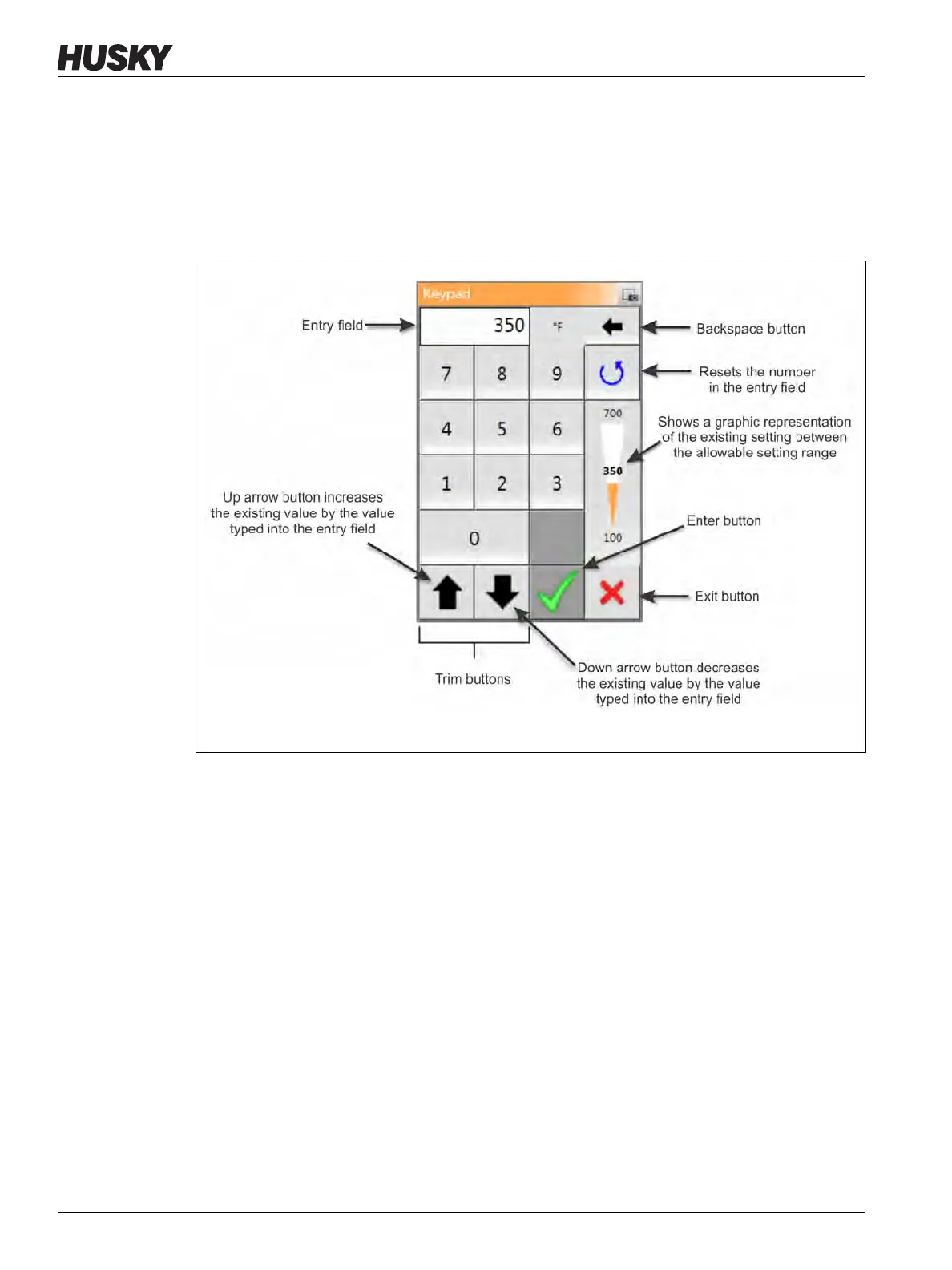
The screen keypads are also easy to use, but specific features must be identified. Figure 4-3
gives descriptions of the keypad items.
4.2.1.1 Enter a Specified Setpoint Value
You can enter a specific value for a setpoint. To do this, type the numbered value on the
screen keypad, and then select the green check mark button to accept the change.
4.2.1.2 Increase or Decrease a Setpoint by a Specified Value
You can raise or lower an existing setpoint by a specified amount with the use of the trim
(arrow) buttons at the bottom of the screen keypad.
The up-arrow trim button increases the existing setpoint by the value typed in the entry field.
For example, if the temperature setpoint is 350 °F, and you type 10° in the entry field, when
the up trim button is selected, the temperature setpoint changes to 360
°F.
The down-arrow trim button decreases the exiting setpoint by the value typed in the entry
field. For example, if the temperature setpoint is 350
°F, and you type 10° in the entry field,
when the down trim button is selected, the temperature setpoint changes to 340
°F.
Figure 4-3 Keypad Items


 To Next Page