v 2.0 — March 2023 Altanium Delta5
68 Zone Selection in the Text View Screen
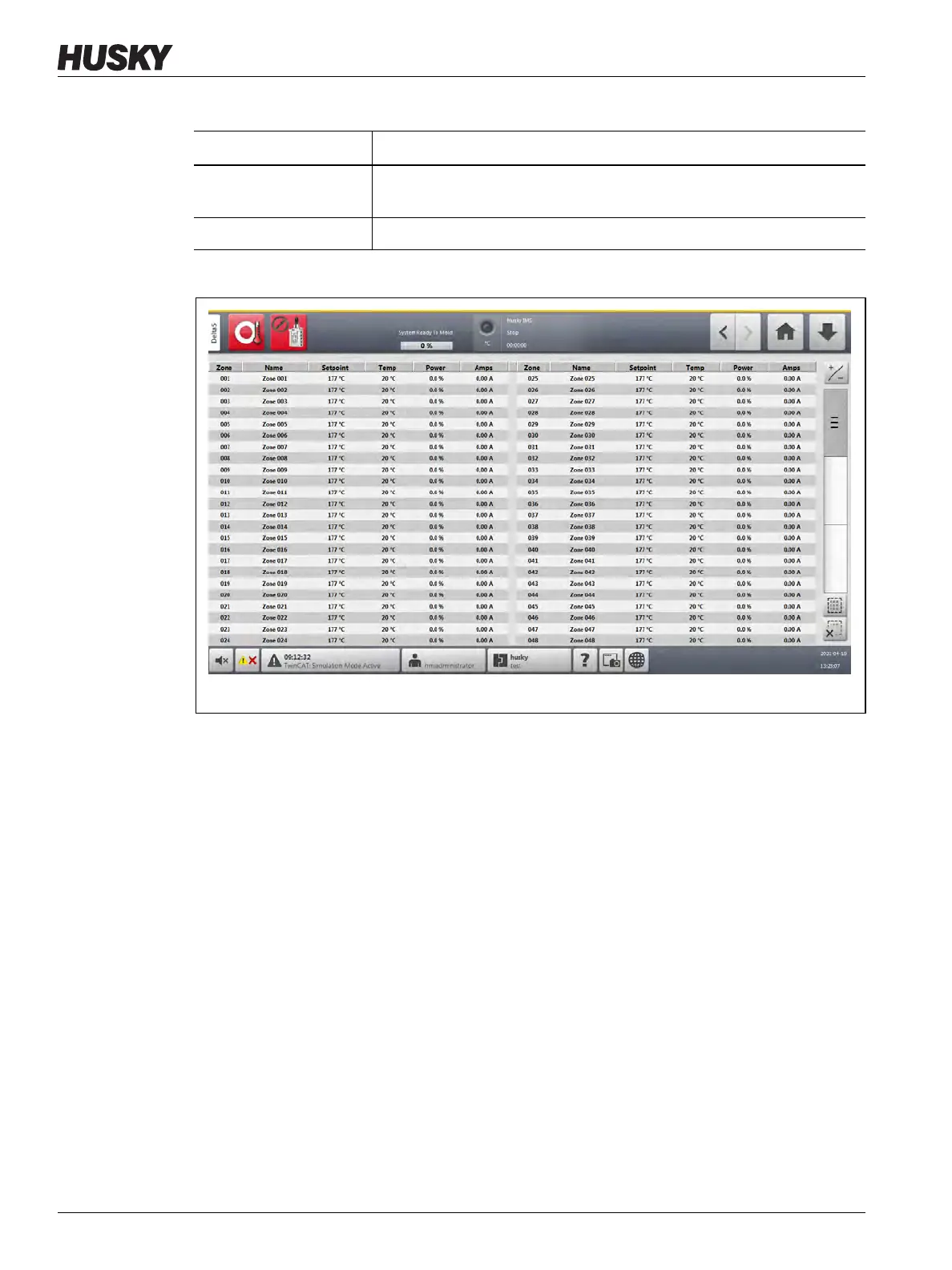
Figure 7-12 shows the Text View screen in split-screen mode.
7.6.1 Zone Selection in the Text View Screen
Use the Text View screen to select one or more zones:
• To view one zone, touch the zone row.
• To view more than one zone, touch and hold for one second the first zone, and then
touch the last zone. The two zones that you selected are highlighted with all of the
zones in between them.
7.6.2 Sorting
You can sort the column information on the Text View screen in ascending or descending
order. Touch the header field of the column you want to sort. A red line above or below the
header text identifies if the sort is ascending or descending.
Information can be sorted by the dynamic columns (for example, current [Amps], voltage
[VAC], and others). This can be helpful when you want to see which zone draws the most
current at any moment. The sort feature of column headers is also used in other Altanium
screens.
Select All Touch this button to select all zones in the system. This will navigate to
the Quick Set screen.
Clear All Touch this button to deselect all zone.
Figure 7-12 Text View Screen - Split-Screen Mode
Table 7-6 Text View Screen Item and Button Descriptions (Continued)
Item/Button Description


 To Next Page