v 2.0 — March 2023 Altanium Delta5
280 Remove and Replace the Touch Monitor
16.4.1 Remove and Replace the Touch Monitor
To remove and replace the touch monitor, do the steps that follow:
1. De-energize the system at the Altanium main power switch. Refer to Figure 16-2.
2. Lock out and tag the main power switch in accordance with local codes.
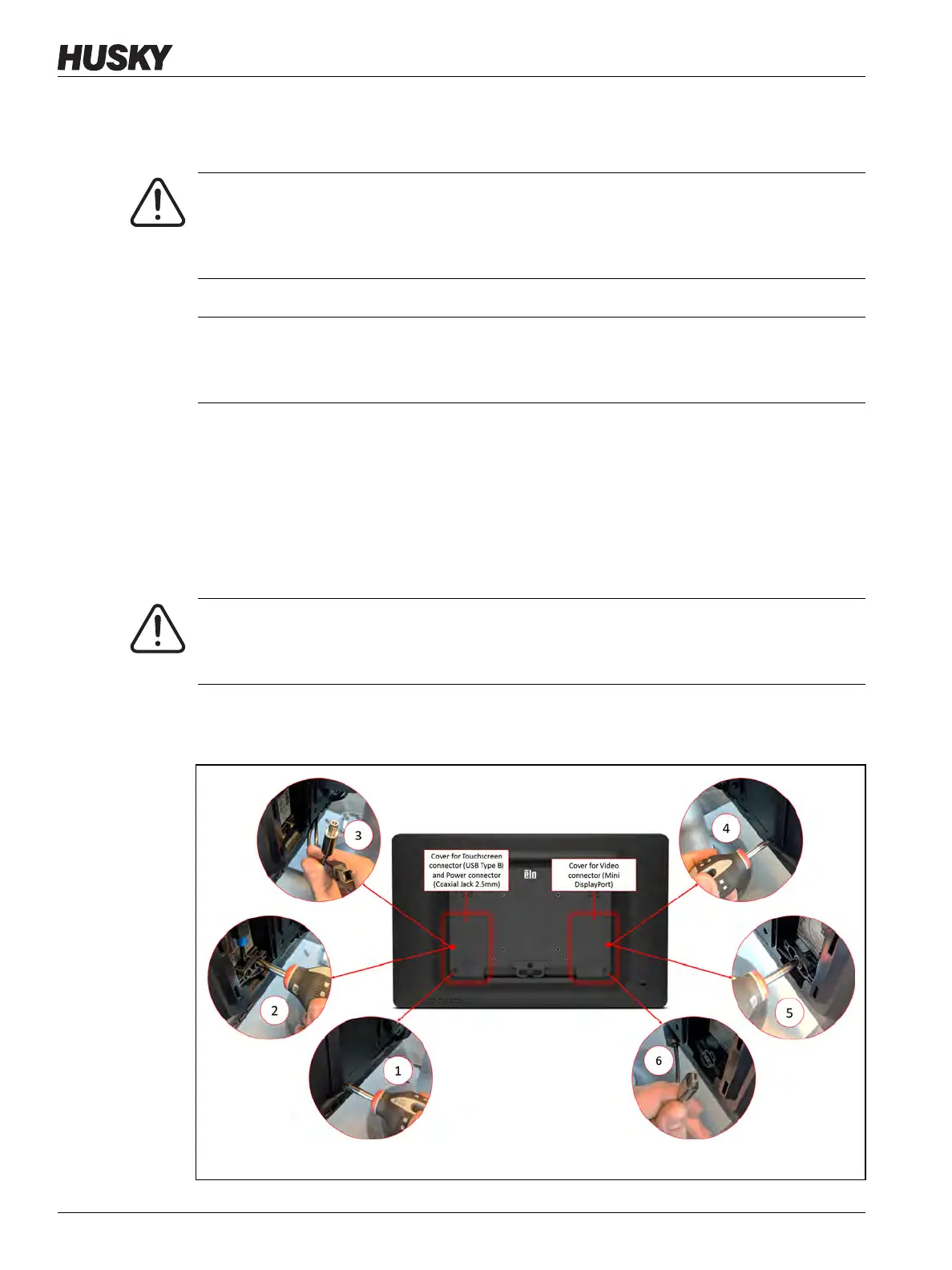
3. On the back of the touch monitor, towards the left-hand side, find the cover for the
Touchscreen and Power connectors, and then remove the screw that secures it with a
#4 Phillips screwdriver. Refer to number 1 in Figure 16-13.
4. After the cover has been removed, find the cable retaining bar and remove the screw
that secures it with the #4 screwdriver. Refer to number 2 in Figure 16-13.
WARNING!
Electrical and mechanical hazard- risk of death, serious injury and/or damage to the
equipment. Turn off all power to the system and disconnect it completely from the
main input power.
CAUTION!
Static electricity hazard - risk of damage to the equipment. Turn off all power to the
system and disconnect it completely from the main input power.
WARNING!
Pinch Point Hazard – keep hands and fingers clear of the Delta5 touch monitor hinge
mechanism.
Figure 16-13 Monitor Cable Removal


 To Next Page