Changing the Header Color 57
User Guide v 2.0 — March 2023 Making Adjustments
7.3.1 Changing the Header Color
Users can select a header color for a group that is shown on the Multi Group View screen. For
more information about how to make a group, refer to Section 7.2.
To change the header color, do the steps that follow:
1. On the Multi Group View screen, touch the Color Change button above the group.
The Color dialog window shows. Refer to Figure 7-4.
2. Touch a color square on the Color dialog window.
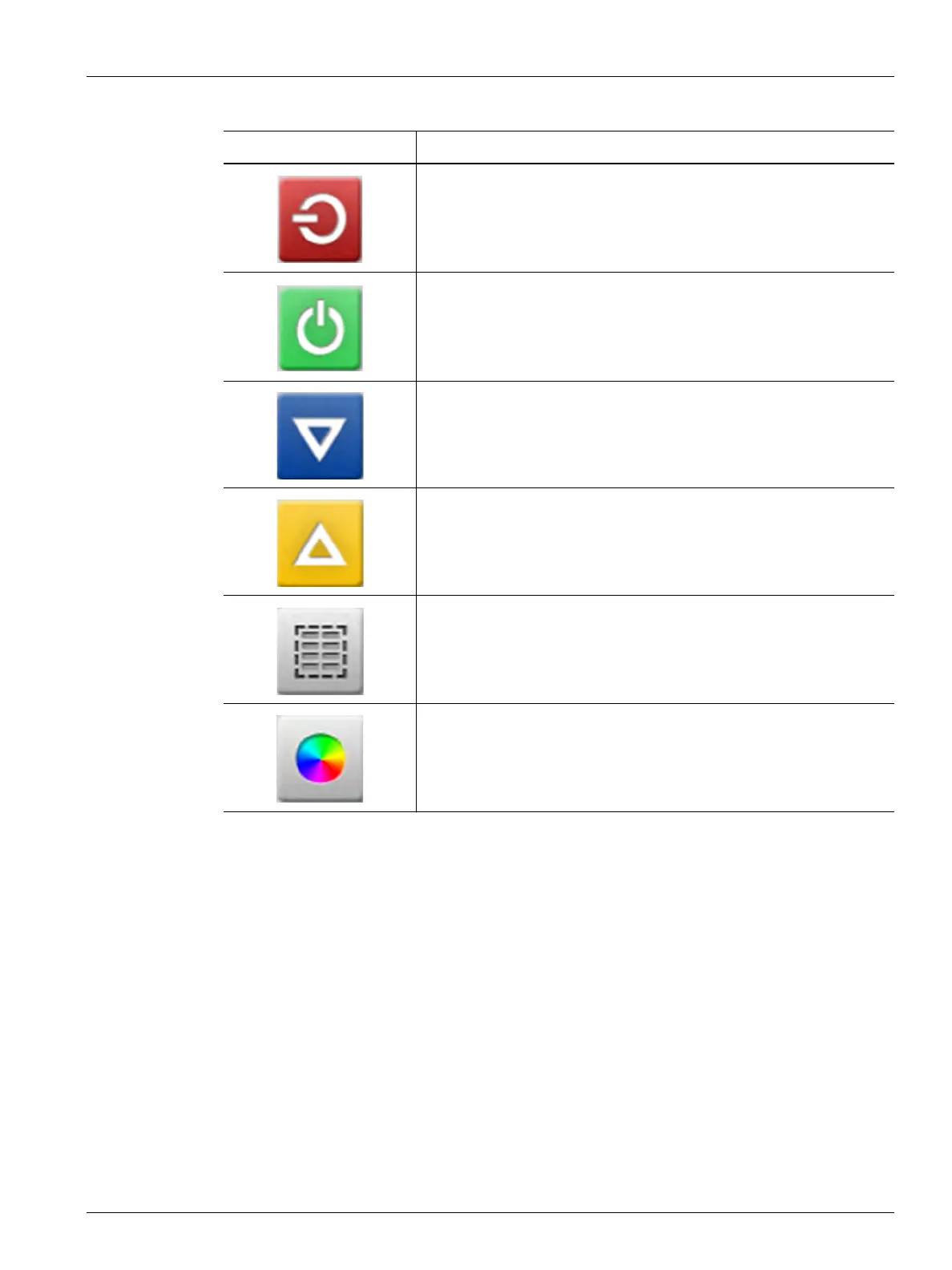
De-energize
De-energizes the zones in that group if they are energized.
Energize
Energizes the zones in that group if they are not energized.
Manual Standby
Sets the zones in this group to Manual Standby. More than one group
can be put in standby at the same time. This button will not operate if
one or more groups are in boost mode.
Manual Boost
Sets the zones in this group to Manual Boost. More than one group can
be put in boost mode at the same time. This button will not operate if
one or more groups are in standby mode.
Quick Set
Opens the Quick Set screen with all of the zones automatically
selected.
Color Change
Used to change the header colors. Refer to Section 7.3.1.
Table 7-1 Multi Group View Screen Buttons (Continued)
Button Description


 To Next Page