Quick Adjustment Panel 69
User Guide v 2.0 — March 2023 Making Adjustments
7.7 Quick Adjustment Panel
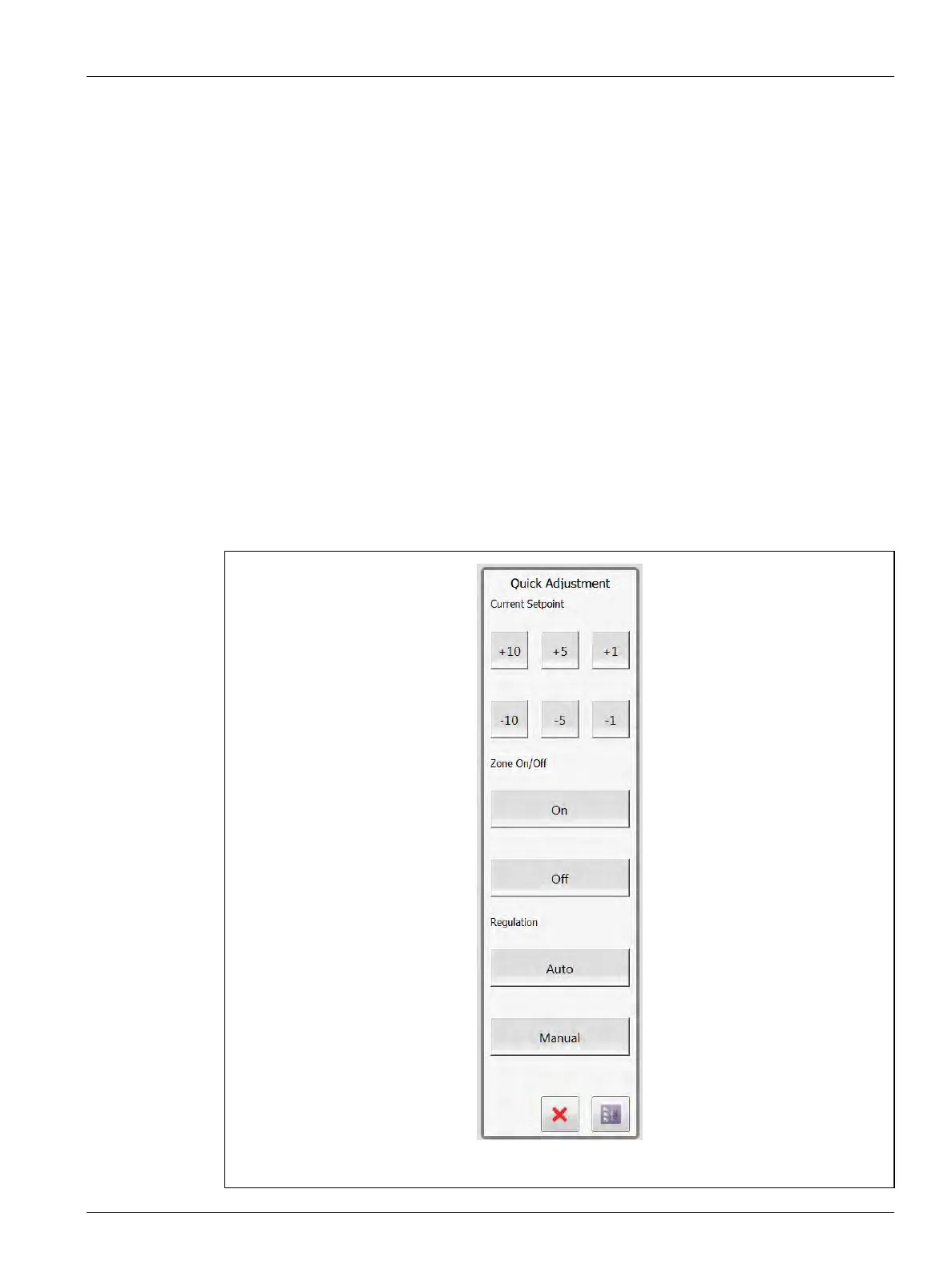
When you select a zone, a block of zones, or touch the ‘Select All Zones’ button on the Neo
View or Text View screens, the Quick Adjustment panel will show on the right side of the
screen. This panel makes it easy for you to change frequently used parameter settings
without opening the Quick Set screen.
The Quick Adjustment panel lets you change the current setpoint, zone on/off, and
regulation (Auto or Manual) with the use of the buttons in the panel. You will see the zone
information change immediately after a panel function is selected.
Use the buttons in the Current Setpoint area of the panel to increase or decrease the zone
temperatures by 1
°, 5°, or 10°. Use the buttons in the Zone On/Off area of the panel to enable
or disable one or more zones. Use the buttons in the Regulation area of the panel to change
one or more zones to Auto or Manual mode.
The Quick Set button, at the bottom right of the panel, will automatically open the Quick Set
screen. Zones selected in the Neo View or Text View screens will also be selected in the Quick
Set screen.
The Cancel button will close the Quick Adjustment panel and de-select any zones previously
selected.
Figure 7-13 Quick Adjustment Panel


 To Next Page