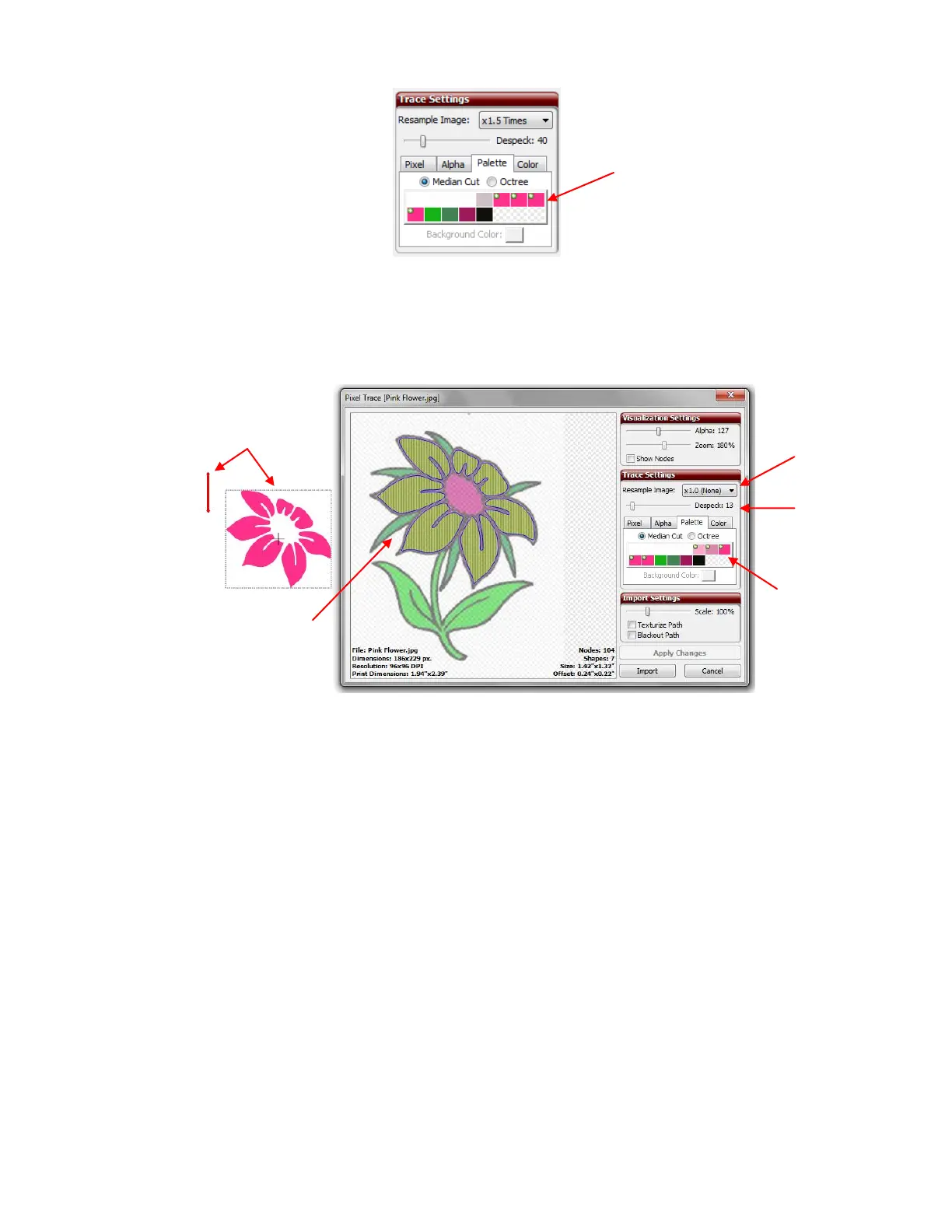
Use Despeck to eliminate tiny unwanted paths and Resample Image to sharpen details or provide more
curves to the image. Also, click on Apply Changes as you change settings so that you can see the effect of
each change. Now, the parts selected to be traced will be outlined in blue and filled with green, just as we
saw with the Pixel method:
Note that Despeck and Resample Image can be used, respectively, to remove tiny unwanted traced
specks and to sharper or soften the tracing (just as they were used in the Pixel Trace method). In this
particular case, only Despeck was applied.
Now, before we accept this part of the image, you can add more colors if you wish. For example, the very
center of the flower is more of a purple, but if you are going to cut this as a paper piecing pattern or as a
vinyl design, perhaps you want to use the same color for the petals and for the center. Thus, clicking on that
color, followed by click on Apply Changes, results in that color being added to the parts that are traced:
Click once on each
pink box to mark it.
If you inadvertently
click on a color box
you do not with to
include, click again
to deselect it.
In the main screen you will see
the shape of the tracing at the
location of the Caret.
All of the pinks have
been marked
A blue outline and green fill
mark those parts that are
colored the same as the pinks
selected.



 To Next Page