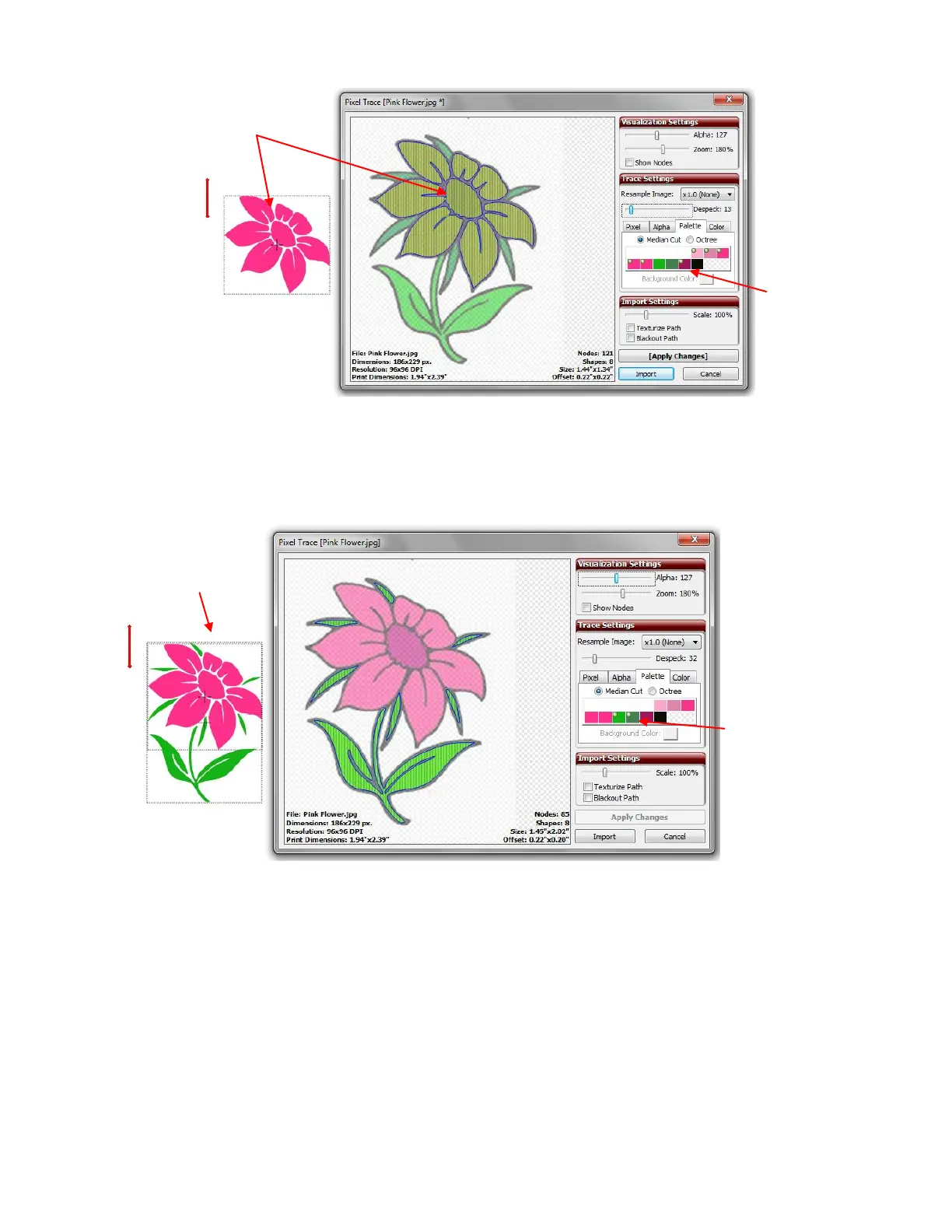
Click on Import and the program will ask you if you want to continue tracing and add more layers. Answer
Yes. Now click on the pink and red boxes again to turn them off or right click on the colors and choose
Select None from the menu. Then click on the green boxes and click on Apply Changes:
Click on Import. Then decide if you wish to also trace the black shadow around the image or create one
using the Shadow Layer feature in MTC (refer to Section 8.02). If you decide to trace the black layer, then
answer Yes. Repeat the above step, but only have the black color box selected.
Now, before clicking on Apply Changes, stop and think about what you want to create. You do not want
individual black parts to be created as separate shapes. Instead, you want the large black outline on which
you will adhere the individual pink petals and green leaves. So, mark the Blackout Path option in order to
remove any interior parts. Then click on Apply Changes to see the results:
Mark the dark
purple color and
then click on
Apply Changes.
The flower center is
now added to the
tracing
Image on screen
now shows both the
pink and green
shapes.
Mark the two
green boxes after
deselecting all of
the pink ones.
Click on Apply
Changes.



 To Next Page