Proceed as follows:
Activate the required channel on the operator panel. Click the 'Channel control'
button.
The 'Channels' menu is displayed.
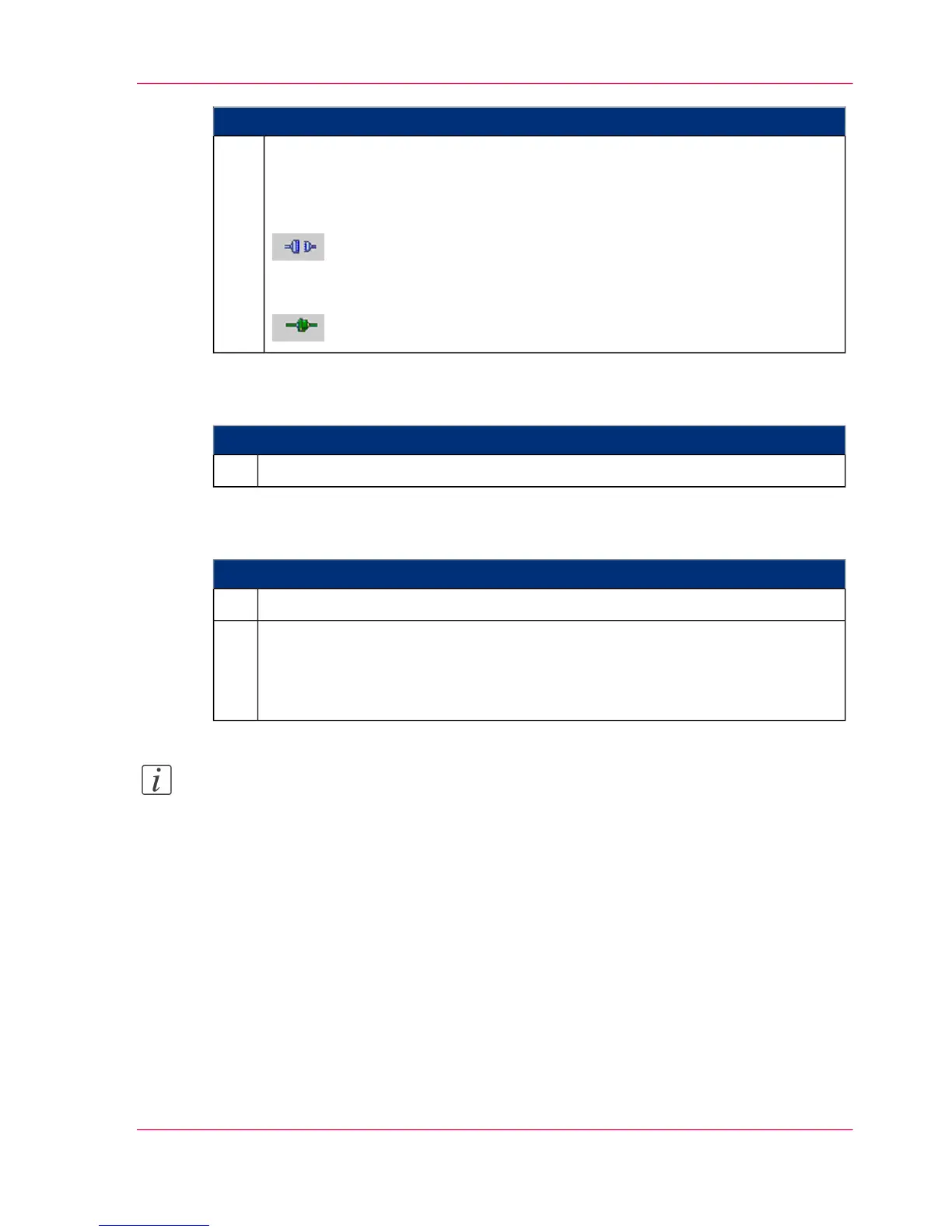
Click on the following button to activate the channel:
During the time needed for activation, the connecting icon is shown in yellow.
An activated channel is represented by the following icon:
6.
#
Proceed as follows:
Insert paper web (see ‘Inserting the Paper Web’ on page 143).7.
#
Proceed as follows:
Configure the settings required for the print job on the operator panel.8.
Click the 'Ready' button.
The printing system is in the 'Ready' status.
If the printing system is ready for operation, the Operator Attention Light lights
up green.
9.
Note:
The 'Printsystem Manager' can be used to enter whether the operator panel is to be
started manually or automatically when the printing system is switched on. For more
information, please contact your Service center.
Chapter 6 - Operating the Printing System 141
Powering on the Printing System



 To Next Page