Switching off the Printing System
To Switch off the Printing System
#
Proceed as follows:
Click the 'Stop' button.
The printing system is switched to 'Stop' status.
1.
Deactivate active channel links on the operator panel. To do this click the
'Channel control' button.
The 'Channels' menu is displayed.
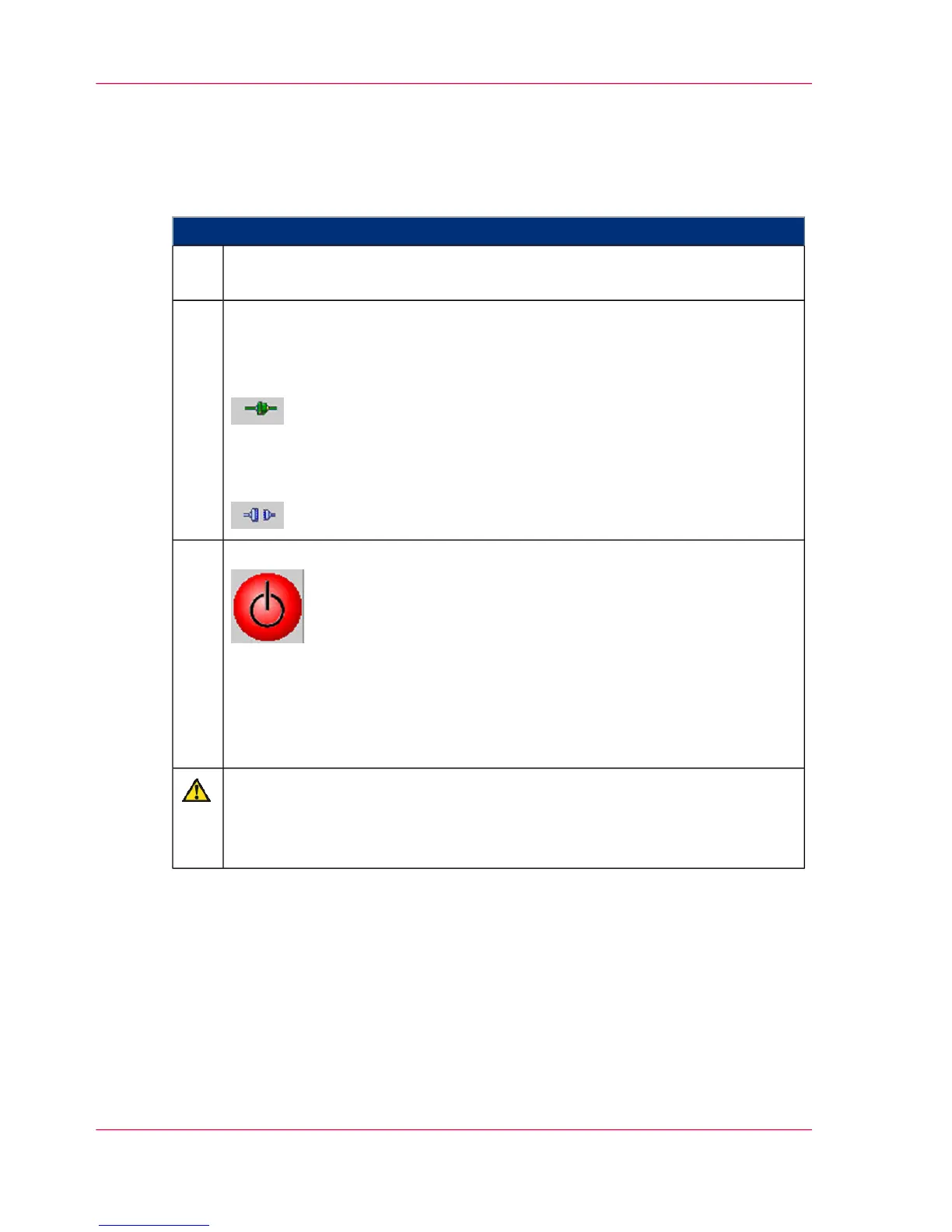
Click on the following button to deactivate the channel:
During the time needed for deactivation, the connecting icon is shown in
yellow.
A deactivated channel is represented by the following icon:
2.
Click on the following button on the operator panel:
and confirm the 'Do you really want to power off the printing system?' query.
When the printing system has switched to standby mode after around three
minutes, the Operator Attention Light goes out and the "ON" key lights up
yellow. For cooling, the fans of the fuser station continue running for another
half hour.
3.
Caution
Observe the waiting period
The controller requires this time to back up the data. Switching off prematurely
via the main circuit breaker can lead to data loss.
Chapter 6 - Operating the Printing System264
Switching off the Printing System



 To Next Page