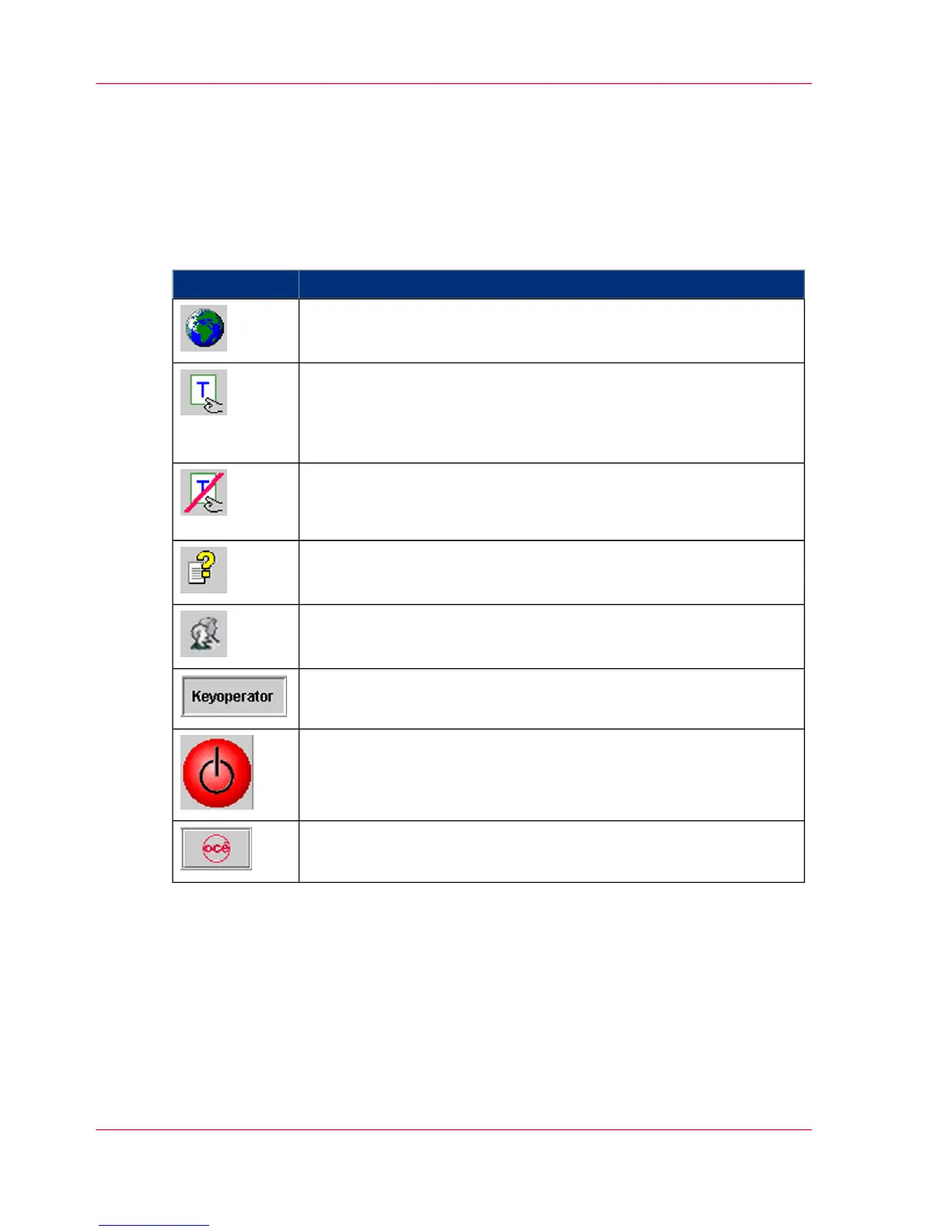
Frame toolbar
Buttons
The buttons in the frame toolbar can be used to quickly access superordinate functions
for the complete printing stream and to switch directly to frequently used menus.
#
FunctionButton
Switches to the 'User profile' menu.
The language of the operator panel can be changed in this menu.
Indicates that the presently logged-on user possesses the access
ticket.
Clicking releases the access ticket directly without going through
the menu.
Indicates that the access ticket is released for other users.
Clicking requests the access ticket directly without going through
the menu.
Opens the Help window.
Switches to the 'Change user' menu.
Users can be registered or canceled in this menu.
Displays the user currently logged on.
Powers down the entire printing system if the 'Do you really want
to power off the printing system?' query is confirmed.
Changes from each sub-menu directly to the main menu of the
printing system or the Paper Path Manager.
Chapter 4 - Description of the Operator Panel90
Frame toolbar



 To Next Page