4. Shows 99
Next: sub-selects the next fixture in the current selection. See Sub Selections.
Back: sub-selects the previous fixture in the current selection. See Sub Selections.
Select All: selects all the fixtures currently in the Programmer. See Select All.
Flip: changes the pan and tilt of a moving head fixture to point at the same position on
the stage, but from the other end of its movement range. See Flip.
Fade Changes: toggles the state of the Fade Changes button in the active editor. See
Fade Changes.
Next Page: advances to the next page in the page directory. See Changing Page.
Out: assigns the current selection's intensity to zero; see Intensity.
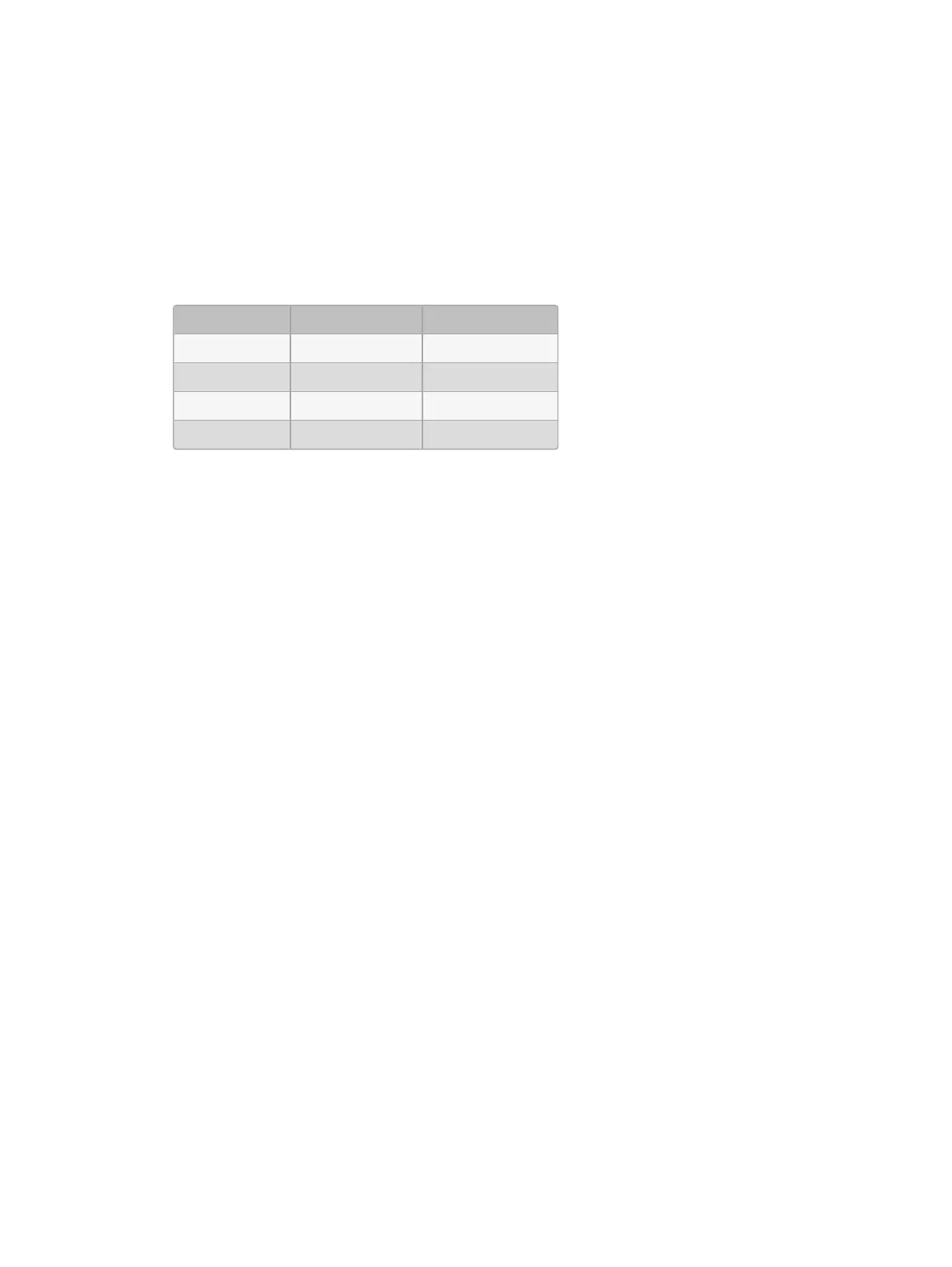
The default settings for the Trackball keys are:
Trackball Key Pointer Mode Position Mode
top left Func. Key Mode Func Keys Mode
top right ball mode ball mode
bottom left left click next
bottom right right click flip
4.10.4 Center Wheel Preferences
The user preference for which fixture functions are assigned to the center wheel on the front
panel of the Hog 4 is managed in the Center Whee l pane of the Use r Prefer ences
window. In this window you can assign as many functions as you like to the center wheel by
dragging functions from left hand side of the window to the wheel display on the right hand
side of the window. To delete functions from the center wheel click on the function in the right
hand pane of the preferences window to highlight the function in blue and then press the
delete key on the console front panel.











 To Next Page