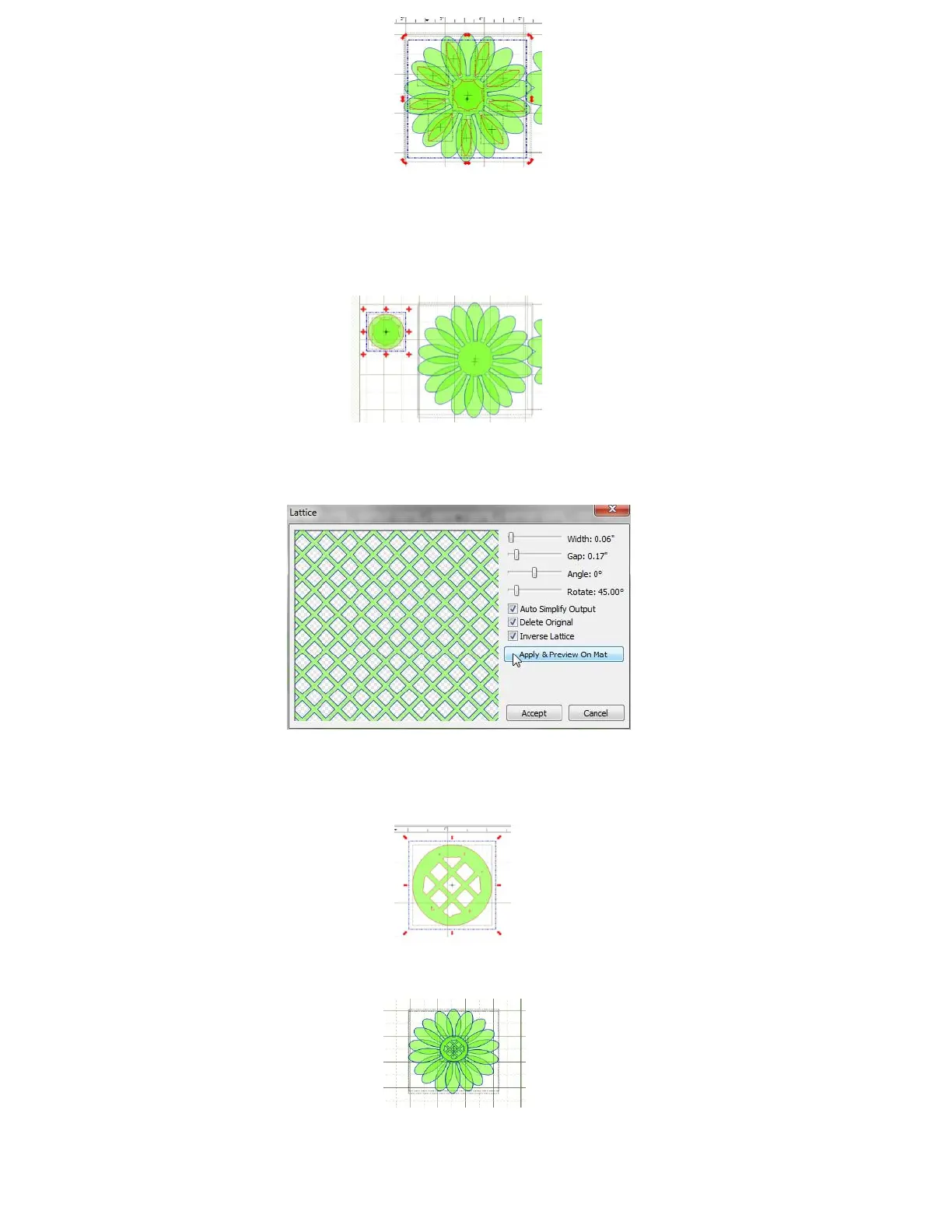
To delete the petals, first select the inset shape and then apply the Break function. Now delete each of the
petal insets. Again, you are only interested in the very center inset. The original shape (the one that was
used for the Shadow Layer) may also be deleted.
Place another circle on the mat from the Basic Shapes library. Select both the new Circle and the center
inset and press S to Stack them:
Select just the inset shape and then click on the Lattice icon to open the Lattice window. Check the boxes
for Inverse Lattice, Auto Simplify Output, and Delete Original. Note the other settings used and click on
Accept:
Join the Circle and the lattice by selecting both and applying the Join function. To remove the tiny cutouts,
press F6 to activate the Eraser tool. Check the Inverse Eraser box and set the Size to 1. Then erase the
little cutouts that you do not want.
This is the center of the flower. Select both sets of petals and the center and press S to Stack them.



 To Next Page