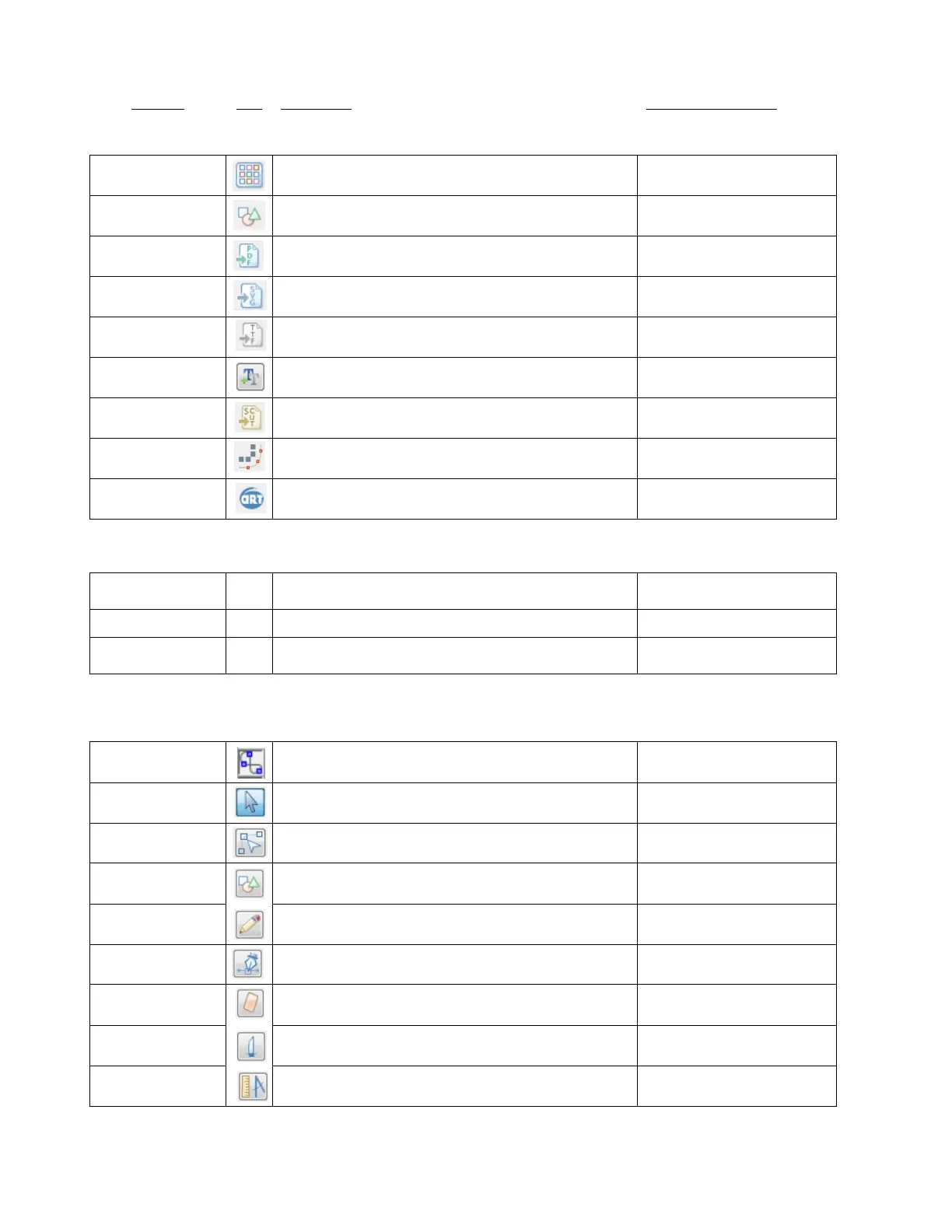
Open "Make The Cut Gallery" import/download window
File>Import>From MTC Gallery
Open "Basic shapes" window import window
File>Import>From Basic
Shapes
Open "Open Adobe File" import window
File>Import>Vector
PDF/PS/EPS/AI
Open "Open SVG File" import window
File>Import>SVG/SVGZ File
Open "Open Font File" import window
File>Import>True/Open Type
Font File
Open "Open Font File" import window
Icon on Text and Fonts tab,
Main Bar
Open "Open SCUT/2 File" import window
File>Import>SCUT/SCUT2 File
Open "Pixel Trace" import window
Open "Lettering Delights" import window
File>Import>From Lettering
Delights
Open "Add Basic shape" window
File>Export>Sel. To Basic
Shapes
Open "Save SVG as" window
File>Export>Sel. To SVG File
Open "Upload" window to upload as SVG file to MTC Gallery
File>Export>Sel. As SVG To
MTC Gallery
Toggle Node Mode Toolbar on/off
Upper left corner of Virtual Mat
On the node editing toolbar
On the node editing toolbar
On the node editing toolbar
On the node editing toolbar
Draw Bezier Curves and Straight Lines
On the node editing toolbar
On the node editing toolbar
On the node editing toolbar
Measure shape lengths and angles
On the node editing toolbar



 To Next Page