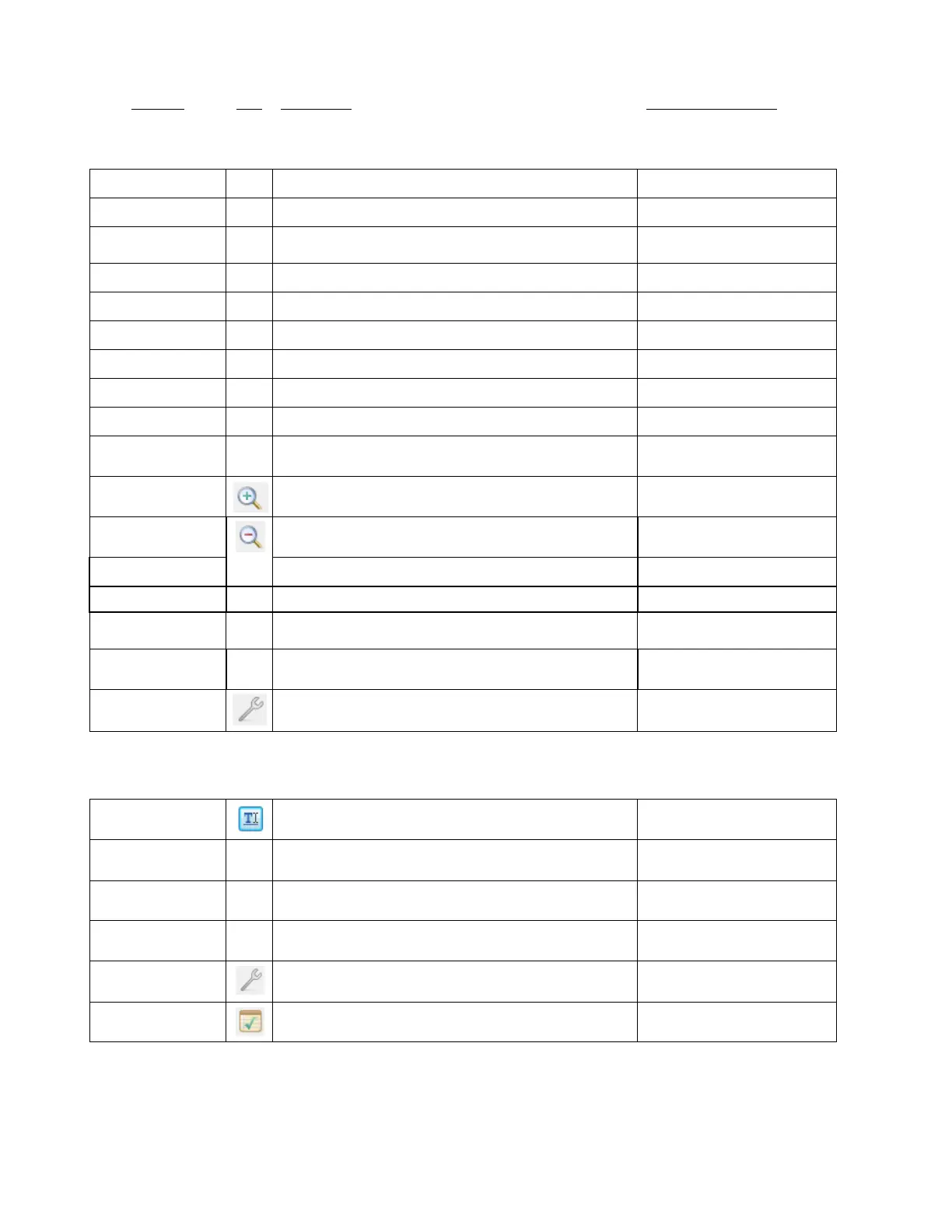
Viewing and Zooming Tools
Moves display to selected shape(s), keeps current zoom
level
(1) + key on the numeric
keypad; (2) File Toolbar
(1) - key on the numeric
keypad; (2) File Toolbar
Display textures while other shapes are selected
Move workspace up and own
Zoom in and out, centered on location of mouse cursor
Spacebar+drag left
mouse button
Toggle the showing of nodes for selected shapes
Edit>Shape Magic>
Advanced>Nodes On Mat
Open "Add Text Group" window
Icon on Text and Fonts tab,
Main Bar
Right click>Change
Color/Texture/Line>Color
Open "Choose Texture" window
Right click>Change
Color/Texture/Line>Texture
Open "Choose Line Style" window
Right click>Change
Color/Texture/Line>Line
Edit>Shape Magic>
Advanced>View Path Detail
Open "Project Notes" window



 To Next Page