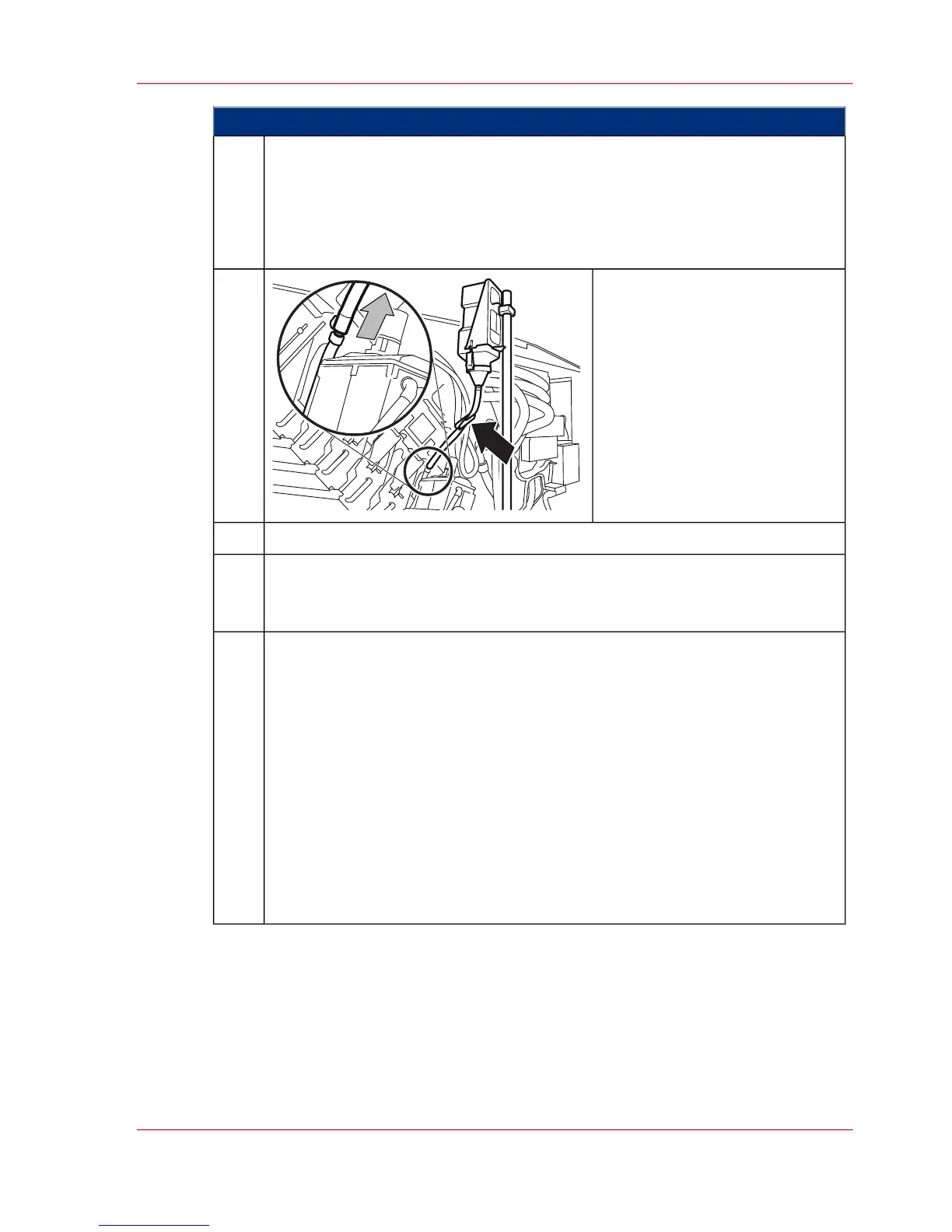
Proceed as follows:
Check hose to see if the developer bottle is completely empty:
■
If the developer bottle was not completely emptied, restart process. To do
this, click on the 'Yes' button on the operator panel.
■
If the developer bottle has already been completely emptied, click the 'No'
button.
9.
Reaffix the sealing clamp to the
hose, then remove the hose from
the filler cap.
10.
Remove the developer bottle from the support and put the filling aid aside.11.
Close doors.
When the doors have been closed, the developer is automatically prepared, i.e.
mixed with toner.
12.
Complete the developer replacement procedure on the operator panel:
■
To carry out further maintenance work directly afterwards, click the 'OK'
button.
The printing system remains in the 'Special functions' status.
■
To complete all maintenance work, click the 'Ready' button.
All printing system assemblies are checked (duration approx. two minutes)
before the printing system is switched to the 'Stop' status.
To switch the printing system to the 'Ready' status, click the 'Ready' button
again.
In both cases, the message on the operator panel is automatically deleted, the
replacement of the developer is recorded in the 'Consumable history' menu
and the consumables counter is reset.
13.
Chapter 8 - Replacing Consumables 343
Fill in Developer



 To Next Page