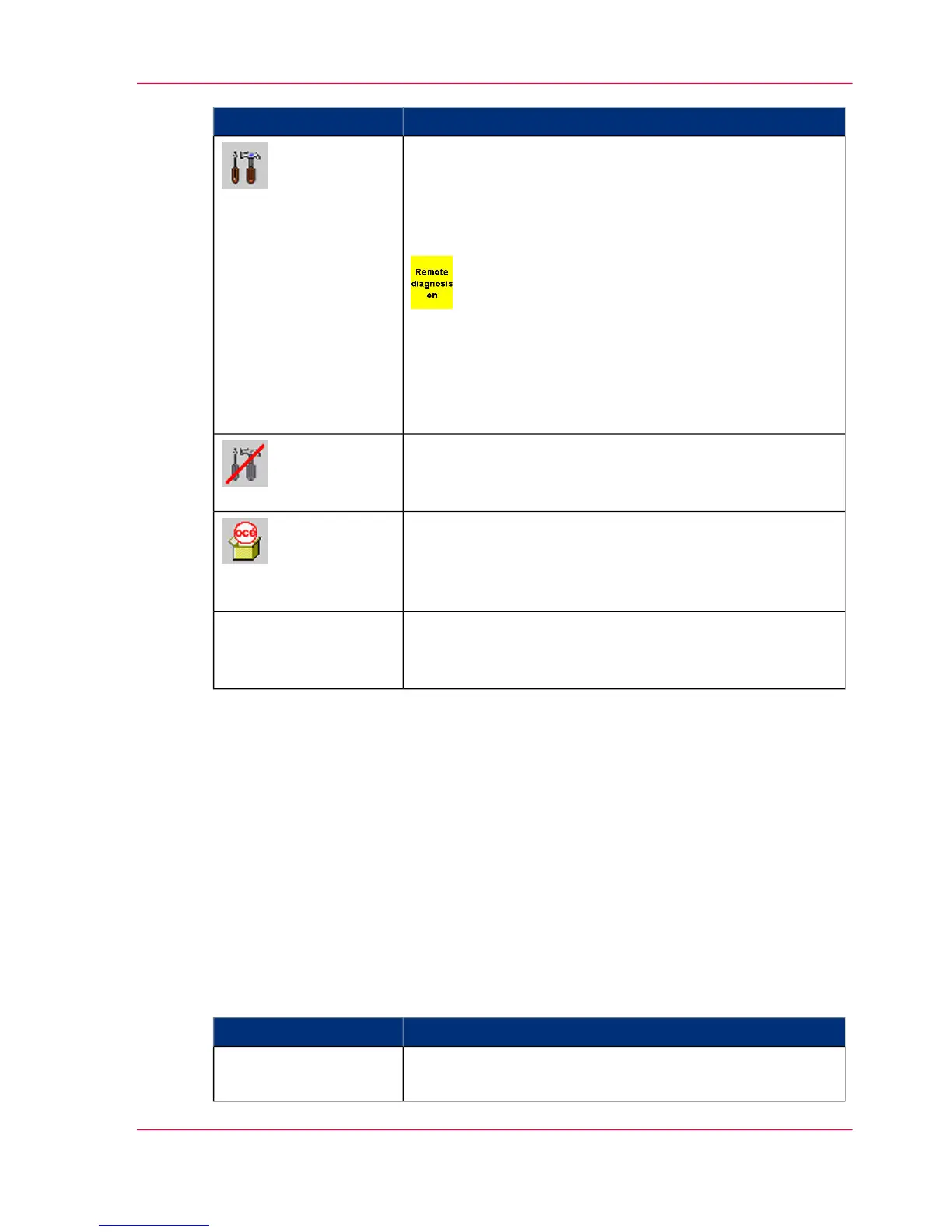
FunctionButton
Indicates that remote access is activated. The Service center
can use this to perform remote diagnostics during print
operation.
Clicking the button deactivates remote access directly
without having to go through the menu.
Also indicates that remote Service diagnosis is activated. If
remote Service support was also activated, the remaining
time is displayed. One minute prior to automatic deactiva-
tion, the yellow display flashes to indicate that remote
support will shortly be deactivated.
Indicates that remote access is not activated.
Clicking the button activates remote access directly without
having to go through the menu.
Switches to the 'Consumable counter' menu.
In this menu, the current counter values and their respective
limit values are displayed for all consumables and expend-
ables of the printing system.
Switches to the 'Service ticket' menu.
This menu displays all the data required to notify the rele-
vant Service center.
'Service ticket'
Status displays
The current printer status is displayed on the centre of the toolbar. The individual status
displays have different background colors:
■
Green: The printing system is printing or is ready to print. If the printing of data in-
tegrity marks is turned off for the current configuration, an additional message to this
effect will appear.
■
Red: The printing system is stopped, operator intervention is necessary.
■
Gray: all other printer states
Status displays with green background
#
MeaningDisplay
The printing system is ready to print; there are no error
messages.
'Ready'
Chapter 4 - Description of the Operator Panel 87
Buttons and Displays in the Center Area



 To Next Page