ECDIS-E User Guide Appendix A - Chart Installation
65934012 A-13
5. Using an e-mail application on a PC connected to the internet,
compose a new email addressed to updates@c-map.no. Attach the
generated order file to the e-mail and send. The subject line and
the message of the email can be blank.
After a short time, C-Map's real time updating service will automatically
reply to your e-mail with update information for the chart database,
attached in the form of one or more ‘answer files’ (.ans). For information on
importing .ans files, see ‘Apply Updates’.
Apply Updates
To apply updates to a C-Map chart database:
1. Save the answer files received from the C-Map Updating Service
emails to a removable device such as a USB memory stick.
2. Select the database from the C-Map Database table that the
updates will be applied to.
3. Click on the Apply Updates button. A Browse to Folder popup
window appears prompting to select the directory containing the
update files.
Ensure the selected directory containing the .ans files only includes
update files for the selected chart database, and that these .ans
files have not already been applied.
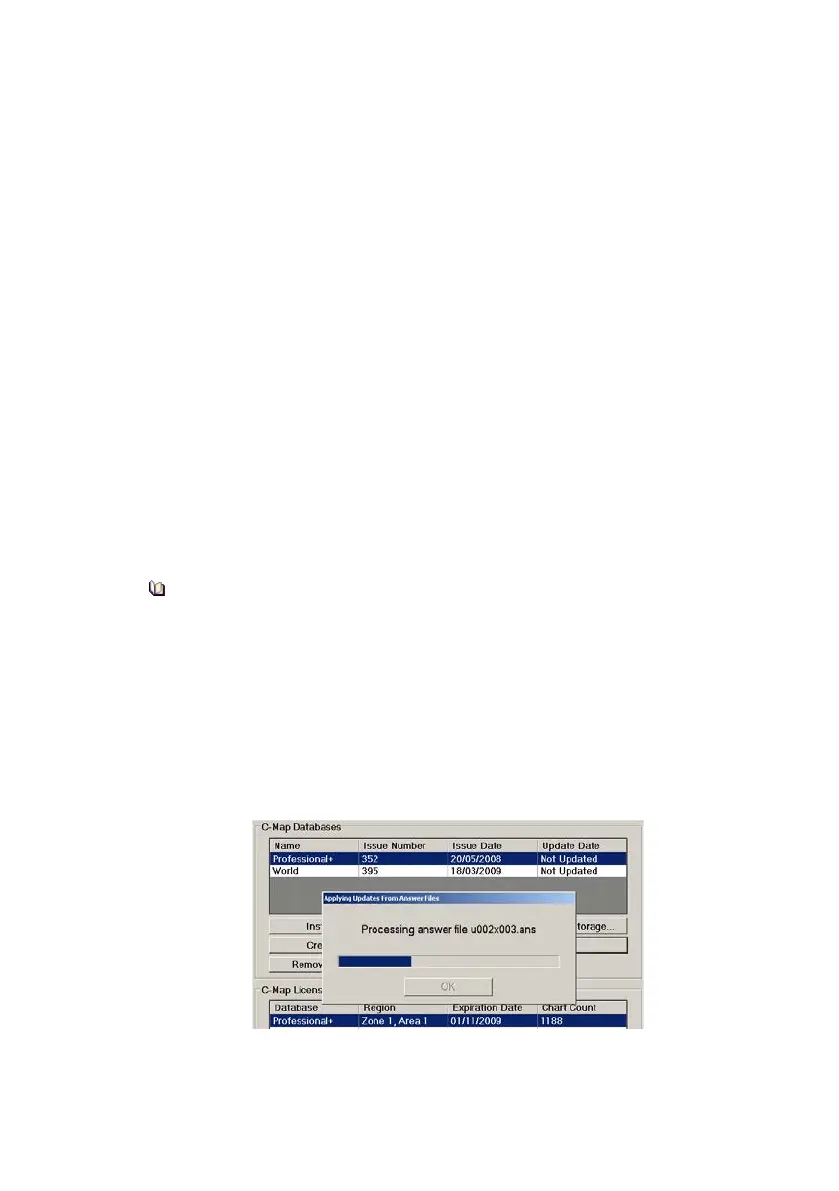
4. Navigate to the directory on the USB memory stick containing the
.ans files and click the OK button. The following status messages
are displayed during and after applying the updates, see the
screens below. Note that after the updates are applied the table
displays the date when the database was last updated in the
Update Date column.


 To Next Page