ECDIS-E User Guide Sensor Management
65934012 6-7
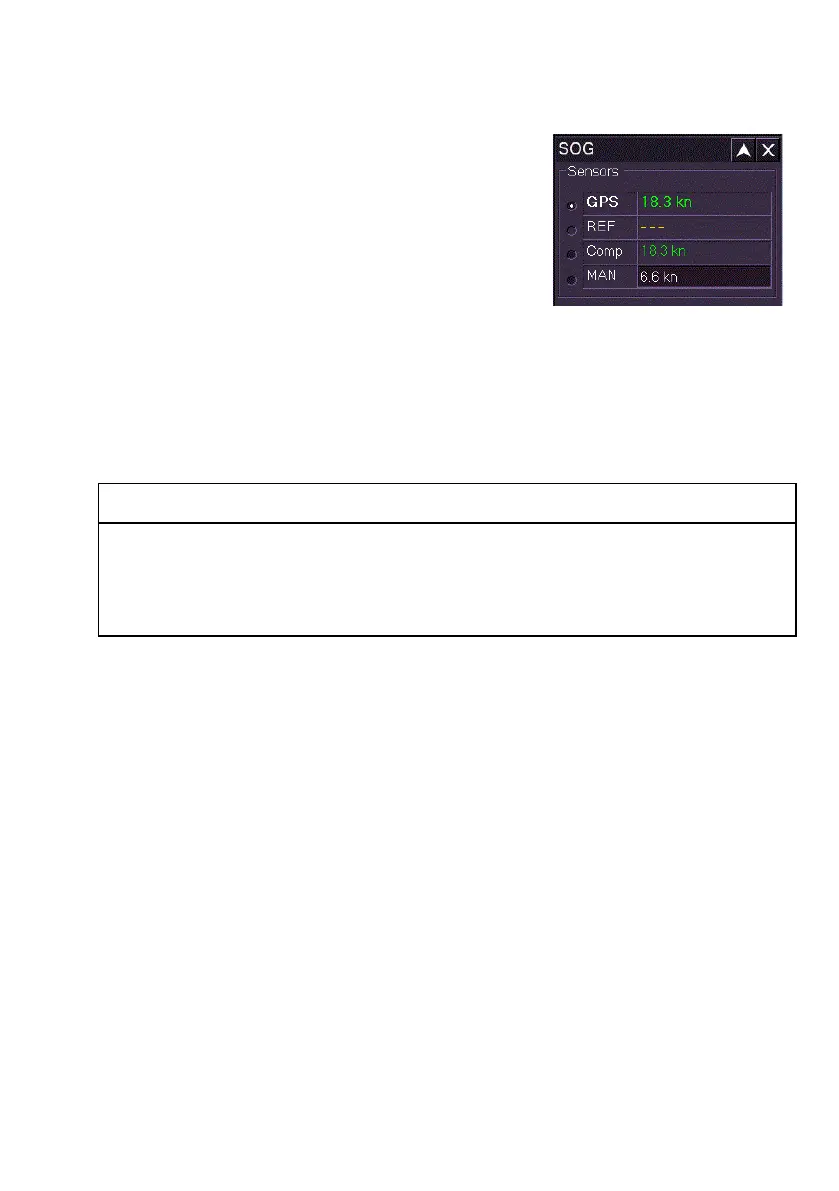
SOG Source Values
The SOG folder lists the available SOG sensor
data sources with the currently active sensor
source and its value in highlight.
When Computed is selected for the sensor data
source for SOG the system continually computes
the values based on other active types of sensor
data received.
To change the SOG sensor source or values do the following:
1. Tick the button next to the source. Whenever the sensor source is
about to be changed a window prompts to confirm the change.
2. To confirm click the Yes button, or to return to the previous sensor
source and value click the No button.
If no sensor source is available manual sensor data can be entered.
CAUTION: MANUAL SENSOR DATA
Using manual data is not the normal mode of operation. A sensor
device should be selected as soon as valid data is available.
Manual data cannot be entered for COG if AIS input is enabled. Before
entering data turn off the AIS input, see AIS display.
1. To enter manual sensor data click in the MAN field, the text
changes to green (editable). Move the trackball left or right to enter
the required value and left click to exit edit mode.
2. Click the MAN button to enter the value.
3. When the sensor being selected for SOG also provides other data
types (e.g. COG and Position), a window appears prompting to
select which of these other data types should also be taken from
manual data, with the data type's current sensor source
displayed. To update all click the Apply button, or untick the boxes
next to the data types where the update should not apply. To
cancel all changes and revert to the previous sensor source click
the Cancel button.
4. Where the sensor is changed the values shown against the
selected sensor source are applied. If manual data is entered the
COG readout shown in the Indicator Display is displayed in
yellowish-orange and the ship's vector line is displayed in the same
colour.



 To Next Page