System ECDIS-E User Guide
13-6 65934012
View/Edit Profiles
To change a Profile's settings, with a Profile created and displayed in the
Available Profiles field, click the View/Edit button. Two tab folders are
available; Editing and Selection.
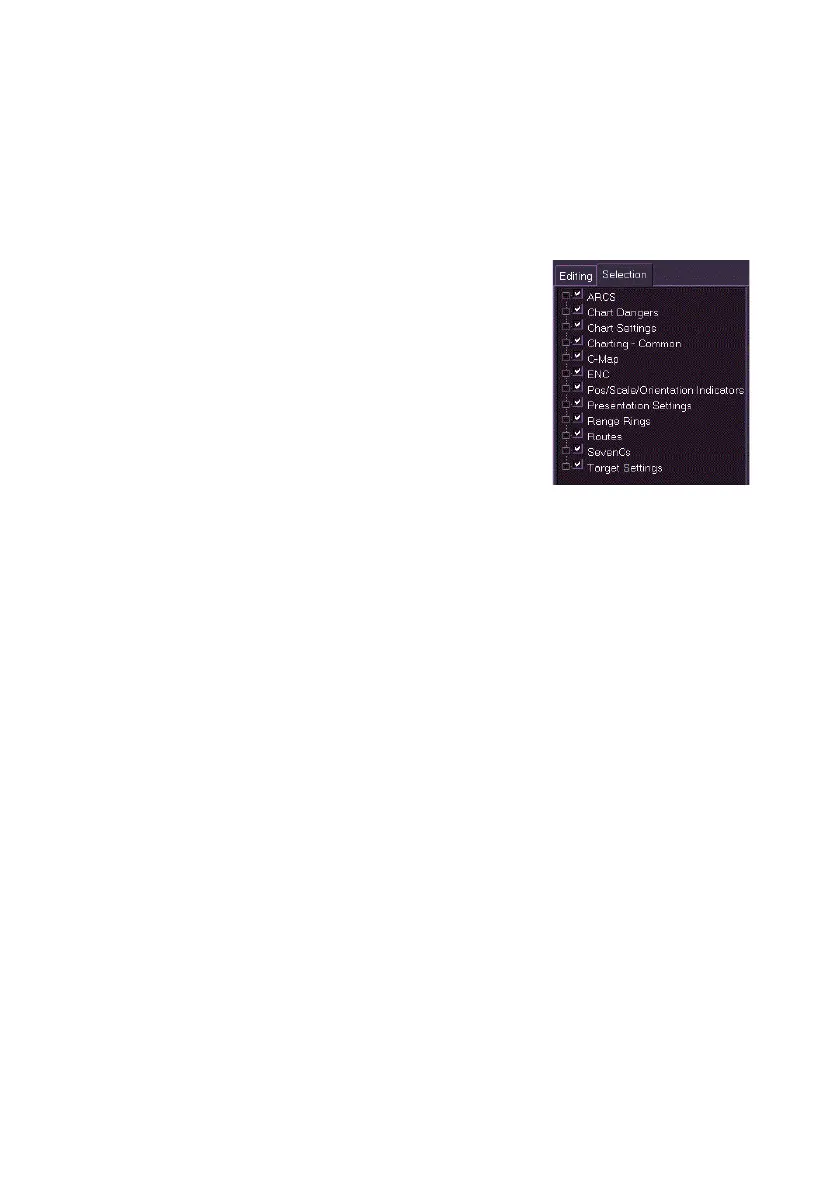
View/Edit Profile – Selection
The Selection tab folder lists all the profile groups
that can be selected, once selected the group is
listed in the Editing folder where user profile
settings can be defined. A default user profile will
have only the first five groups selected.
• ARCS - enables Off Screen Chart Policy to
be enabled or disabled, see ARCS in
View/Edit Profile - Editing.
• Chart Dangers - enables selection of an alert
on chart cautions to be generated, and look-
ahead and proximity buffer size adjustments to be made.
• Chart Settings – enables Other (as shown in the `Other’ display mode
of Chart Settings) or Standard (as shown in the `Standard' display
mode of Chart Settings) to be selected.
• Charting - Common - defines depth, height, contour values and IMO
display options, see Chart Depth/Heights.
• C-Map - enables coverage boundaries, light sector areas and notices
to be selected.
• ENC - defines ENC chart settings.
• Pos/Scale/Orientation Indicators - enables selection of a
Latitude/Longitude (L/L) grid.
• Presentation Settings – enables vector length (in minutes) to be
defined and vector type (true or relative) to be selected.
• Range Rings – enables display of range rings.
• Routes – Display Settings - enables selection of monitored route
display settings from the Display Settings menu.
• Routes – Edit - enables selection of monitored route display settings
from the Edit Route menu.
• Routes – Monitor - enables selection of monitored route display
settings from the Edit Route menu.



 To Next Page