Appendix A - Chart Installation ECDIS-E User Guide
A-8 65934012
Installing C-MAP Charts
C-Map Charts are installed via the C-Map Chart Installation utility.
Accessing this utility requires shutting down the VM FT application.
C-Map charts also require an additional C-Map eToken, which is connected
to an available USB socket at the front or rear of the VMFT PC. Each C-
Map eToken includes a unique user ID.
CAUTION:
C-Map charts can only be installed after the eToken registration
program has been run in Service Mode. For instructions see
‘Appendix A Registering and Replacing a C-Map eToken’ in
Chapter 2 `Diagnostics, Commissioning & Service Mode’ of the
VisionMaster FT ECDIS-E Ship’s Manual (6593411).
EToken registration should be run only once, after the C-Map
eToken has been installed into the PC.
Accessing Chart Installation for C-Map
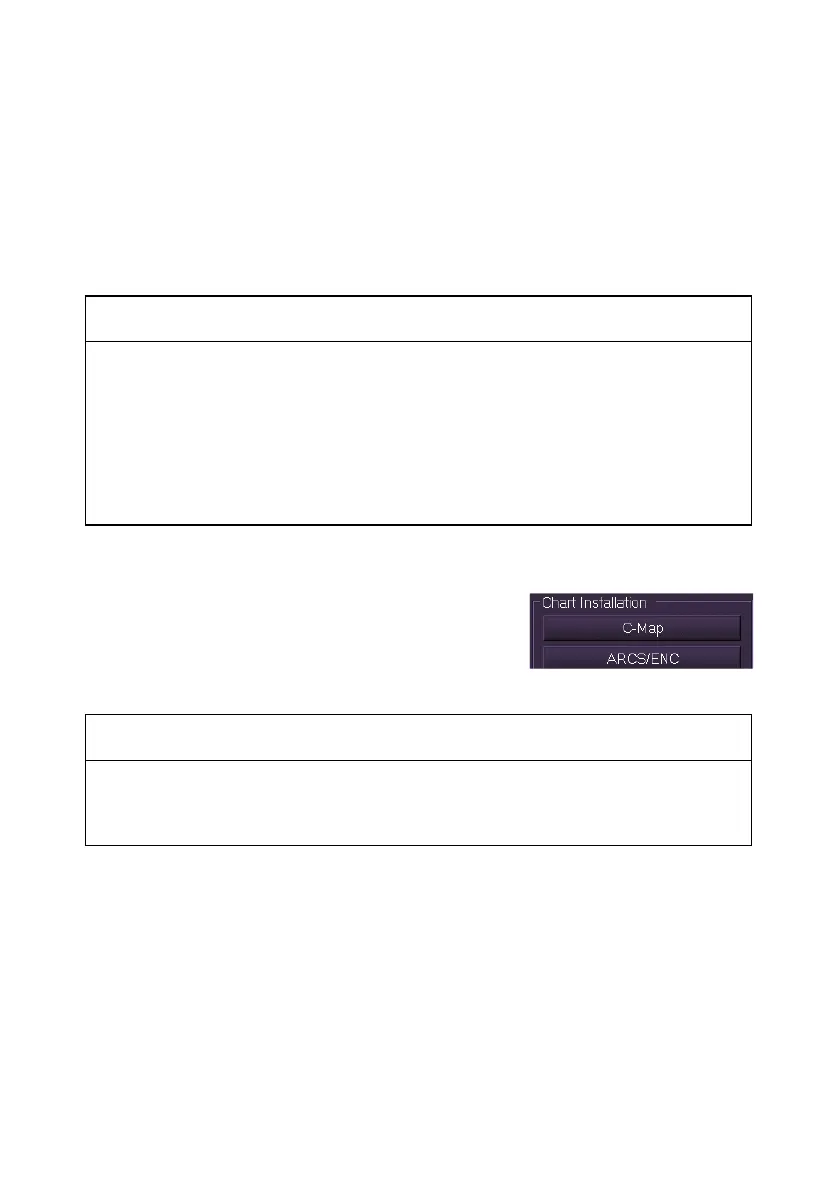
To access the C-Map Chart Installer in VMFT
navigate to the Chart Tools menu and from the
Chart Installation area click on the C-Map
button.
CAUTION:
Switching to the C-Map Chart Installer utility requires shutting
down the VisionMaster program and all navigation functions on
the VM FT node.
When the C-Map button is accessed an `Action Required’ window prompts
to confirm the switch to chart installation mode. To confirm click the Yes
button on the window.
The system powers down and the C-Map Chart Installer start up window
appears showing the current system software version number, copyright
information and a status bar displaying the chart installer loading status.



 To Next Page