Charts ECDIS-E User Guide
4-18 65934012
Permissions / User Permits
The Permissions/User Permits area includes the following access buttons:
Export S-63 Permit
Export 7Cs Hardware ID
Export ARCS User Permit
A SevenCs S-63 permit and an ARCS User Permit are pieces of
information that are intended to provide additional system protection and
authorization for the chart database. The operator is required to send the
permit file to UKHO in order to activate a S-63 or ARCS account. Both
permit numbers are based on the Sperry Security block PIN.
Export S-63 Permit
To export an S-63 permit file do the following:
1. Insert an external device, such as a USB
memory stick, the USB port at the front of the
trackball.
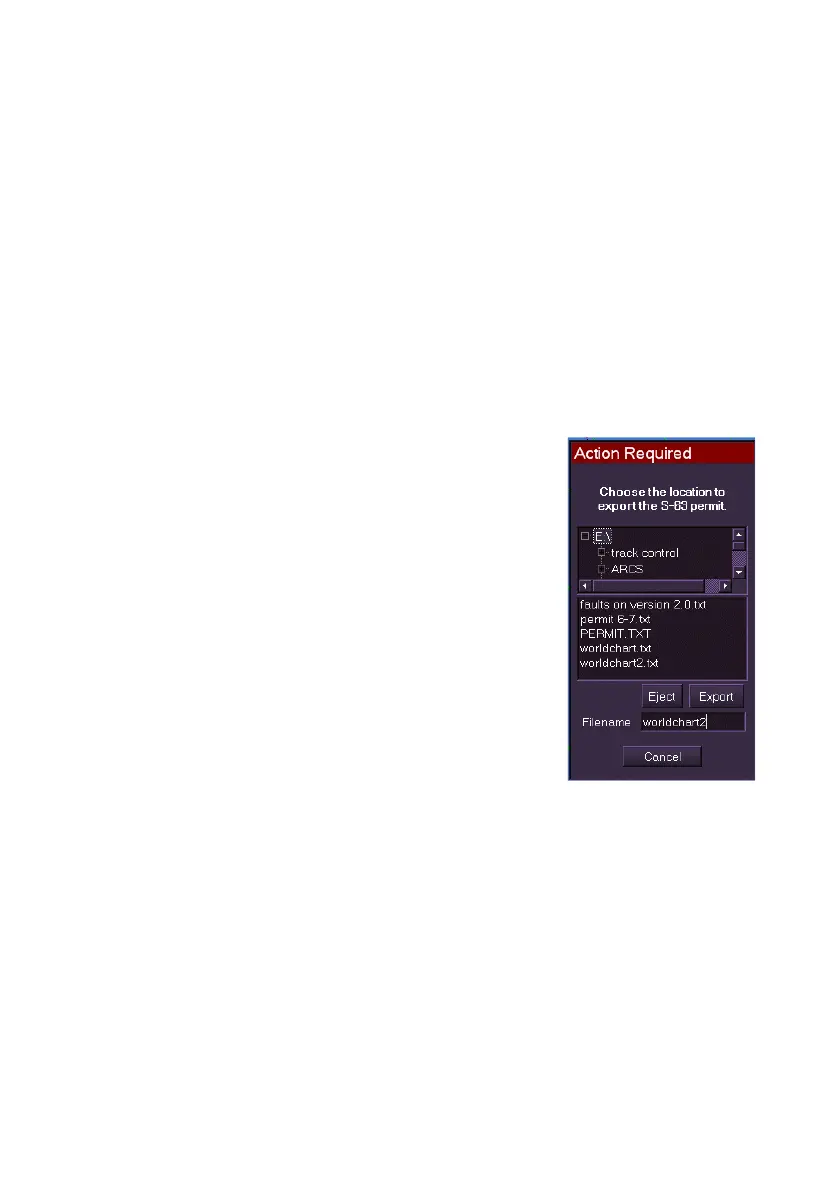
2. Click on the Export S-63 Permit button. The
subsequent window displays the external disk
drive and prompts to choose the location to
export the S-63 permit.
3. Navigate to the location where you want the
permit exported to by clicking on the
+ button
to the left of the directory folder.
4. To enter a filename for the permit click in the
Filename field and enter a name using the
screen keypad.
5. With the export location highlighted and a
name entered click the Export button, the S-63 permit is exported
to the location as a .txt file. If successful a temporary prompt is
displayed confirming that the permit has been exported with the
selected location detailed in the prompt.
6. To cancel the export operation click the Cancel button. The Tools
menu re-appears.
7. When the file has been exported, select the route directory (i.e.
E:\), click the Eject button and remove the external device from the
PC.
Once installed S-63 charts will be displayed even if cell permits have
expired.



 To Next Page