ECDIS-E User Guide Navigation Tools
65934012 5-19
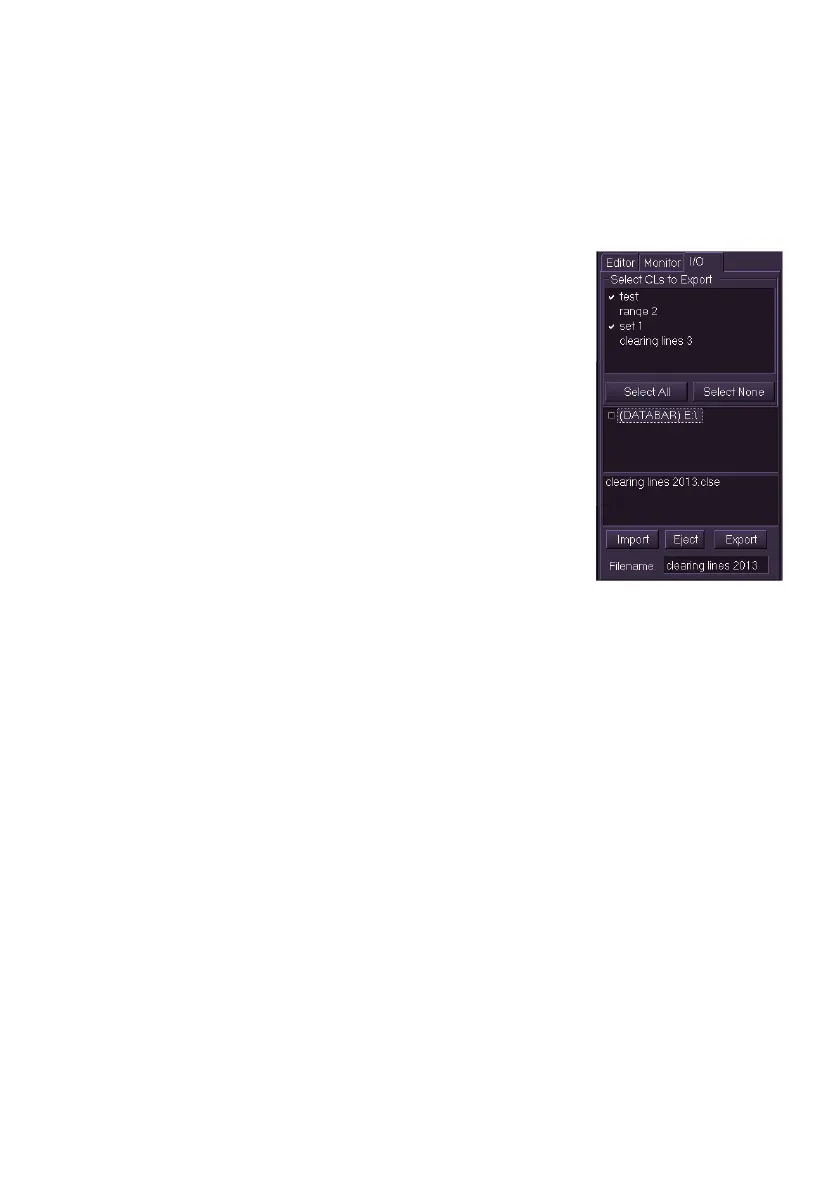
Import/Export Clearing Lines
A set of named clearing lines can be saved to an external device and
imported or exported via the import/export (I/O) tab.
To import or export a set of clearing lines do the following.
To export one or more sets of clearing lines:
1. Insert an external device such as a USB
memory stick into to the USB connector on
the trackball. The name of the external device
appears in the middle field of the I/O tab
folder.
2. From the `Select CLs to Export' field either
select individual sets by ticking their check
boxes, or to export all sets click the Select All
button.
3. Navigate to the directory folder on the external
device where you want to export the files to.
4. Enter a filename for the clearing lines in the
Filename field using the screen keypad.
5. Click on the Export button. The filename
entered appears in the field below the directory tree as a .clse file
and a temporary prompt appears confirming the exported file and
folder name.
To import one or more sets of clearing lines:
1. Navigate to the files to be imported on the external device, the
selected file appears as a .clse file in the field below the external
device directory tree.
2. Click on the Import button. If the imported clearing line sets
already exist on the node an `Action Required' popup window
appears listing the sets to be imported and prompting to select how
the duplicate files should be handled.



 To Next Page