ECDIS-E User Guide Navigation Tools
65934012 5-3
Edit Parallel Index Lines
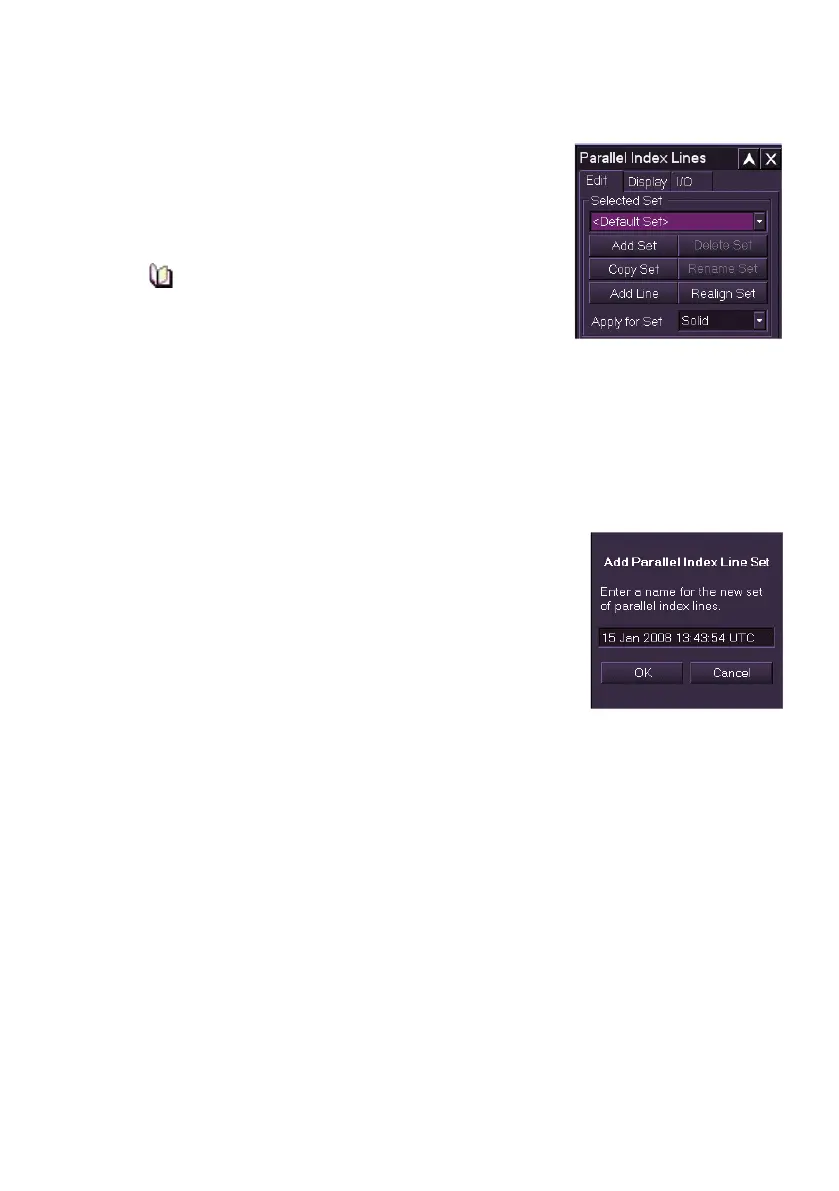
The Edit tab folder opens as default when Parallel
Index Lines is selected, and the Selected Set
shows <Default Set>. Information on PI lines
associated with the default set is displayed in the
Line Data section of the folder.
The <Default Set> of PI Lines cannot be
deleted or renamed.
To select a previously created set of PI lines click
on the drop down arrow to the right of the Selected Set field and select
from the list. The selected set is displayed on the screen and is available
for editing.
Creating a new set of PI Lines
To create and name a new set of PI lines do the following:
1. Click on the Add Set button.
2. The screen prompts to enter a name for the
new set of PI lines with the current date
and time highlighted in the set field name.
To enter the current date and time as the PI
name click the OK button, or to edit the
name click in the field, the text changes to
green (editable) and the screen keypad is
displayed immediately below the field.
3. Enter a new name using the screen keypad, press the Back button
to delete characters or the space button to create a space. With
the required name entered press the OK button.
4. When a new set is created the set name is entered in the system
and displayed in the Selected Set drop down list.
5. You can now add PI lines to the set name, see Adding or Deleting
PI Lines.



 To Next Page