ECDIS-E User Guide Basic Operation of ECDIS-E
65934012 3-21
Manual Scale
The scale mode is switched from AUTO to Manual as a result of the
following actions:
1. Manually changing the scale, the scale can be changed in one of
following ways:
Clicking on the button to decrease the scale, or the button to
increase the scale.
Clicking on the Up/Down Range buttons on the Control Panel
to decrease or increase the scale.
Right clicking on the Scale Ratio button and selecting a scale
ratio from the drop down list.
2. Switching the system to panning mode.
3. Selecting a different chart from the Chart button in the upper
toolbar.
When the scale mode is in Manual the letter A is removed from the scale
ratio readout.
When the ECDIS is in secondary chart window mode (see ECDIS
Presentation Options) you can select different scale ratios for the primary
window and secondary window.
AUTO scale selection is not available in a secondary chart
window.
Zoom Window
The zoom feature enables the operator to zoom into a specified area on the
chart display. The zoom feature can be applied independently to vector
charts in both primary and secondary chart windows, see Presentation
Options.
To use the zoom window feature, do the following:
1. Select Zoom Window from the Scale Ratio drop down list.
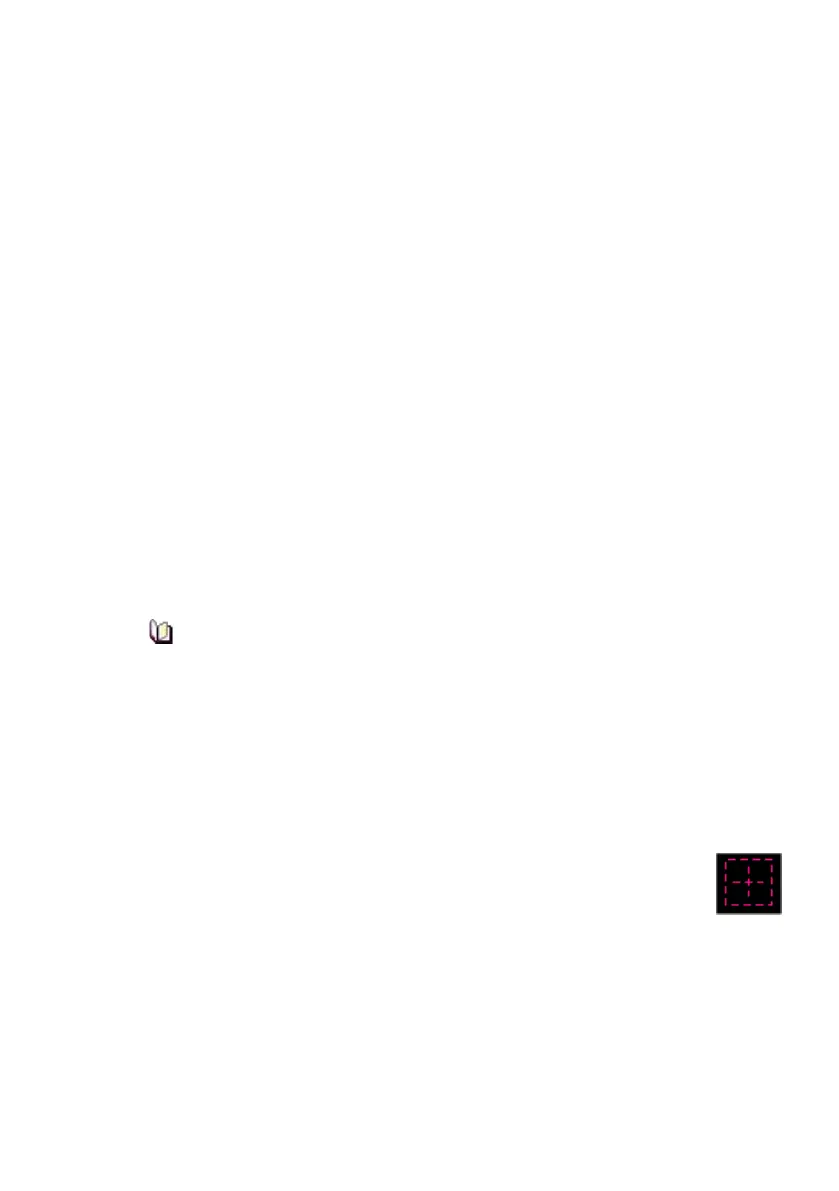
A dotted zoom box appears around the cursor. If the cursor
is not moved for about five seconds the box disappears.
2. Move the cursor to the area on the chart display where you want
the zoom window to originate from.
3. Left click to fix the centre of the zoom window and move the
trackball left or right to expand the zoom box.
4. With the zoom box shown at the required size left click to set the
parameters. The chart display is centred on the zoom window, the



 To Next Page