ECDIS-E User Guide Routes
65934012 8-47
Importing and Exporting a Route
The Import/Export sub menu enables you to import or export routes that
have been created on the VisionMaster FT system. Routes not currently on
a console can be imported from an external drive (usually a USB memory
stick), and existing routes can be exported to an external drive.
The import/export facility is usually done when operating from a
single node. On a two-node system a route saved on one node can
be accessed and edited on either node.
Importing Routes
To import routes do the following:
1. If the external drive containing the route (or routes) to be imported
is a USB memory stick connect the device to a USB port on the
Trackball.
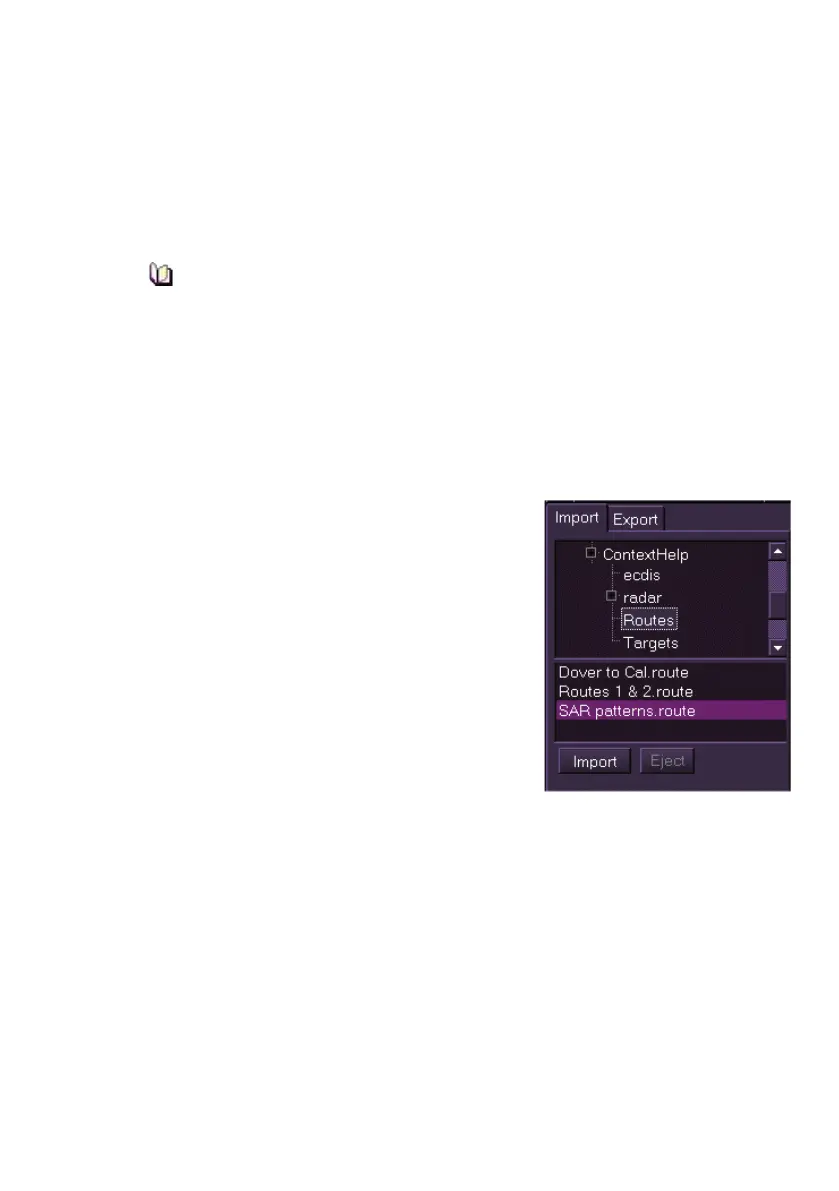
2. From the Route Import/Export window
click the Import tab. A navigation tree
for the external device will be displayed
in the field below.
3. Navigate to the folder on the external
device where the route resides. The
field below the navigation tree will show
any valid route object files contained in
the selected device.
4. Highlight the route file to select for
import. Note that this file may contain
multiple routes.
5. Click the Import button to import the selected route file to your
node, if successful a temporary confirmation prompt appears. The
imported route will be available for monitoring and editing from the
Monitor/Edit Route tab.



 To Next Page