ECDIS-E User Guide Getting Started with ECDIS-E
65934012 2-7
ECDIS-E Screen Layout
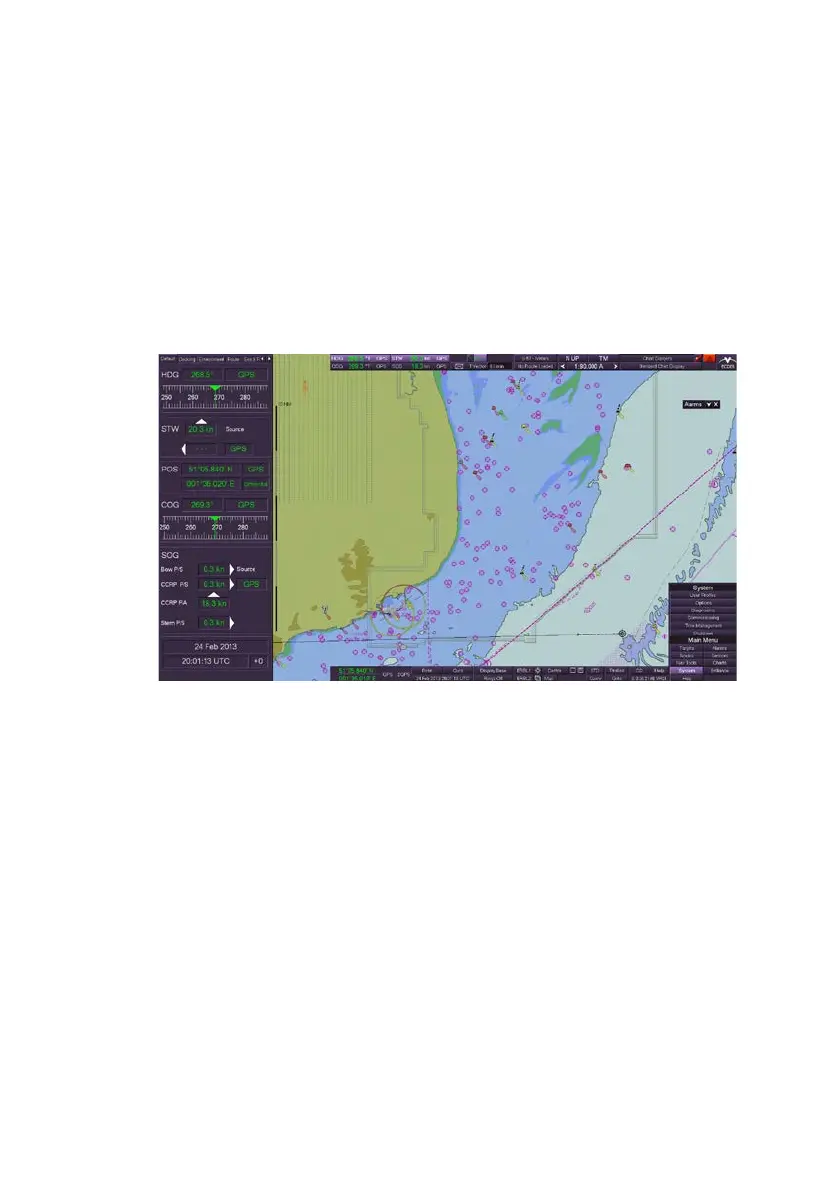
When the system has successfully started up the ECDIS-E appears. Apart
from the upper toolbar area the chart display fills the whole of the display
area rectangle.
On a widescreen the area to the left of the main display can either be
available for CID pages or configured as a wide chart display with no side
panel. For information on the pre-configured CID pages refer to Conning
Information Display.
The basic controls and screen layout for an ECDIS-E are shown below.
The control functions for an ECDIS-E can be divided into the following
areas:
Main Menu and Sub Menu functions (auto show/hide)
Upper Toolbar Area (fixed)
Lower popup Toolbar Area (auto show/hide)
Main Menu and Sub Menu Area
When the cursor is moved over the Show Menu button at the bottom right
of the screen, the Main Menu functions and any associated Sub Menu
functions are shown in a vertical panel to the right side of the screen. If the
cursor is moved away from this area the functions are hidden.
If the cursor remains stationary for a short period of time (usually around 5
to 6 seconds) on the lower toolbar area the Show Menu button is replaced
by the Sperry Marine VisionMaster FT logo. The Show Menu button
reappears when the cursor is moved.



 To Next Page