Basic Operation of ECDIS-E ECDIS-E User Guide
3-26 65934012
AIS Display Button
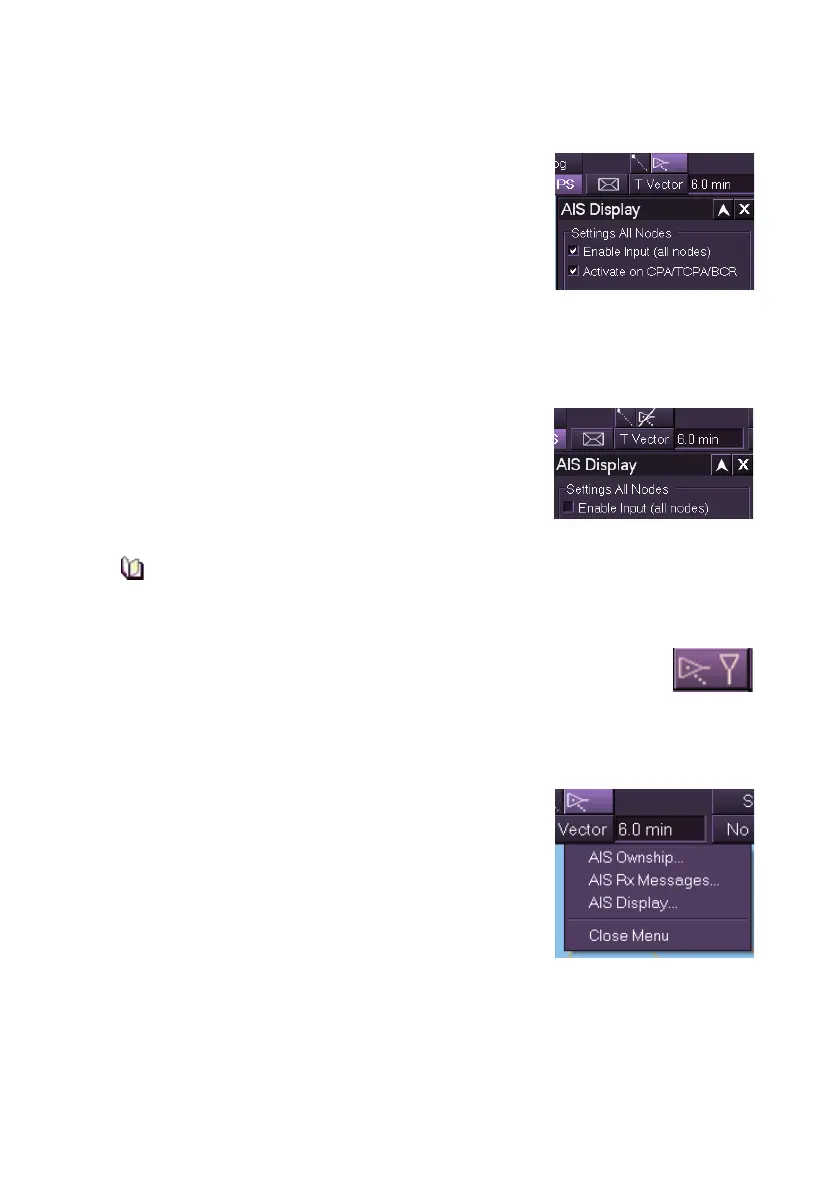
The AIS button, located on the upper toolbar,
enables you to quickly access the AIS Display
window by left clicking on the button.
The AIS Display window enables the AIS input to be
switched on and off. AIS targets are tracked and
displayed on the chart window when AIS input is
enabled.
When the Enable Input check box is ticked the AIS Display button is
displayed as shown. The AIS Display button is shown in a lighter tone
when AIS Priority is selected from the Target Display window.
When AIS input check box is un-ticked, a white
diagonal line appears through the AIS button and all
AIS targets are removed from the chart window. AIS
transmissions will continue to be stored so that
known targets can be rendered quickly when the AIS
display is re-enabled.
If the Activate on CPA/TCPA/BCR check box is ticked and an AIS
target infringes these limits (as defined in Limits and Settings), the
AIS display is automatically activated.
The default setting for AIS target filters is for all filter settings to be
switched on, for a description of AIS Filter Settings see AIS
Display . If any AIS filter settings are switched off the AIS button is
displayed with an additional AIS icon in white outline.
Access to Own Ship AIS
To access the Own Ship AIS sub menu right click on
the AIS button. The drop down list enables you to
select AIS Ownship and AIS Rx Messages, in
addition to AIS Display.



 To Next Page