Navigation Tools ECDIS-E User Guide
5-18 65934012
Monitoring Clearing Lines
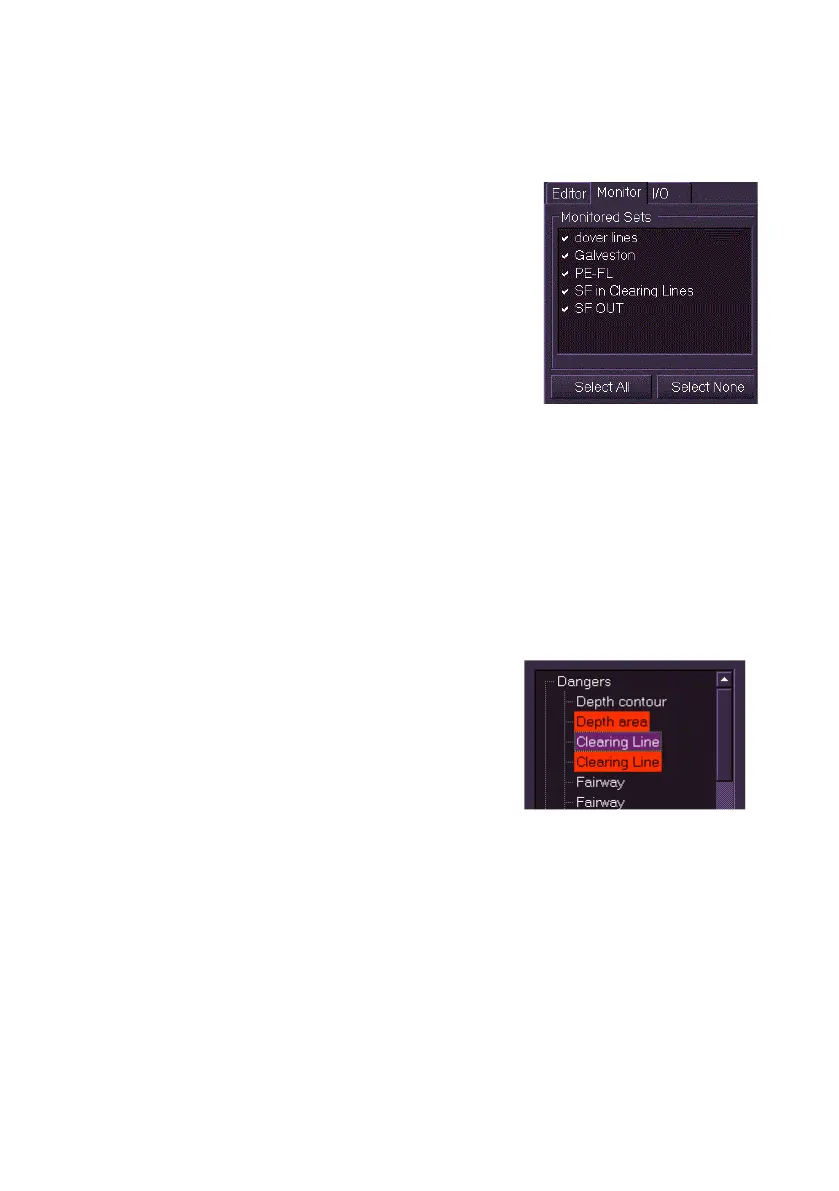
A saved set of clearing lines may be loaded for monitoring. To monitor a
set of clearing lines:
1. Click the Monitor tab on the Clearing
Lines sub menu. The window lists the
saved sets available for monitoring.
2. You can either select an individual set for
monitoring by ticking its check box, or
select all sets by clicking the Select All
button. All clearing lines are drawn in
pink while loaded for monitoring.
3. To stop monitoring either untick the set's
check box, or click the Select None button.
To edit a clearing line set that is currently loaded for monitoring:
1. Open the set from the Editor tab. The system creates a duplicate
set for editing over the monitored set in the editable colour (amber).
2. Make the required edits to the set. As the set is changed the
screen shows the monitored set in the original position.
3. Save the changes made to the set. The monitored set is redrawn to
reflect the changes made in the edited set.
Safety Checking Clearing Lines
Monitored clearing lines will trigger a chart
danger (see Safety Checking) if own ship's
safety region intersects a clearing line. For
information on accessing and acknowledging
chart dangers, see Dangers.
Monitored clearing lines can also detected as
dangers when a route is being monitored (see
Monitor Route - Dangers), or by safety checking on a route opened for
editing, see Edit Route - Dangers.


 To Next Page