ECDIS-E User Guide Navigation Tools
65934012 5-45
Navigation Marks
Navigation marks (NAV Marks) are generated by the operator to
indicate positions of interest on the chart display.
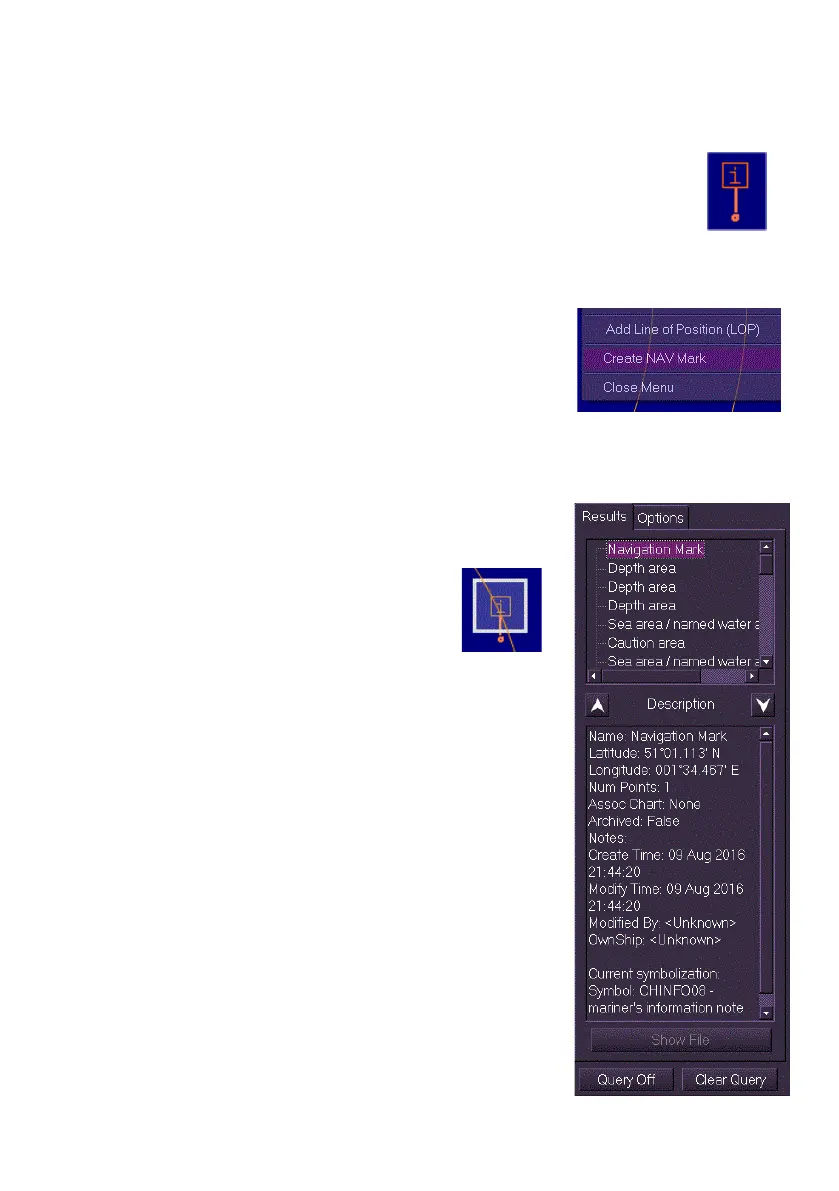
The NAV Mark is displayed as an orange information note symbol
in a square box. When a NAV mark is created a vertical orange
line with a dot at the end is displayed below the symbol box.
To create a NAV Mark do the following:
1. Right click anywhere within the chart
window, a semi-transparent window
appears at the position selected.
2. Select Create NAV Mark from the window.
A NAV mark is created at the selected
position.
To view data on the NAV Mark do the following:
1. Right click on the NAV Mark and select
Query Chart from the semi transparent
window. The Chart Query window appears
with the Results tab opened.
The Results tab shows details
on the selected NAV mark,
which is highlighted on the
chart display with a white box and a white
transparent background fill. The Description
area of the Chart Query window shows
Latitude/Longitude position information and
all other data relevant to the NAV Mark.
2. To de-select the NAV mark click on the
Clear Query button. The highlight is
removed from the NAV mark and the data
in the Results tab is cleared.
For further information on Chart Query see Query
Results and Query Options



 To Next Page