Navigation Tools ECDIS-E User Guide
5-8 65934012
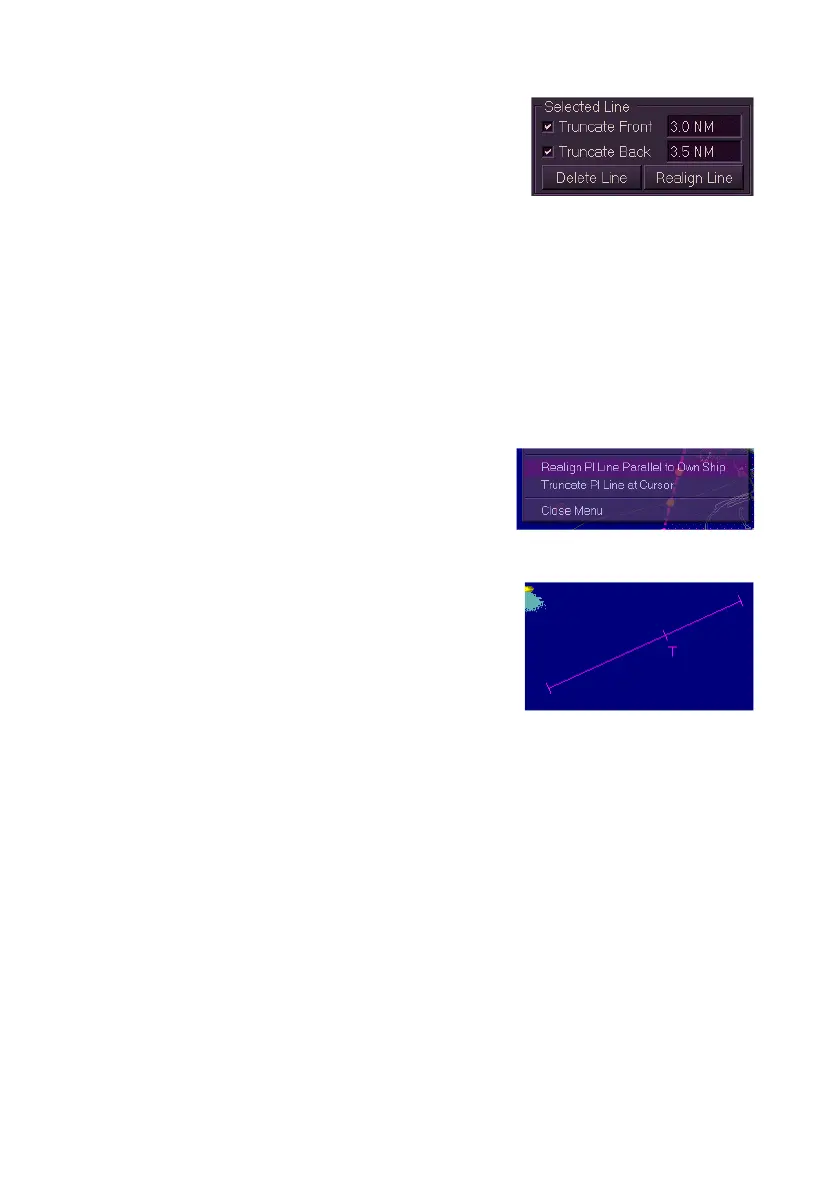
2. To adjust the line's end points tick the
Truncate Front and Truncate Back
check boxes. The Truncate Front and
Back values both default to a distance of
2.0 NM either side of the line's centre
point.
3. Click in the fields, the text becomes editable (green), move the
trackball left or right to decrease or increase the truncated values.
The front and back endpoints may be different values.
To truncate a PI line from the screen:
1. Either click on the line's end point, hold down the left key and drag
the end point to the required position.
2. Or, to truncate a line at a cursor position, move the cursor over the
line and right click.
3. From the context window select
Truncate PI Line at Cursor. The line is
truncated to the cursor location.
When a truncated PI line is selected a short line
is drawn perpendicular to the PI line's axis at the truncated end.
To delete a PI line, select the line as described
above and click the Delete Line button. The line
is removed from the display and it's data
removed from the Line Data section.


 To Next Page
 Loading...

