ECDIS-E User Guide Navigation Tools
65934012 5-23
c. Select a range by ticking the Range check box. When Range
is selected the screen displays a circular magenta line centred
on the LOP and a time stamp. Click in the field and define the
required range, the range circle is re-drawn to the distance in
NM entered. The range line moves across the display, based
on the speed and course of the vessel.
d. A Time read-only text box is displayed as part of the LOP
Data group. This displays the time, in the format HH:MM:SS,
of the last update of Range or Bearing.
4. The point symbol will be a triangle if a bearing LOP is used, or a
circle if a range LOP is used. A triangle inside a circle will be shown
if both range and bearing are measured to the same object.
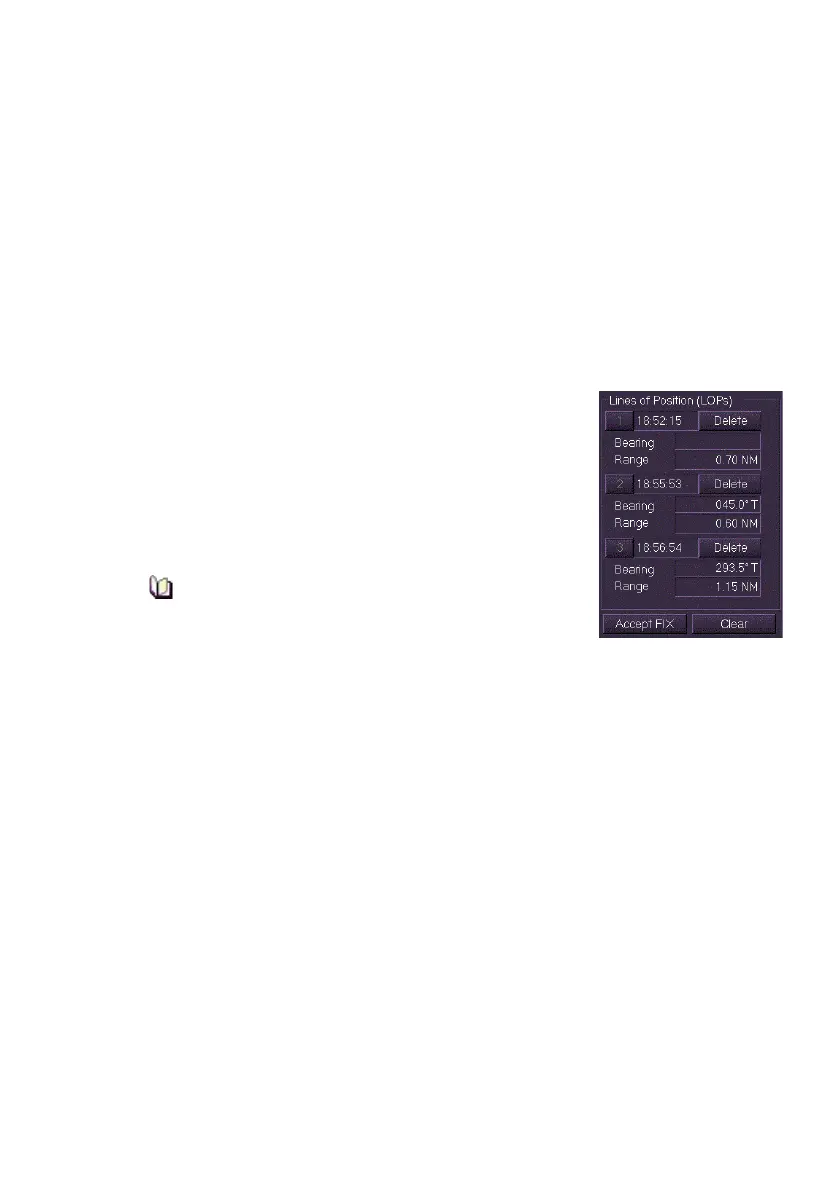
5. When the required bearing/range values have
been entered click Add LOP button. The LOP
data entered is listed in the Lines of Position
(LOPs) area of the window and the LOP data
on the screen changes to orange.
6. Repeat the process above for the required
number of LOPs.
Note that when a LOP has been added to the
LOPs list its bearing and range values cannot
be changed. Should LOP data need to be
modified, the relevant LOP must be deleted and then replaced
using the amended data.
7. The same location or object may be used for multiple bearing
and/or range observations at different times. When this is done
each selection is added to the Lines Of Position list with the LOP
reference numbers superimposed over each other.
8. To delete a LOP the click the Delete button. The LOP is removed
from the display and the LOPs list, note that the numbers
previously assigned to LOPs are retained.
9. To delete all LOPs from the system click the Clear button. All LOPs
are removed from the display and the Line Of Position window. A
permanent fix symbol remains on the display after the Clear button
has been clicked.
10. When all data is entered for the desired number of LOPs click
Accept Fix to establish a LOP.



 To Next Page