Routes ECDIS-E User Guide
8-14 65934012
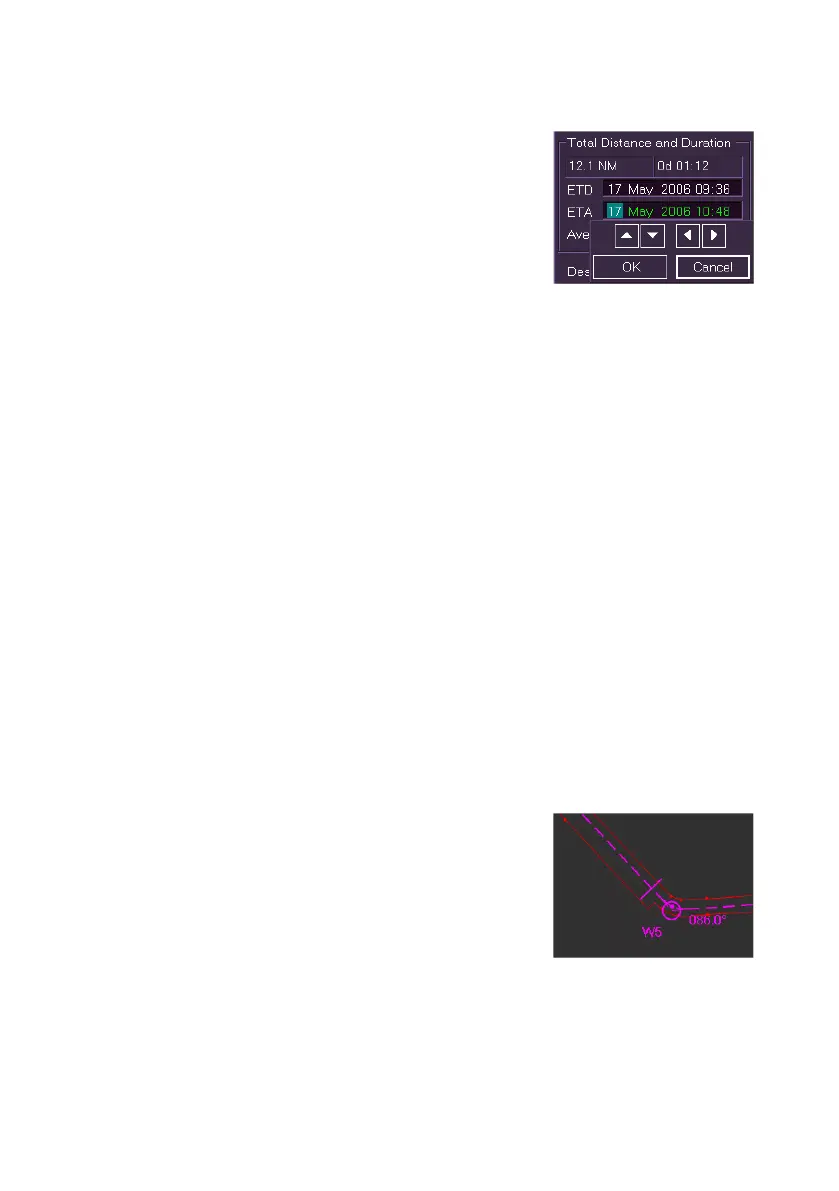
To change the ETD/ETA data do the following:
1. Click inside the ETD or ETA field on the
specific data to be changed. The field data
changes to green (editable) and the specific
data is highlighted. An editing window
appears directly below the selected field.
2. To move the date or time back click on the
Down arrow, to move the date or time
forward click on the Up arrow. To move the highlight back or
forward (e.g. from Month to Year) click on the side arrows.
3. With the correct ETD/ETA data displayed click on the OK button.
XTD Limits
The XTD Limits area enables a set of distance values to be applied for the
Port and Starboard side of a route. The value represents the limit of
deviation from the planned route at which the off-track alert occurs.
The settings in the Route tab will apply to all legs and turns on a route.
Different XTD limits for individual legs and turns may be made from the
Waypoint tab folder. The default value is 100 metres for the Port and
Starboard sides.
To change the XTD Limits do the following:
1. Click in the PORT and STBD fields, the value changes to green
(editable).
2. Move the trackball left to decrease the value, or right to increase.
Left click again to accept the value.
3. When the XTD limits have been changed an `Action Required'
prompt appears requesting confirmation of the change. Click the OK
button to confirm the change, or select Cancel to reject the change.
The XTD limits can be viewed along the route,
providing Show XTD Alarm Lines is enabled in
Route Display Settings. The XTD alarm lines are
shown as thin red lines either side of the route line.



 To Next Page