System ECDIS-E User Guide
13-24 65934012
Exporting a Configuration
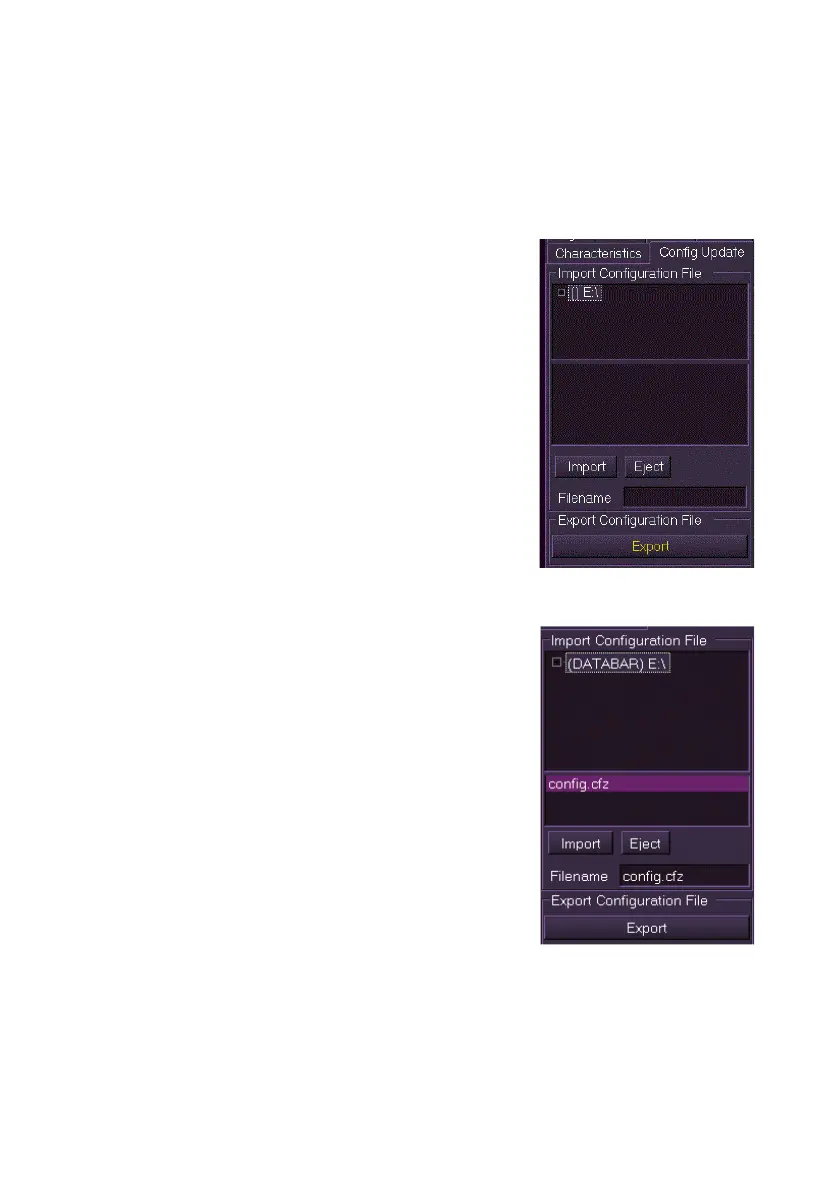
To export a configuration do the following:
1. Connect a USB memory stick to the USB connector on the
trackball. The device name appears in the Import Configuration
File field.
2. Select the device name and click the
Export button. A compressed file of the
system configuration is exported to the
device, and when complete a temporary
prompt appears confirming that the file has
been exported.
3. Click the Eject button and remove the
memory stick from the trackball.
The configuration file is saved as `config.cfz'
which can be forward to the relevant authority.
Note that the compressed file is a standard zip file
but the file extension is non-standard in order to
bypass common email filters.
Importing a Configuration
To import a configuration do the following:
1. Connect a USB memory stick to the USB
connector on the trackball. The device
name appears in the Import
Configuration File field.
2. Select the device. Any compressed
configuration file that has been copied to
the device will be displayed in the field
below, i.e. config.cfz
3. Highlight the file. The file will be shown in
the Filename field.
4. Click the Import button. The system
proceeds to import the configuration file to
all nodes on the system. While the import
process is taking place Import, Export and Eject are disabled and
the Import button changes to Wait.. Note that the import process
may take a long period of time.
5. When the import is complete a temporary prompt appears
confirming that the file has been copied to all nodes on the system
and the Import, Export and Eject buttons are re-enabled.



 To Next Page