409
8 Software - Installation and basic settings
8.5 Diagnose Control
Carry out diagnoses:
1. In the "Main menu", tap on the "Service" key.
The "Service" window is displayed.
2. Tap on the "Diagnostics" key.
The "Diagnostics" window is displayed.
3. Tap on the "Diagnostic control" key.
The "Diagnostic control" window is displayed.
4. Tap the desired button. The diagnose is starting, you can see the work
progress in the message window.
5. If other diagnoses are needed, then tap the corresponding button.
6. When all diagnoses are generated, tap on the "Copy All Logfiles" key.
The data (Logfiles) are saved on the selected data carrier. It will be
saved on the data carrier that is set in the "Copy service data" window.
Further information:
Copying service data [-> 158]
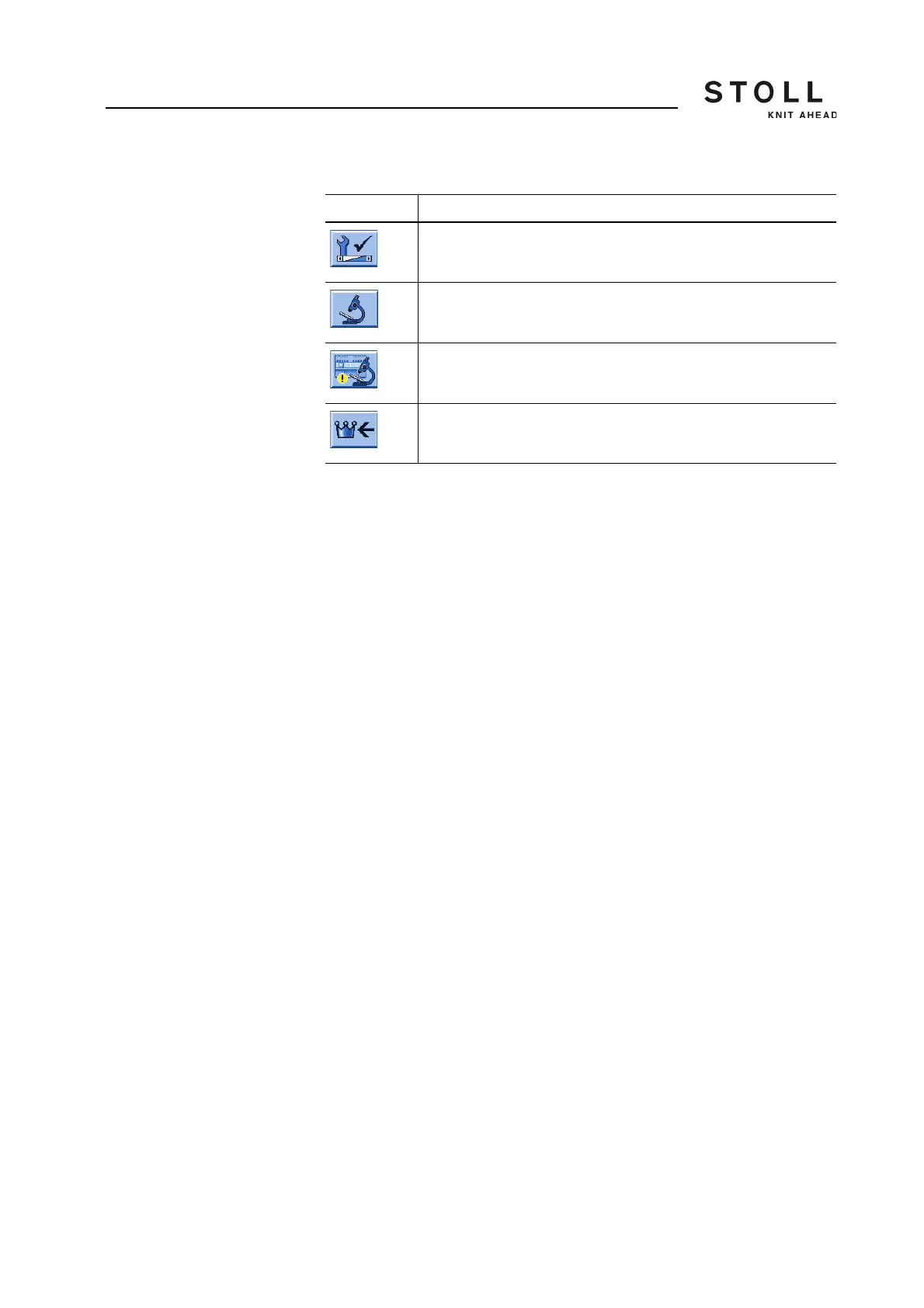
Key Function
Call up the "Service" window
Call up "Diagnostics" window
Call up "Diagnostic control" window
Call up "Main menu"
Buttons for calling up the "Diagnostic control" window


 To Next Page