MAP and VFR GPS Navigator Operation
SkyView HDX Pilot’s User Guide – Revision B 5-29
INFO Button
On the Main Menu, the INFO button displays detailed information about any selected airport,
navaid, or other item that is selected in the map pages or that is being pointed to with the Map
Pointer.
Additionally, the INFO button / window doubles as a way to find airports, navaids, and user
waypoints in a variety of ways. When used this way, the first press of INFO will display detailed
information about the airport or navaid that was most recently used or selected. The cursor will
highlight the tab for the selected item type at the top of the window. From here, you can either
move the CURSR knob down to find the desired item by identifier, facility, or city. Or, move the
CURSR knob left to the RECENT tab to choose from the most recently used and viewed airports
and navaids.
On pages with multiple tabs across the top, the knob labeled CURSR is used to
move the highlight cursor both vertically on the displayed tab and horizontally to
select other tabs.
To move the white cursor bar vertically, simply rotate the knob.
To move the cursor horizontally across the tabs, push-and-hold the knob, then
rotate. While the knob is held down, a secondary cursor – colored cyan (light blue)
– will appear on the current tab header and will move laterally across tab headers
when the knob is rotated.
Releasing the knob push will return control to the white vertical cursor.
FPL Button
On the Main Menu, the FPL (Flight Plan) button brings up a window that can be used to create,
display, or modify a Flight Plan. Reference the Flight Planning section of this guide for details.
MENU > MAP CONTROLS
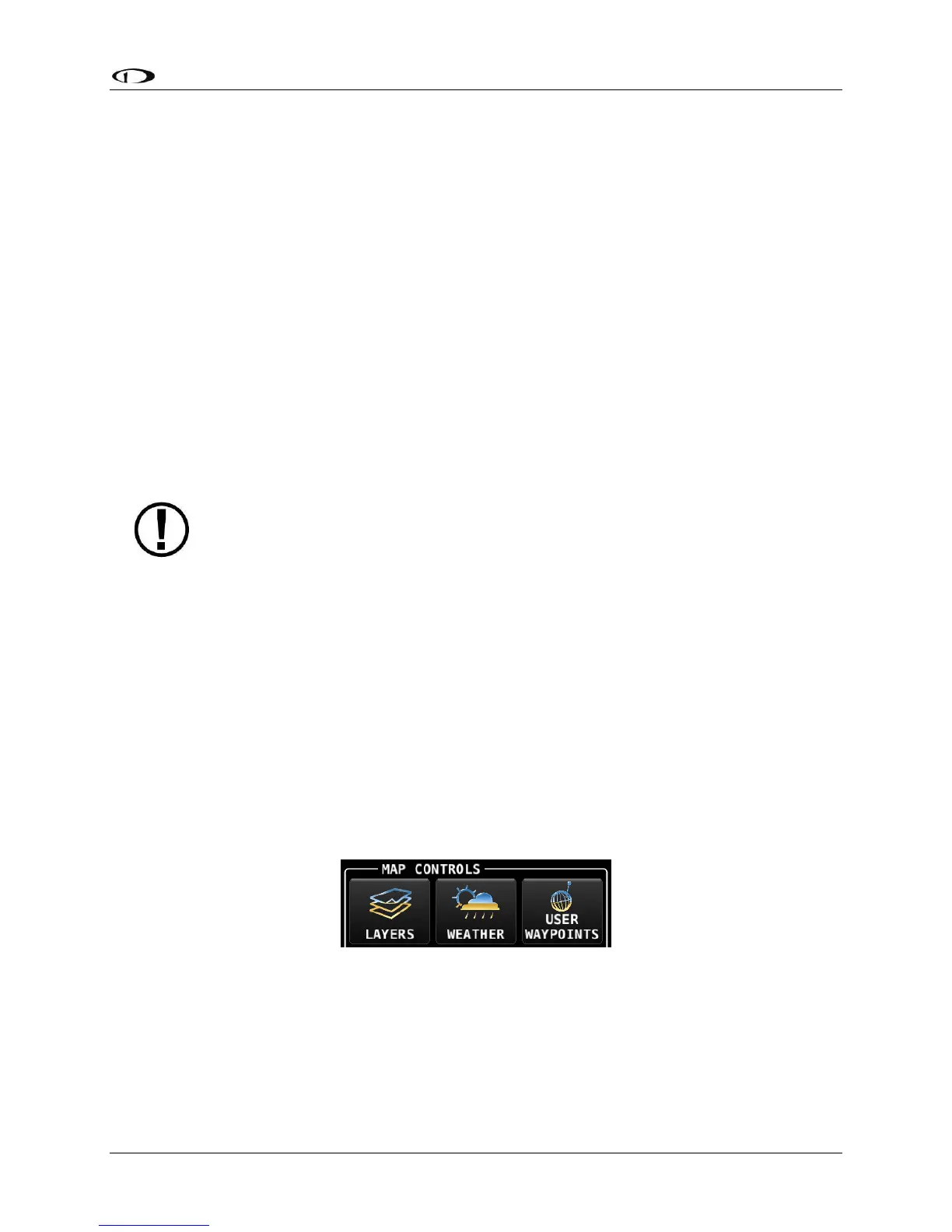
Three additional options related to the MAP are available in the MENU window (labeled MAP
CONTROLS): LAYERS, WEATHER, and USER WAYPOINTS – see Figure 126.
Figure 126 – MAP CONTROLS Icons
LAYERS (In MAP CONTROLS)
Pressing the LAYERS icon opens the MAP LAYERS Menu, which allows you to select these
“layers” (overlays) to the MAP window:




 To Next Page