MAP and VFR GPS Navigator Operation
5-38 SkyView HDX Pilot’s User Guide – Revision B
To exit Map Panning Mode, press the knob, or touch the black information box which is
displayed across the top of the map while in panning mode. The map will revert to centering on
the aircraft’s position. Pressing the knob again will return to the Map Panning Mode at the last
known Map Pointer position.
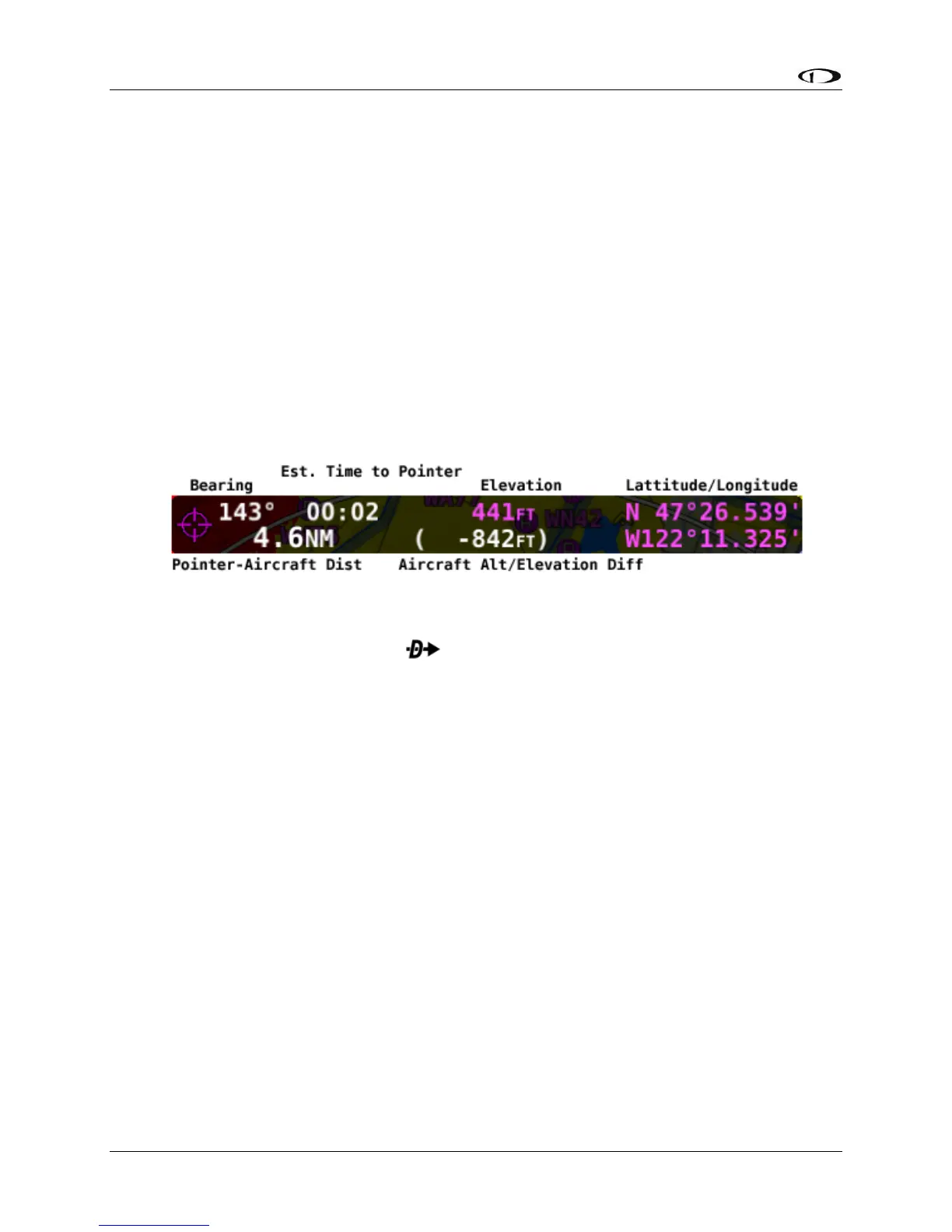
In addition to the Map Pointer, a Map Pointer Information Bar displays the following
information about the Map Pointer:
• Latitude / Longitude
• Distance between the Map Pointer and the aircraft
• Magnetic bearing from the aircraft position to the Map Pointer.
• The estimated time, in minutes, that it would take to reach the Map Pointer if you were
to fly directly to it at the current GPS ground speed.
• Elevation of the terrain underneath the Map Pointer, along with the difference between
the aircraft’s current GPS altitude and the terrain elevation (in parentheses.)
Figure 137 – Map Pointer Information Bar
When in Map Panning Mode, pressing will cause a temporary MAP POINTER waypoint to
be created that allows you to navigate Direct-To the location that you are pointing at with the
map pointer. (Note that this waypoint is not stored as a user waypoint. See the section on User
Waypoints for more information about using the user waypoints feature).
When in Map Panning Mode, the MENU > USER WAYPOINTS > ADD MAP CURSOR POSITION
menu item will allow you to create a user waypoint and immediately add it to your flight plan.
Pressing NRST in Map Panning Mode will cause the list of nearest airports and other aviation
features to be based on the location of the Map Pointer instead of the aircraft. In this context,
the position being referenced is noted in magenta colored print at the top of the Nearest
Window.
Selecting Map Items with the Map Pointer
When panning with the Map Pointer, virtually any item on the map can be selected. This
includes items such as airports, airspaces, navaids, waypoints, obstacles and cities.
To select an item, simply touch the map at the location of the item of interest. The item is
highlighted in white to indicate it is selected. A pop-up block of informational text about the
item also appears.
Note that airspaces can be selected by touching anywhere inside any airspace segment. You
need not point directly at the lined boundary.




 To Next Page