SkyView HDX Display Operation
SkyView HDX Pilot’s User Guide – Revision B 3-3
In the first seconds after turning a SkyView display on, you may see momentary display artifacts
such as multicolored lines and/or flashes of light as the display initializes. This is normal.
How to Manually Adjust the Backlight Brightness or Dim Level
SkyView HDX’s display backlighting is controlled by its ambient light sensor to actively adjust
the brightness based on the current lighting conditions in the cockpit. The brightness is
synchronized across multiple displays and SkyView network panel mounted modules (Com
Radio, Knob Control Panel and AP Control Panel).
If, however, you find that the displays are too bright or not bright enough for you, you can
adjust the brightness by selecting DISPLAY (Button 7) on the Main Menu, then touching the DIM
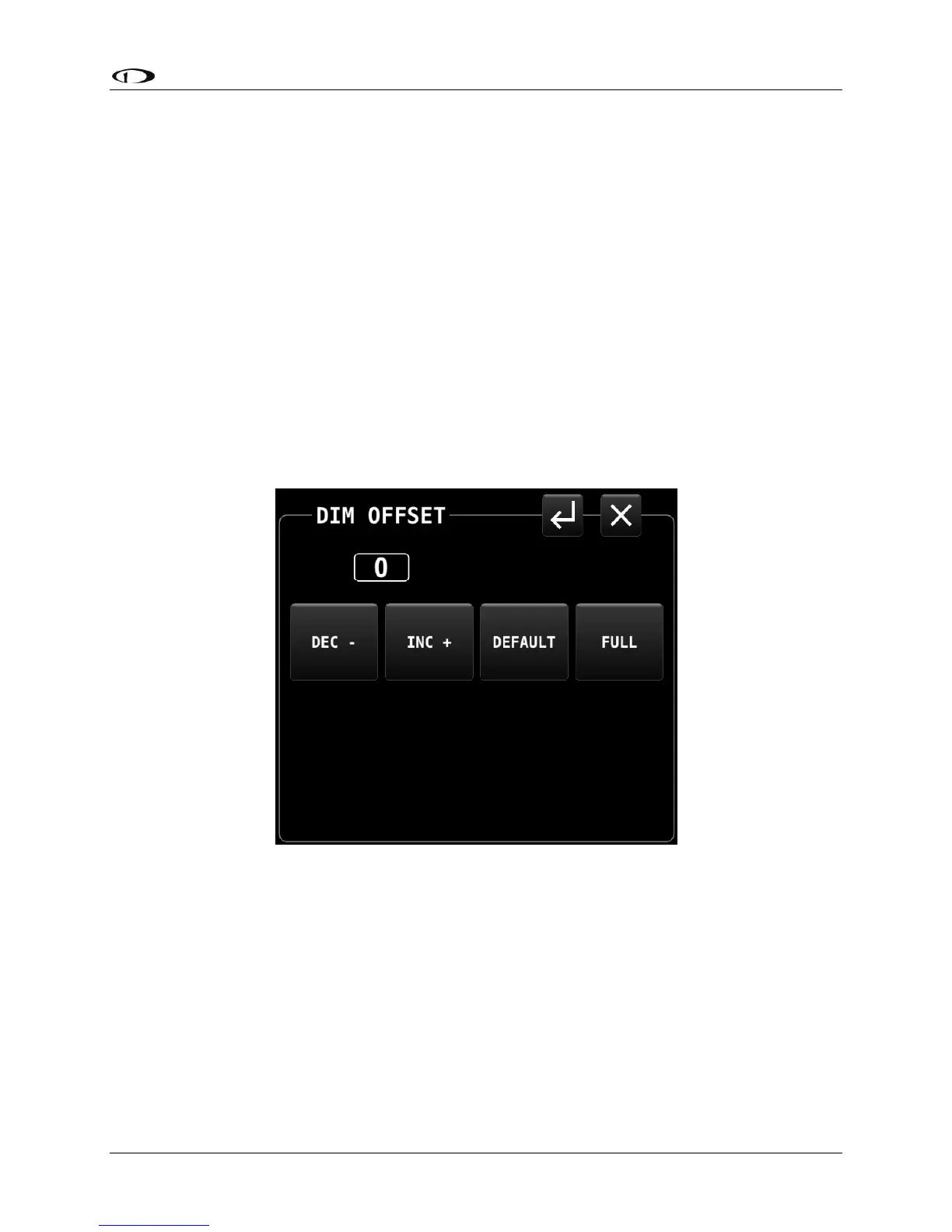
OFFSET icon on the screen. The DIM OFFSET menu, shown in the figure below, allows you to
manually choose an offset from the default brightness values based on current ambient
lighting. This lets you fine tune the brightness of the display to your preference, while still
allowing SkyView to adjust for changing lighting conditions.
Figure 2 – DIM OFFSET control page
To decrease or increase the backlight brightness press DEC- or INC+ icons, respectively.
Alternately, to adjust the backlight brightness with the knob, touch the “value box” (shown in
Figure 2 as “0”) , then rotate the left knob (if the DIM OFFSET menu is displayed on the left side
of the display) or the right knob or rotate the right knob (if the DIM OFFSET menu is displayed
on the right side of the display).
The current offset appears in a window above the DIM knob. Touch the DEFAULT icon to quickly
reset the offset to zero. Touch the FULL icon to quickly set the offset to its maximum. Press the
EXIT icon (“X”) located in the upper right corner of the DIM OFFSET menu to exit.





 To Next Page