MAP and VFR GPS Navigator Operation
SkyView HDX Pilot’s User Guide – Revision B 5-57
would with a VOR. This is useful to approach an airport from a specific direction, for example,
without having to create a second waypoint to create a full flight plan leg.
Turning On OBS Mode through your Flight Plan
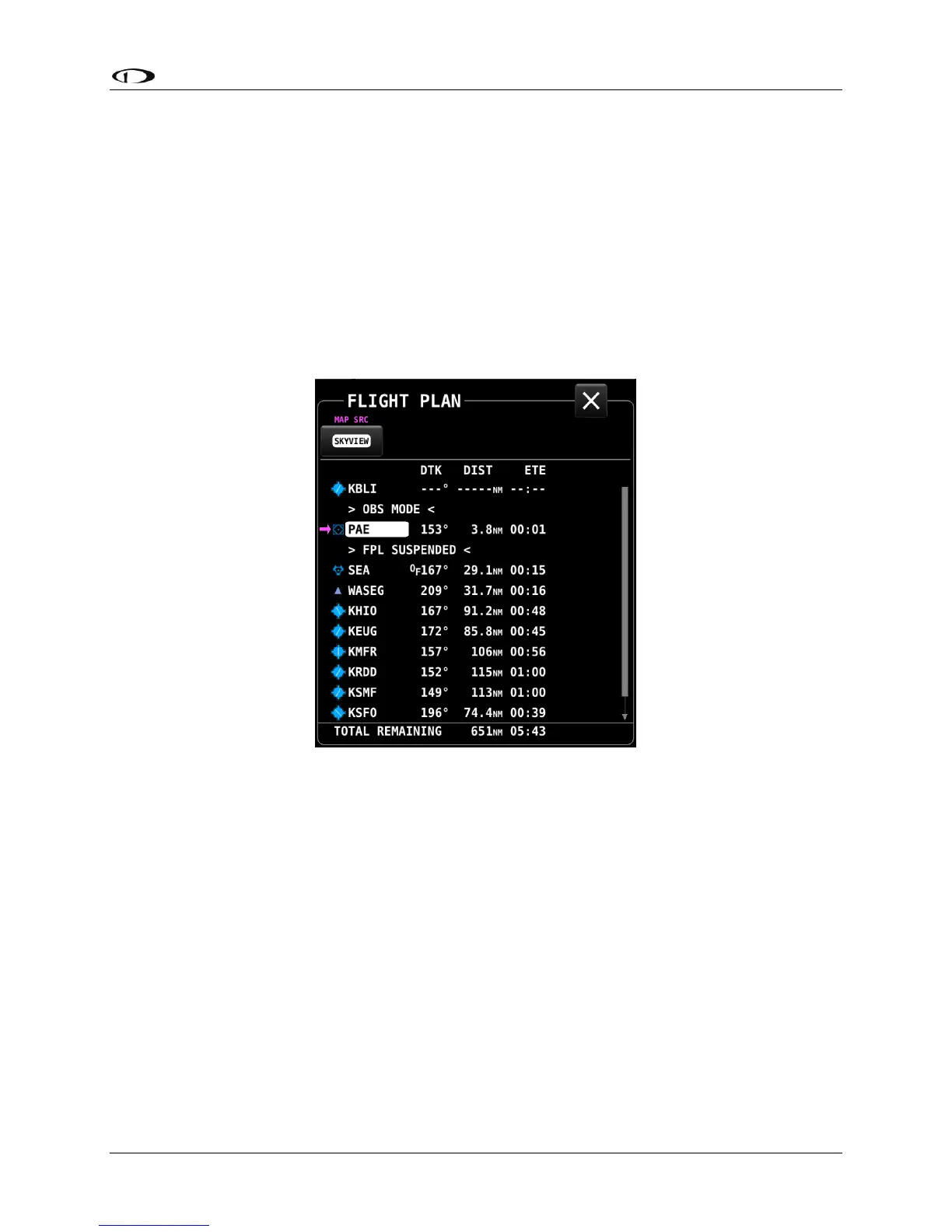
To turn on OBS Mode to a point that is already in your flight plan, select FPL, highlight the
waypoint you would like set a course to and then select FPL MENU > SET OBS MODE. The flight
plan display will surround the waypoint that OBS Mode is set on with OBS MODE and FPL
SUSPENDED messages. When OBS Mode is active, normal flight plan leg sequencing is
suspended, and the suspended flight plan is not displayed on the map page. Only the single
waypoint that OBS Mode is set to is being actively navigated to.
Figure 160 – OBS Mode Activated
Adjusting the OBS Course
Once OBS Mode is set, you can use the CRS knob to change your inbound course to the selected
waypoint. Your HSI source must be set to SkyView. This works much like the course setting on
when tuning a radio-based VOR.
As you turn the CRS knob, both the magenta inbound and white outbound course on SkyView
HDX’s map page rotate in tandem with the course on the HSI display.




 To Next Page