MAP and VFR GPS Navigator Operation
SkyView HDX Pilot’s User Guide – Revision B 5-63
time the page was opened. Note: this button will only be available if the map is in
panning mode. Otherwise, this button will be greyed out and not selectable.
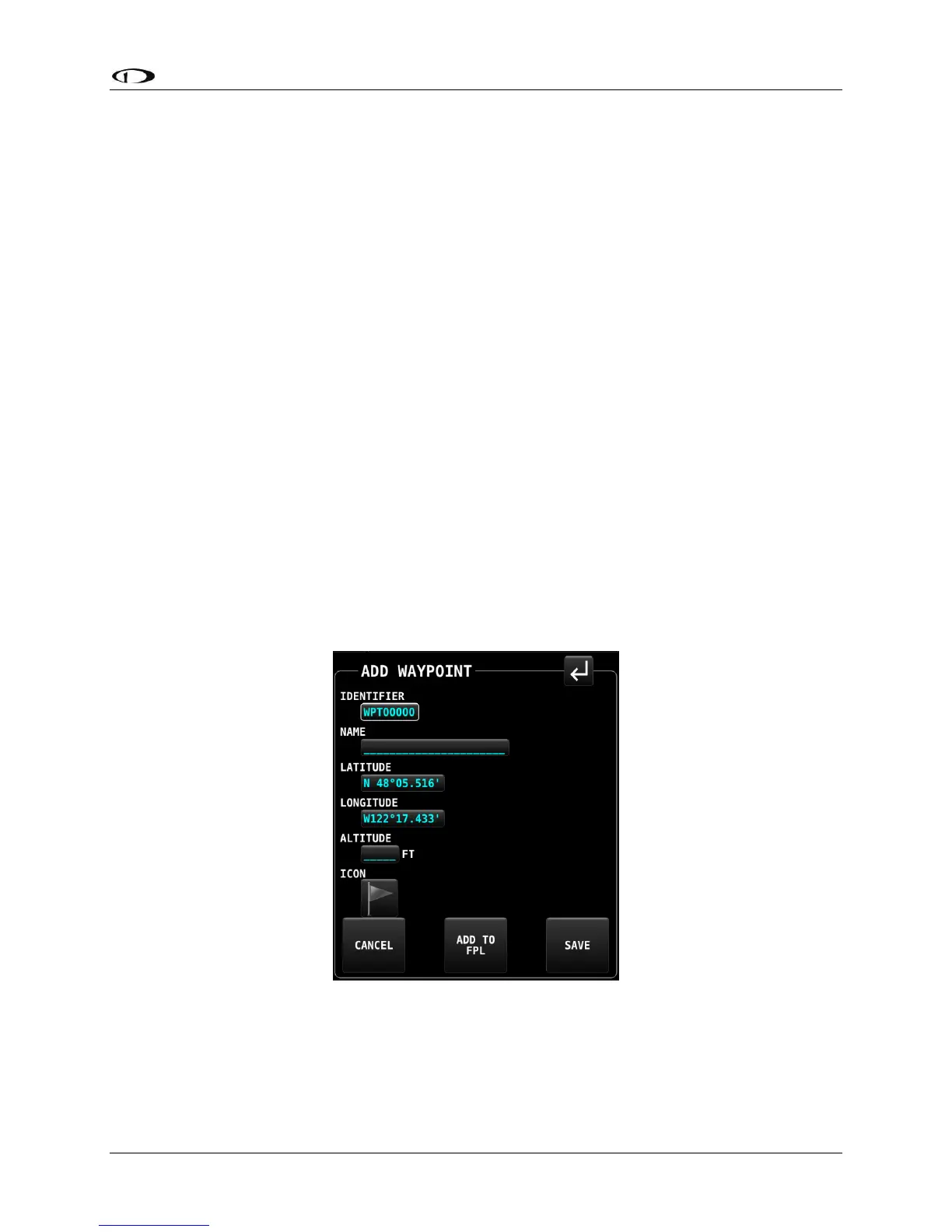
• ADD PRESENT POSTION. Selecting this item will open the ADD WAYPOINT page, where
all necessary information for a waypoint can be entered. The LATITUTDE and
LONGTITUDE fields will be pre-populated to reflect the present position of the aircraft.
• DELETE: For the waypoint item highlighted in the list, selecting DELETE will remove the
selected item from the waypoint database. A confirmation dialogue will appear,
requiring the pilot to respond YES or NO to complete the deletion.
• EXPORT: Selecting EXPORT will export the entire user waypoint list to a USB stick,
provided one is present in any of the three USB ports on the SkyView HDX display.
• IMPORT: Selecting IMPORT will import a valid user waypoint file from a USB stick,
provided one is present in any of the three USB ports on the SkyView HDX display.
• CLEAR DATABASE: Selecting CLEAR DATABASE will erase the entire contents of the USER
WAYPOINTS database stored in the system.
Creating Waypoints
A new user waypoint may be created either at the aircraft’s current position or at the position
of the map cursor provided the map is currently in the panning mode. Selecting the
appropriately named button will open the ADD USER WAYPOINT page shown below.
Figure 170 – ADD WAYPOINT page
This page includes six editable fields. The first field will be selected with a white box, indicating
the selection cursor is located there. Select each field to be edited in turn either by touching
the field or by rotating the CURSR knob to move the white cursor box to that field, then pushing
the knob to commence editing. Once in the edit mode, select each character by rotating the





 To Next Page