MAP and VFR GPS Navigator Operation
5-36 SkyView HDX Pilot’s User Guide – Revision B
Navigate to a Selected Waypoint with (Direct-To)
To navigate to an airport, navaid, or other waypoint via a direct course from your present
position, press in the Nearest, Info, or Map Pointer windows when the desired item is
highlighted. This instantly makes the selected item an active waypoint that SkyView is
navigating to, and automatically closes the Info or Nearest window.
Press from the Map Page to bring up the Info window that allows you to search for a
waypoint by identifier, name, or city*. If navigation is already active, the current waypoint will
be shown. You may also select the RECENT tab of the Info window to find waypoints that have
been navigated to recently. After the desired waypoint is found, simply press again to
navigate directly to it from your present position.
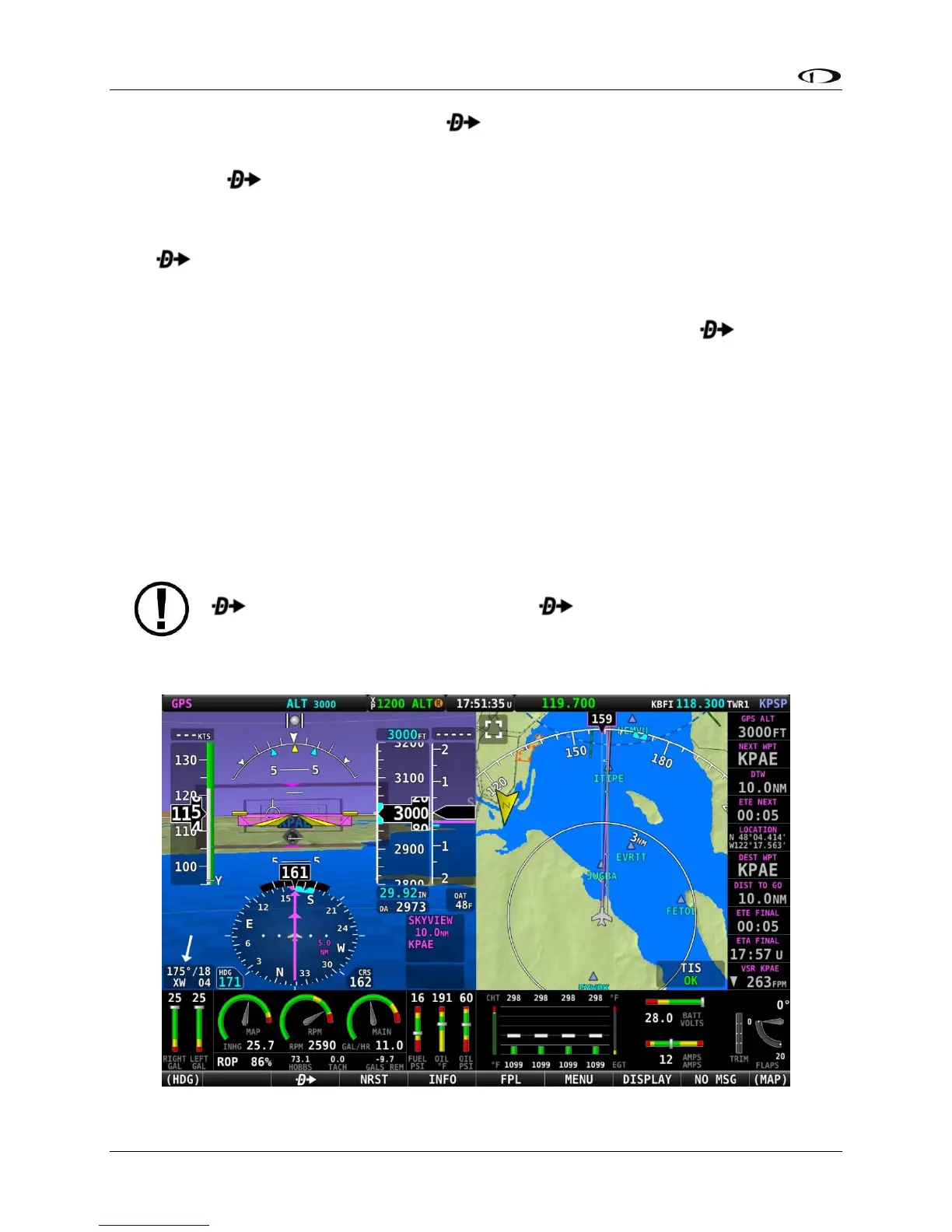
A magenta course line is created that starts from your current location and ends at the selected
waypoint. It is the shortest path between your current location and that waypoint. The PFD can
also display the course on the HSI. A PFD, HSI, and map depiction of this behavior is show in
Figure 135.
Whenever navigation to a waypoint is active the MAP > FPL > NAVIGATE button highlights to
indicate that a Flight Plan is active.
*Search by city is not available when Jeppesen aviation databases are used.




 To Next Page