MAP and VFR GPS Navigator Operation
SkyView HDX Pilot’s User Guide – Revision B 5-45
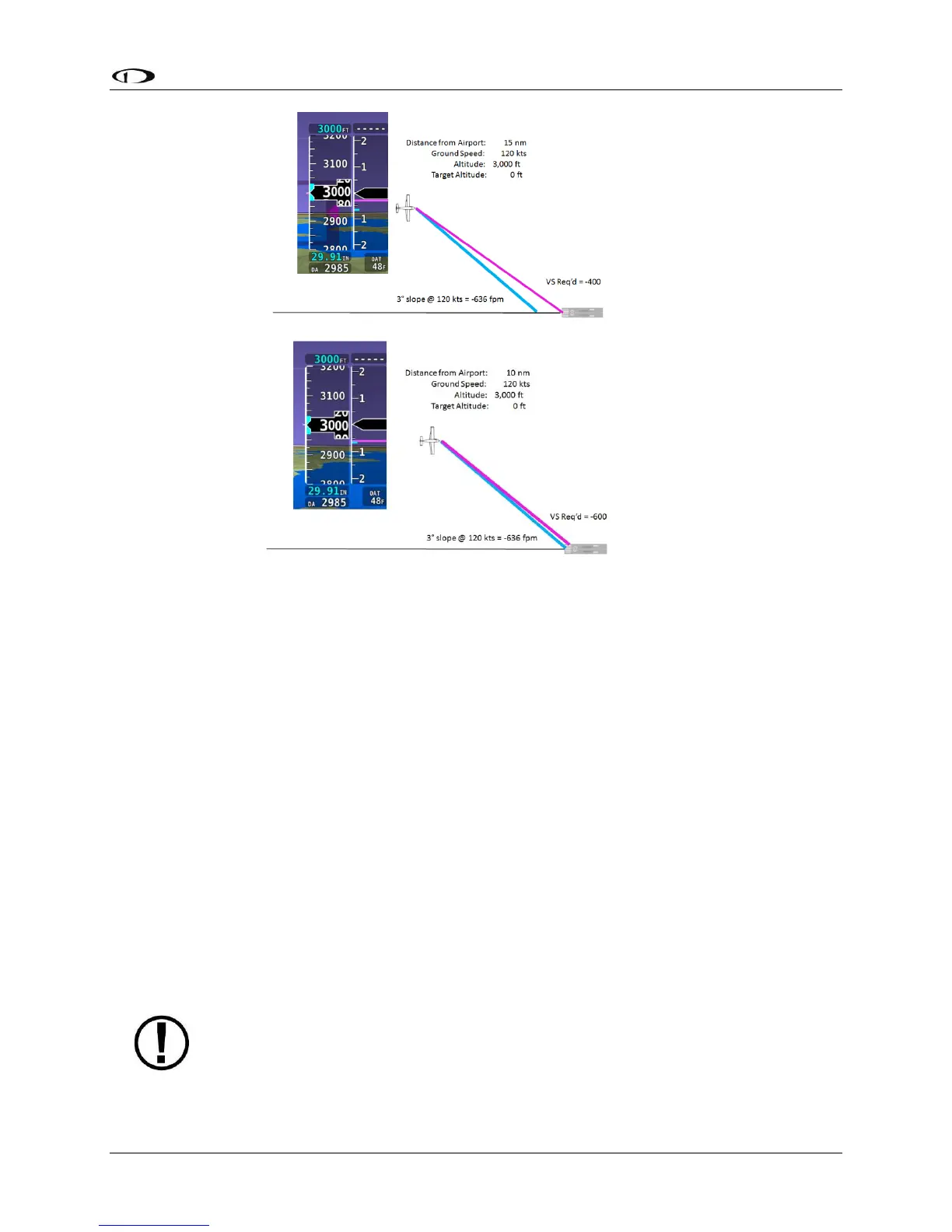
Figure 144
Figure 145
In the final figure in the sequence, the aircraft is moments from intercepting the calculated
descent path, indicated by the magenta line and blue tick mark nearly coinciding. If the
autopilot is holding altitude and armed in the VNAV mode, it would sequence to VNAV and
commence a descent along the calculated path as a vertical speed matching the two indicators.
To enable SkyView HDX’s Flight Plan VNAV capability, prior to flight go to MAP SETUP > VS
REQ’D OPTIONS and enter your desired VNAV parameters (press-and-hold Buttons 7+8, then
selecting MAP SETUP > VS REQ’D OPTIONS).
Displaying Flight Plans from External Navigation Devices on the Map
When a compatible external GPS navigator is installed, press FPL (Button 5) on the Main Menu
to open the Flight Plan window and menu. The currently active Flight Plan is displayed. Push-
and-hold the knob while rotating to move the blue secondary cursor left or right to display each
available flight plan sources in the window. The flight plan currently being displayed on the Map
is designated by the magenta label “MAP SRC” above the flight plan’s tab. To make the selected
flight plan the source for map source, To display the selected flight plan on SkyView’s moving
map, press the FPL MENU button, and select “SHOW [GPS NAME] FPL ON MAP” (where [GPS
NAME] is the display name you’ve assigned your external navigator). Note that changing the
Flight Plan source on the Map page does not change the HSI source on the PFD.
With recent software updates, Garmin disabled the ability for GNS and GTN series
avionics to accept changes from non-Garmin equipment. Thus, you cannot edit the
waypoints of external flight plans from SkyView. Once you make a change on the





 To Next Page