MAP and VFR GPS Navigator Operation
SkyView HDX Pilot’s User Guide – Revision B 5-65
Editing and Deleting Waypoints
Waypoints may be either edited or deleted by highlighting the intended waypoint in the USER
WAYPOINTS list, then selecting the appropriately labeled button at the bottom of the USER
WAYPOINTS page.
An alternative method for editing a waypoint is to highlight the intended waypoint in the list,
then push the CURSOR knob to open the EDIT WAYPOINT page.
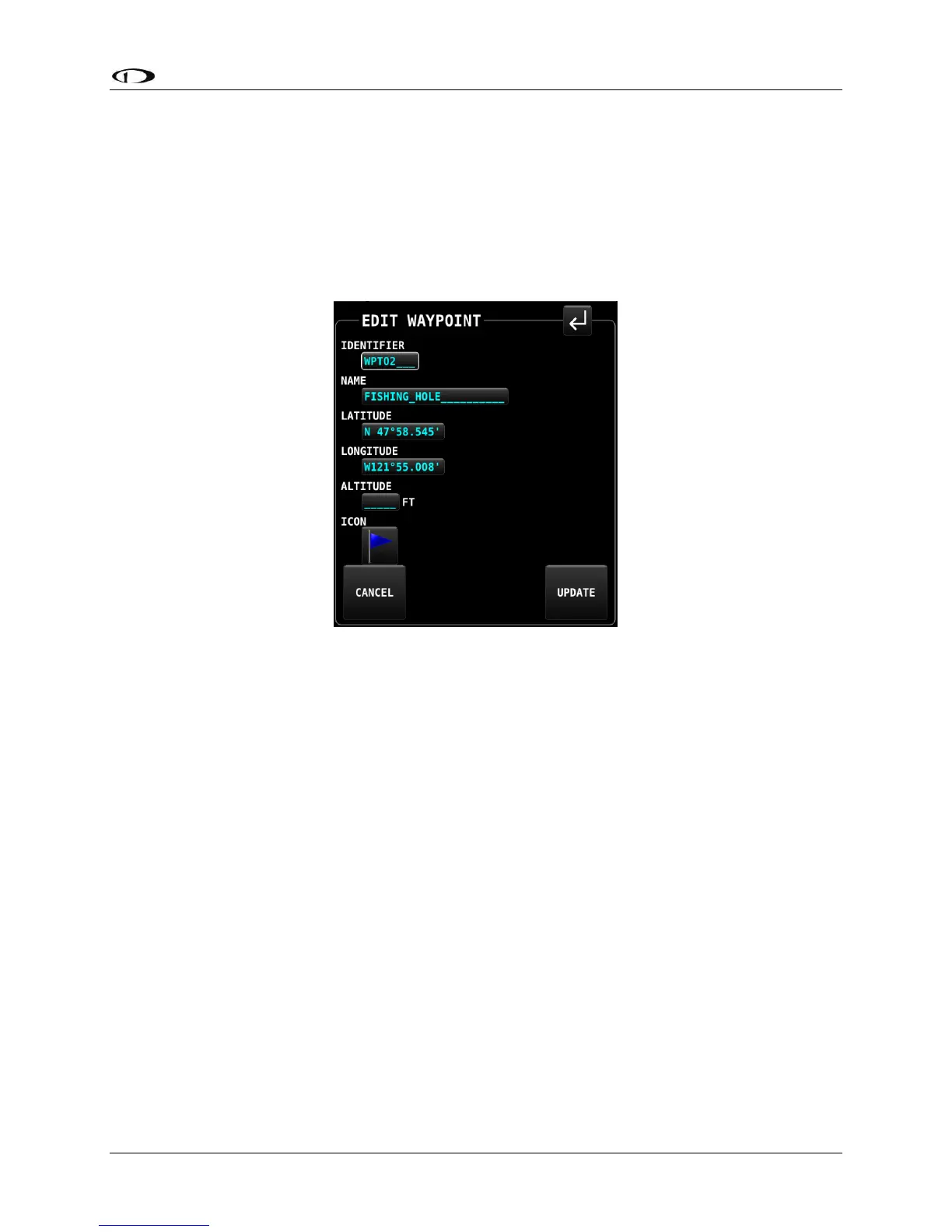
When the EDIT action has been selected, the EDIT WAY POINT page will appear.
Figure 171 – EDIT WAYPOINT page
This page offers two alternative actions when editing is complete:
• Save the edits and return to the USER WAYPOINT page by selecting either the RETURN
icon at the top left corner of the page, or the UPDATE button at the bottom of the page.
• Discard any edits without changing the waypoint’s data by selecting the CANCEL button
at the bottom of the page.
User Waypoints CSV (comma separated values) File Format
An easy way to obtain a valid CSV file to edit is to simply create a user waypoint using your
SkyView display and then export it. You can then edit it to add additional waypoints using a text
editor. You can also use a spreadsheet program such as Excel to edit the file. If you use a
spreadsheet, make sure that you save the file in the CSV format and not in a proprietary
spreadsheet format.
The CSV file format used to store user waypoints contains one waypoint per line. Each waypoint
(line) is separated into fields by commas in the following manner:




 To Next Page