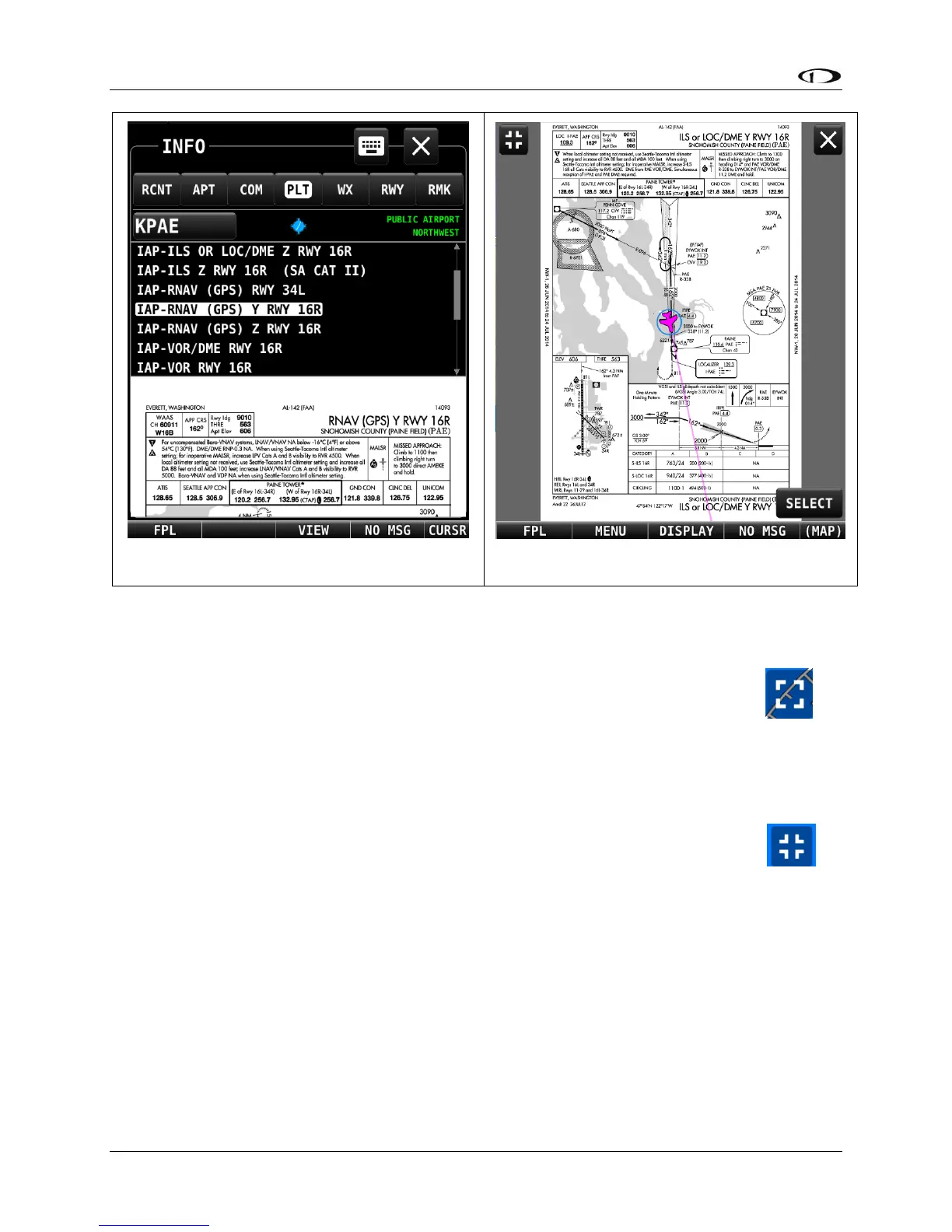
Map and Chart 50% Window – Maximize/Minimize Controls
When the MAP is presented as the 50% split content, you may wish to maximize the
area dedicated to the map for better situational awareness. Located in the upper-
left corner of the MAP you will find a “Maximize” icon, shown at right
When the Maximize icon is touched, the MAP will expand to the full 50%
window of the display, removing from view the MAP INFO COLUMN (if selected
ON) and the ENGINE BOTTOM BAND (non-primary side, if selected ON).
While the MAP is maximized, the icon in the upper left hand corner will change to
the image at right. This is the “Minimize” icon. To restore the MAP INFO
COLUMN and/or the hidden portion of the ENGINE BOTTOM BAND (if they are
selected ON) to view, touch the Minimize icon.
Examples of Map in the maximized and minimized views are shown in the two
figures below:




 To Next Page