MAP and VFR GPS Navigator Operation
SkyView HDX Pilot’s User Guide – Revision B 5-39
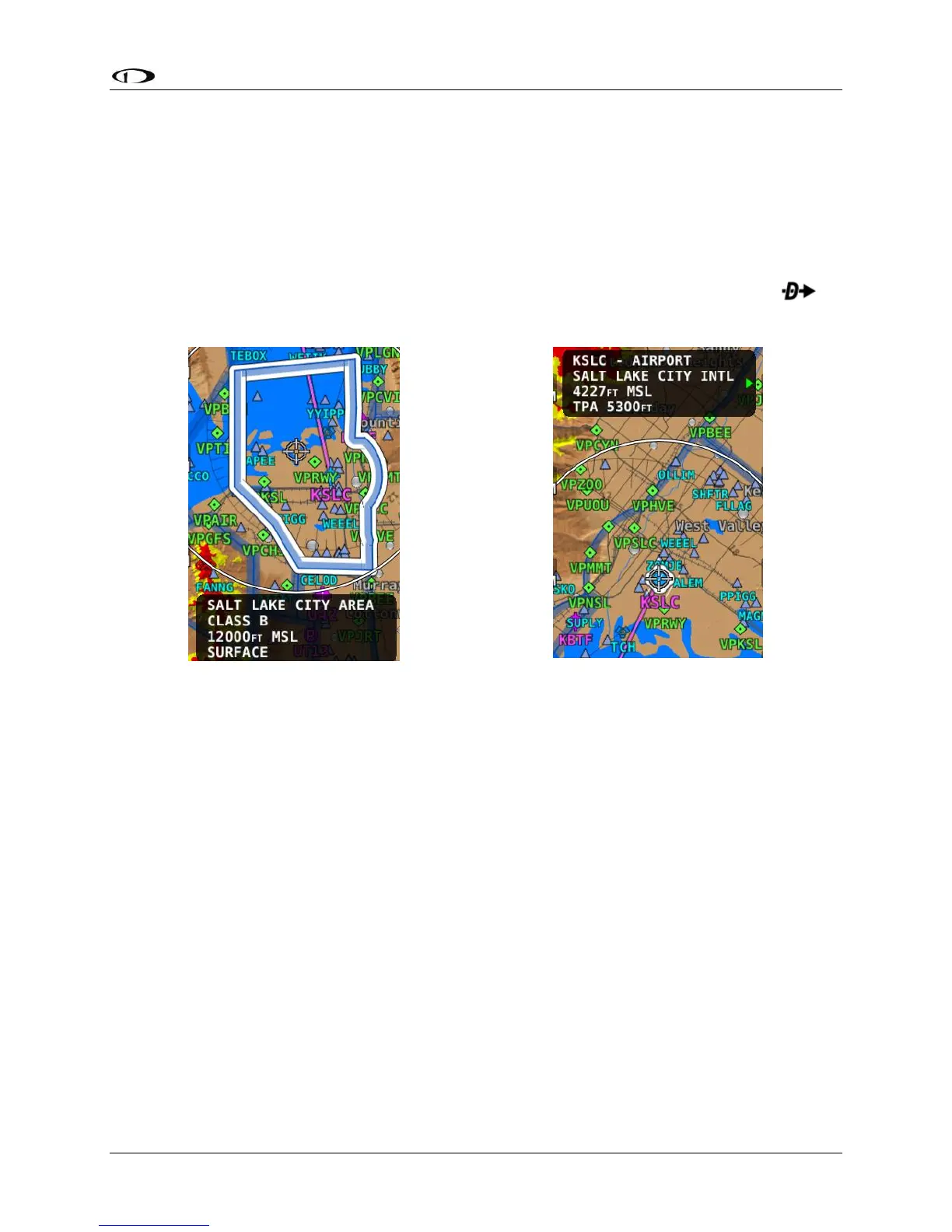
The presence of multiple selectable items under the Map Pointer is indicated by a green arrow
in the information pop-up text box. This frequently occurs, as airports often have surrounding
airspaces or collocated navaids. To choose between the available items, turn the knob. Note
that this disables the normal range/zooming function of the knob, unless there is only one item
selected. To re-enable the ranging function of the knob you must touch somewhere else on the
map where there is no more than a single item stack or no selectable item. Then the knob will
resume its map scaling function.
When a navigable item such as an airport, waypoint, or navaid is selected, the INFO and
button can be used just like they can in the menu system.
Flight Planning
A Flight Plan consists of a sequence of one or more waypoints. A maximum of 99 waypoints are
supported. The great circle track between each waypoint defines the individual legs of the
Flight Plan. When a Flight Plan is active and shown on the Map, the current leg is magenta in
color. Future legs are white.
HSI Guidance is provided to the active leg of an active Flight Plan on the PFD when SKYVIEW is
selected as the navigation source or when the flight plan from an ARINC GPS such as the 430 is
active and that GPS is selected as the navigation source.
Waypoints may be entered into the current Flight Plan by direct entry from the Flight Plan
Menu, by pressing ADD->FPL from the Nearest or Info windows, by using the MENU > USER
WAYPOINTS page, or by importing a Flight Plan file from a USB flash drive in GPX format.
Operations are performed on the flight plan via the FPL MENU. Flight Plans from external ARINC
and Aviation serial format GPS navigators can be displayed in SkyView HDX’s Flight Plan window
and on SkyView HDX’s moving map, but all waypoint editing must be done on the source GPS.




 To Next Page